View Messages in Resource Planning
Antecedentes
Al administrar su recurso, puede enviar mensajes para proporcionar información útil, como actualizaciones sobre el clima, horarios o información sobre ciertos títulos de trabajo.
Temas a considerar
Steps
Navigate to the company's Resource Planning tool.
Click the Communications (Beta) tab.
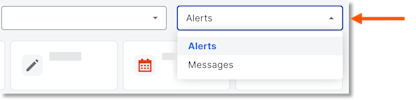
Click Messages from the drop-down menu.
View Messages.
View Messages
Select a view to see messages based on status:
Inbox
Sent
Starred
Scheduled
Drafts
View Details
In the 'Date/Time Sent' column, select the envelope
 icon for the message to view the details.
Column Order
Click and hold the column header. Then move it to the desired location using a drag and drop operation.
Pinning and Sizing
Click the vertical ellipsis
 for the column. Then select from the following options:
Pin Column: Click to pin the column to a specific side or remove the pin.
Pin Left
Pin Right
No Pin
Autosize This Column: Click to automatically adjust the size of this column.
Autosize All Columns: Click to automatically adjust the size of all column.
Reset Columns: Click to reset the columns to the default settings.
See Also
Loading related articles...