View Messages in Resource Planning
Background
When managing your resource, you can send messages to provide helpful information such as updates to weather, schedules, or information about certain job titles.
Things to Consider
Steps
Navigate to the company's Resource Planning tool.
Click the Communications (Beta) tab.
Click Messages from the drop-down menu.
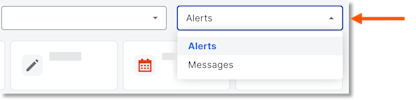
View Messages.
View Messages
Select a view to see messages based on status:
Inbox
Sent
Starred
Scheduled
Drafts
View Details
In the 'Date/Time Sent' column, select the envelope
 icon for the message to view the details.
Column Order
Click and hold the column header. Then move it to the desired location using a drag and drop operation.
Pinning and Sizing
Click the vertical ellipsis
 for the column. Then select from the following options:
Pin Column: Click to pin the column to a specific side or remove the pin.
Pin Left
Pin Right
No Pin
Autosize This Column: Click to automatically adjust the size of this column.
Autosize All Columns: Click to automatically adjust the size of all column.
Reset Columns: Click to reset the columns to the default settings.
See Also
Loading related articles...