Comment exporter les données de prévisions des coûts d’un budget Procore vers le système ERP ?
Cliquez sur les connecteurs ERP ci-dessous pour voir comment exporter les données de prévision des coûts d’un budget Procore vers votre système ERP.
Sage 300 CRE®
Pour les entreprises qui ont intégré Procore avec Sage 300 CRE®, vous pouvez importer vos données de coûts réels en Sage 300 CRE® temps réel depuis dans l’outil Budget de Procore. Cela permet aux équipes de projet d’exploiter leurs Sage 300 CRE® données de coûts avec la valeur « Coût estimé » d’un budget Procore pour calculer les valeurs « Coût estimé à l’achèvement » et « Prévision jusqu’à l’achèvement » du budget. Cette fonctionnalité offre à l’équipe comptable de votre projet l’avantage gratuit de pouvoir accéder aux valeurs « Coût final estimé » et « Prévision jusqu’à l’achèvement » de Procore dans Sage 300 CRE®.
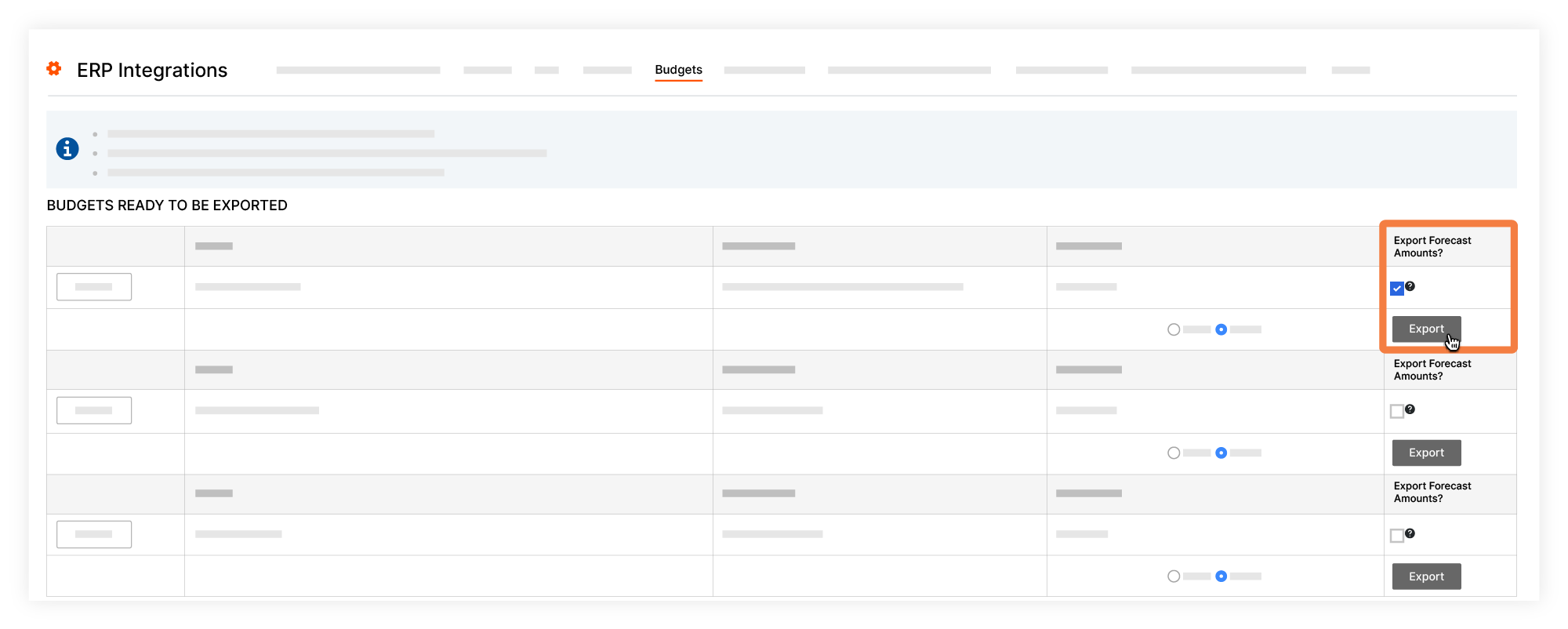
Lorsque la fonctionnalité est activée et qu’un Dans Procore, un approbateur de comptabilité est une personne ayant l'autorité d'accepter et de rejeter les données Procore pour l'exportation vers un système ERP intégré. Les approbateurs de comptabilité peuvent dissocier plusieurs types d'éléments, tels que les engagements, les ordres de service de l'engagement, les ordres de service au contrat général et les factures de sous-traitants, qui ont été synchronisés entre Procore et un système ERP intégré. Voir Quelles intégrations ERP sont prises en charge par Procore ?
Quels champs de données sont exportés ?
Le tableau ci-dessous détaille les champs source Procore et les Sage 300 CRE® champs de destination pour le processus d’exportation :
Procore Budget | Exporte les données de Procore vers Sage 300 CRE® | Sage 300 CRE® chantier |
|---|---|---|
Coût estimatif à l’achèvement 1 |
| Divers Catégorie Montant 1 |
Prévisions jusqu’à l’achèvement |
| Divers Catégorie Montant 2 |

1 Il s’agit d’une colonne calculée dans une vue du budget. Veuillez noter que les exportations ne sont prises en charge que lorsque le nom de la colonne dans la vue du budget est « Coût estimé à l’achèvement ». Pour en savoir plus sur la configuration de vues du budget, voir Configurer une nouvelle vue du budget.
Quelles sont les conditions requises ?
Si vous êtes un client Procore + Sage 300 CRE® , contactez le support technique pour activer cette fonctionnalité. Les exigences sont énumérées ci-dessous :
L’outil Budget doit être ajouté au menu Outils de projet de Procore.
Le compte Procore de l’entreprise doit être intégré avec Sage 300 CRE®.
Les données importées et la valeur « Coût final estimé » dans Procore peuvent ensuite utiliser les options « Prévision jusqu’à l’achèvement » de Procore pour calculer les valeurs à exporter vers le système intégré Sage 300 CRE® . Pour en savoir plus sur le fonctionnement de la prévision des coûts dans Procore, voir Utiliser la fonction « Prévision jusqu’à l’achèvement ».
Lors de l’exportation d’informations de prévision pour un projet, TOUTES les vues du budget qui incluent des colonnes source ERP sur vos projets intégrés doivent être configurées pour utiliser les mêmes calculs que ceux présentés ci-dessus pour les colonnes « Prévision jusqu’à l’achèvement » et « Coût estimé à l’achèvement ». Si ce n’est pas le cas, il est possible que l’exportation envoie des valeurs incorrectes ou inattendues à Sage 300 CRE®. Pour en savoir plus sur la configuration de vues du budget, voir Configurer une nouvelle vue du budget.
Trimble® Vista
Pour les entreprises qui ont intégré Procore avec Trimble® Vista, vous pouvez importer vos données de coûts réels en Trimble® Vista temps réel depuis dans l’outil Budget de Procore. Cela permet aux équipes de projet d’exploiter leurs Trimble® Vista données de coûts avec la valeur « Coût estimé » d’un budget Procore pour calculer les valeurs « Coût estimé à l’achèvement » et « Prévision jusqu’à l’achèvement » du budget. Cette possibilité offre à l’équipe comptable de votre projet l’avantage gratuit de pouvoir accéder aux valeurs « Coût final estimé » de Procore dans Trimble® Vista.
Pour activer les prévisions/projections :
Accédez à l’outil Budget du projet
Cliquez sur l’icône des paramètres
 .
.Modifiez les paramètres suivants :
Vue du budget ERP par défaut : Budget détaillé des coûts du projet ERP
Colonne Coût estimé désigné à l’achèvement : Coût estimé à l’achèvement
Quels champs de données sont exportés ?
Une exportation de prévisions crée une projection de coût JC dans Trimble® Vista.
PROCORE | Exporte les données de Procore vers Trimble® Vista | Importe les données de Trimble® Vista vers Procore | Trimble® Vista |
|---|---|---|---|
ID de la tâche Vista |
| ID du poste | |
Code de coût |
| Phase | |
Type de coût |
| Type de coût | |
Coût estimé à l’achèvement |
| Coût prévu (ProjFinalCost) |
*Vous pouvez également ajouter manuellement une date de lot dans l’écran d’exportation Procore qui sera exportée vers le mois de lot dans Vista pour cette transaction.
Quelles sont les conditions requises ?
L’outil Budget doit être ajouté au menu Outils de projet de Procore.
Le compte Procore de l’entreprise doit être intégré avec Trimble® Vista.
Les Trimble® Vista données de coûts de l’estimation initiale doivent d’abord être synchronisées avec l’outil Budget de Procore.
Les données importées et la valeur « Coût final estimé » dans Procore peuvent ensuite utiliser les options « Prévision jusqu’à l’achèvement » de Procore pour calculer les valeurs à exporter vers le système intégré Trimble® Vista .
Lors de l’exportation d’informations de prévision pour un projet, TOUTES les vues du budget qui incluent des colonnes source ERP sur vos projets intégrés doivent être configurées pour utiliser les mêmes calculs que ceux présentés ci-dessus pour les colonnes « Prévision jusqu’à l’achèvement » et « Coût estimé à l’achèvement ». Si ce n’est pas le cas, il est possible que l’exportation envoie des valeurs incorrectes ou inattendues à Trimble® Vista. Pour en savoir plus sur la configuration de vues du budget, voir Configurer une nouvelle vue du budget.
CMiC
Pour les entreprises qui ont intégré Procore avec CMiC, vous pouvez importer vos données de coûts réels en CMiC temps réel depuis dans l’outil Budget de Procore. Cela permet aux équipes de projet d’exploiter leurs CMiC données de coûts avec la valeur « Coût estimé » d’un budget Procore pour calculer la valeur « Coût estimé à l’achèvement » du budget. Cette capacité d’exportation offre à l’équipe comptable de votre projet l’avantage gratuit de pouvoir accéder aux valeurs du « Coût final estimé » de Procore dans CMiC.
Pour activer les prévisions/projections :
Accédez à l’outil Budget du projet
Cliquez sur l’icône des paramètres
.Modifiez les paramètres suivants :
Vue du budget ERP par défaut : Budget détaillé des coûts du projet ERP
Colonne Coût estimé désigné à l’achèvement : Coût estimé à l’achèvement
Quels champs de données sont exportés ?
Le coût estimatif à l’achèvement est exporté vers CMIC en tant que type PCI.
PROCORE | Exporte les données de Procore vers CMiC | Importe les données de CMiC vers Procore | CMiC |
|---|---|---|---|
code de coût |
| La phase | |
Type de coût |
| Type de coût | |
Coût estimatif à l’achèvement Total 1 |
| Montant total budgété | |
Tapez |
| PCI Type | |
Date d’exportation |
| Date de l’événement | |
[mois d’exportation] |
| Description |

1 Pour exporter les valeurs du coût total estimé à l’achèvement, vous devez d’abord activer la fonctionnalité.
Quelles sont les conditions requises ?
Si vous êtes un client Procore + CMiC , contactez le support technique pour activer cette fonctionnalité. Les exigences sont énumérées ci-dessous :
L’outil Budget doit être ajouté au menu Outils de projet de Procore.
Le compte Procore de l’entreprise doit être intégré avec CMiC.
S’il n’y a pas d’autres mises à jour à envoyer, vous pouvez déclencher le bouton Renvoyer au système ERP dans le budget en entrant une modification budgétaire de 0,00 USD.
Trimble Spectrum (Spectre de trimble®)
Pour les entreprises qui ont intégré Procore avec Trimble Spectrum (Spectre de trimble®), vous pouvez importer vos données de coûts réels en Trimble Spectrum (Spectre de trimble®) temps réel depuis dans l’outil Budget de Procore. Cela permet aux équipes de projet d’exploiter leurs Trimble Spectrum (Spectre de trimble®) données de coûts avec la valeur « Coût estimé » d’un budget Procore pour calculer la valeur « Coût estimé à l’achèvement » du budget. Cette capacité d’exportation offre à l’équipe comptable de votre projet l’avantage gratuit de pouvoir accéder aux valeurs du « Coût final estimé » de Procore dans Trimble Spectrum (Spectre de trimble®).
Pour activer les prévisions/projections :
Accédez à l’outil Budget du projet
Cliquez sur l’icône des paramètres
.Modifiez les paramètres suivants :
Vue du budget ERP par défaut : Budget détaillé des coûts du projet ERP
Colonne Coût estimé désigné à l’achèvement : Coût estimé à l’achèvement
Quels champs de données sont exportés ?
PROCORE | Exporte les données de Procore vers Trimble Spectrum (Spectre de trimble®) | Importe les données de Trimble Spectrum (Spectre de trimble®) vers Procore | Trimble Spectrum (Spectre de trimble®) |
|---|---|---|---|
Projet numéro 1 |
| Code d’emploi | |
Code de coût |
| Phase | |
Type de coût |
| Type de coût | |
Coût estimatif à l’achèvement 2 |
| Coût prévu |
1 Remarque d’exportation : l’ID de projet Spectrum est saisi manuellement par un approbateur de comptabilité lorsqu’un projet est exporté de Procore vers Point de vue ® Spectrum®. Cela peut ou non, selon ce que l’approbateur de comptabilité a saisi, correspondre au numéro de projet trouvé dans Procore sous l’outil Admin au niveau projet. Il est stocké en tant qu’ID de projet Spectrum (vous pouvez le consulter dans l’outil Intégrations ERP au niveau entreprise dans la section Synchronisé des projets) et est ensuite utilisé pour d’autres exportations liées au projet, telles que le coût estimé à l’achèvement. Remarque sur l’importation : si le projet est importé depuis Point de vue Spectrum®, l’ID du projet s’affiche automatiquement dans le champ Numéro du ® projet.
2 Pour exporter les valeurs de coût à l’achèvement estimé, vous devez d’abord activer la fonctionnalité.
Quelles sont les conditions requises ?
Si vous êtes un client Procore + Trimble Spectrum (Spectre de trimble®) , contactez le support technique pour activer cette fonctionnalité. Les exigences sont énumérées ci-dessous :
L’outil Budget doit être ajouté au menu Outils de projet de Procore.
Le compte Procore de l’entreprise doit être intégré avec Trimble Spectrum (Spectre de trimble®).
S’il n’y a pas d’autres mises à jour à envoyer, vous pouvez déclencher le bouton Renvoyer au système ERP dans le budget en entrant une modification budgétaire de 0,00 USD.
Voir aussi
Chargement des articles connexes...