How does Procore automatically complete amounts on an owner invoice? (Beta)

 In Beta

This page details the modernized owner invoice experience.

Vous utilisez la terminologie du maître d’ouvrage ou de l’entrepreneur spécialisé ?

Procore peut être configuré pour utiliser une terminologie spécifique aux entreprises générales, aux maîtres d’ouvrage ou aux entreprises spécialisées. Découvrez comment appliquer les options du dictionnaire.
  • To learn the differences: Show/Hide

    • This table shows the differences in tool names (bold) and terms across the point-of-view dictionaries for Project Financials.

      Entrepreneurs généraux
      Anglais (États-Unis) - Par défaut

      Propriétaire
      Anglais (Terminologie du propriétaire V2)

      Entrepreneurs spécialisés
      Anglais (terminologie des entrepreneurs spécialisés)

      Facturation

      Facturation

      Facturations proportionnelles

      Propriétaire

      Financement

      Propriétaire

      Maître d’ouvrage/Client

      Maître d’ouvrage/Client

      CG/client

      Ordre de changement au contrat principal

      Ordre de changement de financement

      Ordre de changement du contrat client

      Contrats principaux

      Financement

      Contrats clients

      Revenu

      Financement

      Revenu

      Sous-traiter

      Contrat

      Sous-traiter

      Sous-traitant

      Entrepreneur

      Sous-traitant

      Ventilation des coûts du sous-traitant (VDCS)

      Ventilation des coûts de l’entrepreneur (VDCST)

      Ventilation des coûts du sous-traitant (VDCS)

      About These Dictionaries
      • Default Setting: The 'General Contractor' dictionary is enabled by default for all accounts.

      • Availability: These alternate dictionaries in italics are available in US English only.

      How to Switch Your Dictionary

      To change your company's terminology to the Owner or Specialty Contractor dictionary, contact your company's . They will work with your Procore Point of Contact to make the change.

Answer

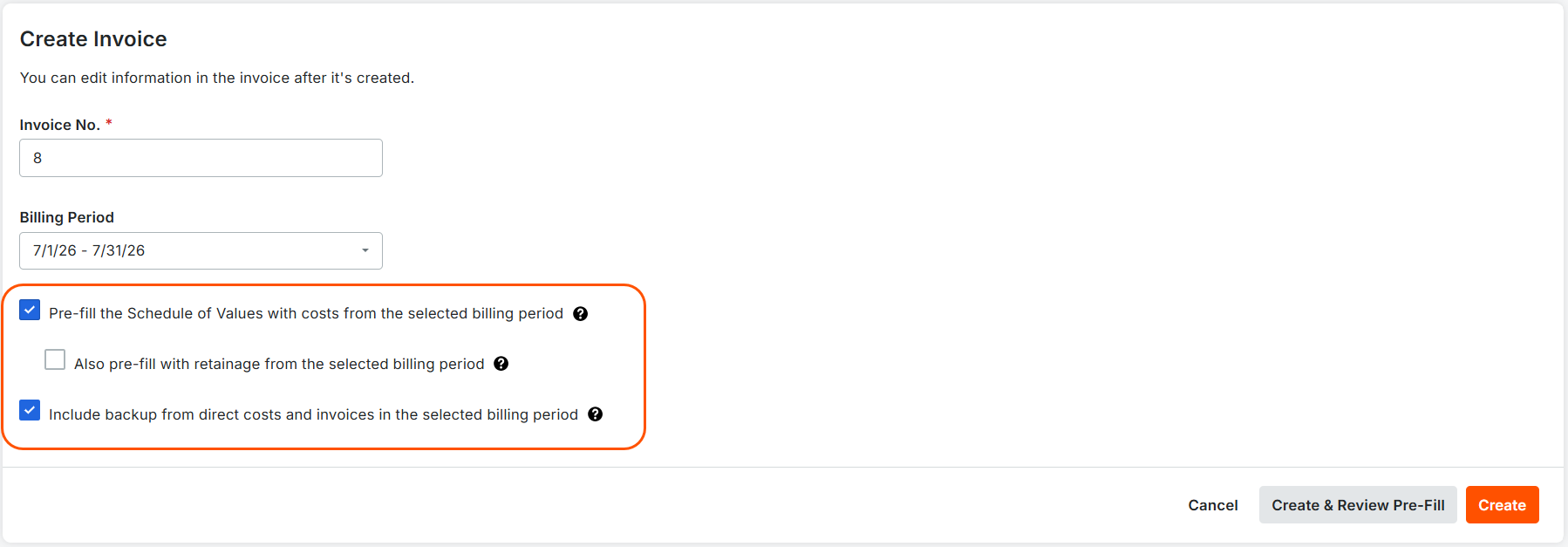
Mark one or more checkboxes to turn a prefill option ON when creating owner invoices in the Prime Contracts tool. These options allow Procore to automatically complete amounts on the owner invoice using data from eligible budget code line items on subcontractor invoices, direct costs, and commitment change orders in the approved statuses.

 Important

Prefill options are only available when creating owner invoices. Procore does not allow users to prefill invoices after clicking Create.

create-invoice-prefill-checkboxes.png

Prefill Options for Owner Invoices

This table describes the prefill options for owner invoices.

Checkbox

Mark the checkbox to turn ON and...

Remove the checkbox to turn OFF...

Populate the Schedule of Values with Costs from the Selected Billing Period

Populate the line items in the schedule of values with eligible costs from corresponding budget codes on Approved subcontractor invoices, direct costs, and commitment change orders for the same billing period as the owner invoice.

Notes:

  • Subcontractor invoices must be in the Approved, Approved as Noted, or Pending Approval status.

  • Direct costs and commitment change orders must be in the Approved status.

  • Direct costs must have a 'Received Date' in the same billing period as the owner invoice.

  • Commitment change orders will autofill to a prime contract change order if they are linked by a change event. If the commitment change order is not connected to a prime contract change order via a change event, it will autofill into the SOV with a matching budget code (if there is one). If there isn’t an SOV line that matches the budget code, the commitment change order will not prefill.

  • What is meant by a matching budget code?
    A direct cost will prefill to the prime SOV only when:

    • All segments for the budget code, including cost code and cost type, match exactly.
      OR

    • The prime SOV line item is using a division code and the cost uses a cost code that is part of that division. For example, a prime SOV line item using 01.O will prefill all costs from 01-100.S, 01-500.L, or 01-200-20.O.

Procore does NOT populate the schedule of values with costs. Users must manually enter the schedule of values data.

Also Populate with Retainage from the Selected Billing Period

Only available when Populate the Schedule of Values with Costs from the Selected Billing Period is ON.

Populates the the Work Retainage this Period ($), Materials Retainage ($), and Total Retainage Released ($) columns in the schedule of values with calculated retainage values from eligible subcontractor invoices in the Approved status.

Note:

  • Procore only calculates retainage values when corresponding retainage values from eligible subcontractor invoices are non-zero dollar amounts.

Procore does NOT populate the schedule with calculated retainage values from eligible subcontractor invoices in the Approved status.

Include Backup from Direct Costs and Invoices in the Selected Billing Period

Populates the invoice's Attachments card with these sections: Uploaded Attachments, Attachments from Subcontractor Invoices, and Attachments from Direct Costs. It also:

  • Automatically adds any existing attachments from subcontractor invoices and direct costs to the appropriate section.

  • Includes the Uploaded Attachments card for adding attachments.

Procore does NOT include an invoice backup. Instead, the invoice includes the Uploaded Attachments card to add attachments.

See Also

Loading related articles...