Avis important pour les clients intégrés au système ERP :
L’adresse e-mail erpsupport@procore.com sera retirée le 8 avril 2026. Nous vous recommandons d’utiliser notre formulaire Web, notre téléphone ou notre chat améliorés pour une assistance plus rapide sur les nouvelles demandes.
This website has not been fully launched in your preferred locale yet
The only operational page on the V2 Support Site in your preferred locale is the video library page. The full website launch is coming soon.
Looking to find any other content? Return to the V1 Support Site.
Assign Early Pay Programs to Procore Projects in Project Controls
Manage Early Pay Program Eligibility for Beneficiaries
Invite Payees to Self-Enroll in Early Pay Programs
Track Early Pay Program Due Dates on Invoices in Payment Details
Track Early Pay Program Due Dates in Payments
View the Change History of an Early Pay Program
Deactivate Early Pay Programs
Manage Early Pay Programs in the Payments Tool
With Procore Pay, an 'Early Pay Programs' tab is available in the Company level Payments tool. Payment Admins can use the controls in this tab to:
Create and manage Early Pay Programs. Set the fee and timeline for early payments. This includes setting each program's 'Fees', 'Due Dates,' and 'Status' (Active or Inactive).
Assign Early Pay Programs to Projects. Create as many Early Pay Programs as needed and assign them to a Procore project. Each project can have one (1) program assigned.
Switch, Remove, or Deactivate Early Pay Programs. Switch programs offered on projects and remove Early Pay Programs from projects. Programs can also be deactivated at any time.
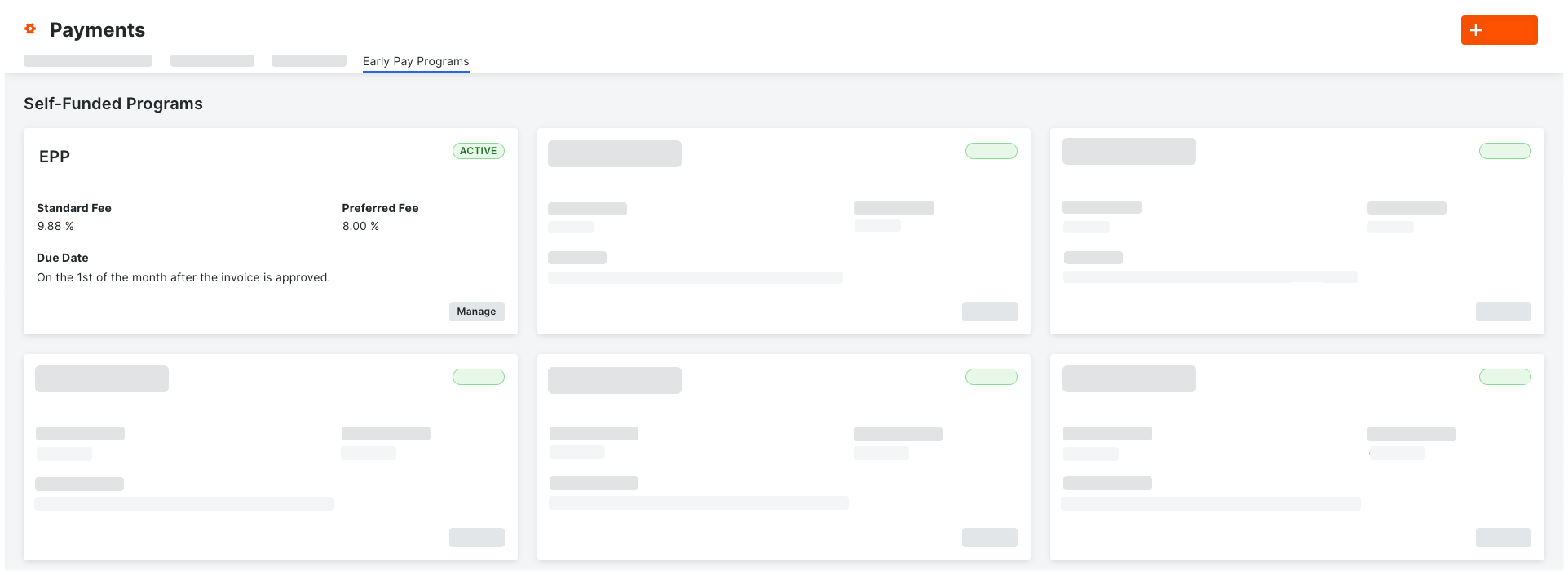
This is an example of the Early Pay Programs tab in Procore Pay's Company level Payments tool.
Create Self-Funded Early Pay Programs
A self-funded program lets a general contractor use their capital to fund an early pay program to offer to specialty contractors. When creating a program:
Choose which projects offer self-funded early payment terms.
Establish standard and preferred rates to offer to eligible payees.
Control the fees and timeline for early invoice payments.
Once offered, program fees and terms cannot be modified. To change them, deactivate a program and create a new one.
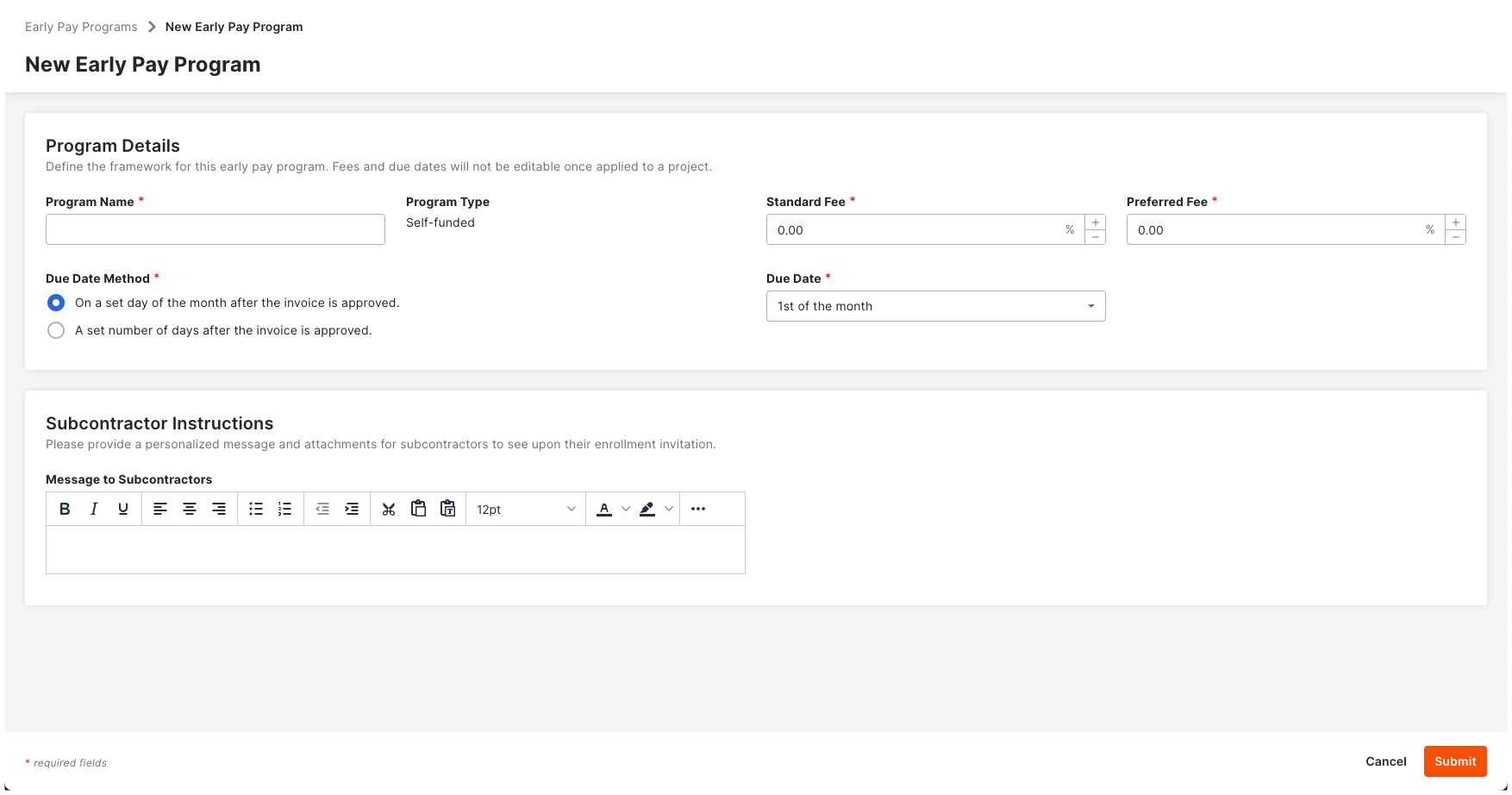
This is an example of the New Early Pay Program page for creating a program in the Payments tool.
Offer Standard & Preferred Fees to Payees
To offer an Early Pay Program to payees, Payors can:
Classify payees and offer the Standard or Preferred fee. Offer two (2) fees to payees: Standard or Preferred. To apply different fees to different payees, classify them as 'Eligible - Standard Fee' or 'Eligible - Preferred Fee'.
Exclude select payees from Early Pay Program participation. Exclude payees from participating in a program by classifying payees as 'Ineligible'. This is useful for first-time trade partners or partners with performance issues.
Set due dates for early payments. Once invoices are approved for payment, pay them on a set day of the month or a set number of days.
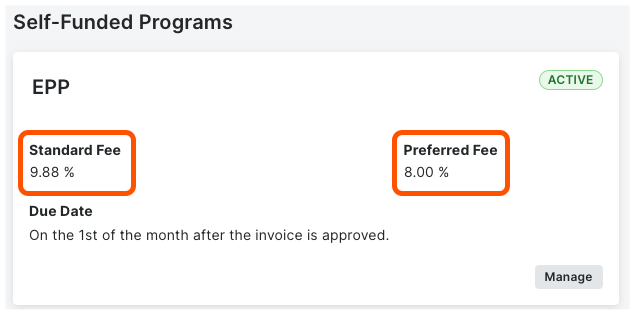
This is an example of a program card in the Early Pay Programs tab of the Payments tool.
Assign Early Pay Programs to Procore Projects in Project Controls
Assign an Early Pay Program to a project when Procore Pay is enabled in Procore. Payment Admins can:
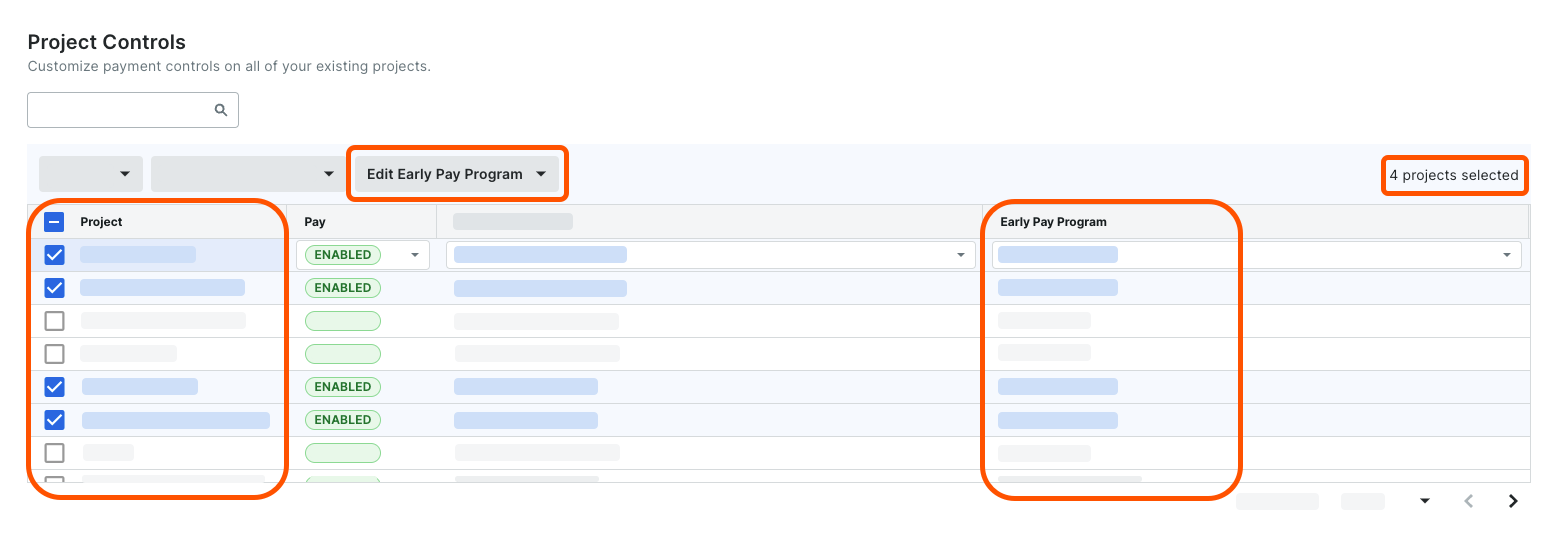
Assign an Early Pay Program to one (1) or multiple Pay-enabled projects. Use the bulk select option in the Project Controls page of the Payments tool to assign programs to projects.
Change assignments for one (1) or multiple Pay-enabled projects. Stop offering one program and transition to a new program. You can also choose the 'No Program' option.
Remove assignments for one (1) or multiple Pay-enabled projects. Remove all participants from a program to stop applying fees to unpaid invoices.
This is an example of the Early Pay Program options in the Project Controls page of the Payments tool.
Manage Early Pay Program Eligibility for Beneficiaries
Once Early Pay Programs is enabled, the Early Pay Program Eligibility column appears in the Beneficiaries tab of the Payments tool. To offer payees different fees, payors classify their payees as follows:
Eligible - Standard Fee. Indicates the payee is eligible for participation with the standard fee.
Eligible - Preferred Fee. Indicates the payee is eligible for participation with the preferred fee.
Ineligible. Indicates the payee is not eligible for participation.
This is an example of the Early Pay Program Eligibility drop-down list in the Beneficiaries tab of the Payments tool.
Invite Payees to Self-Enroll in Early Pay Programs
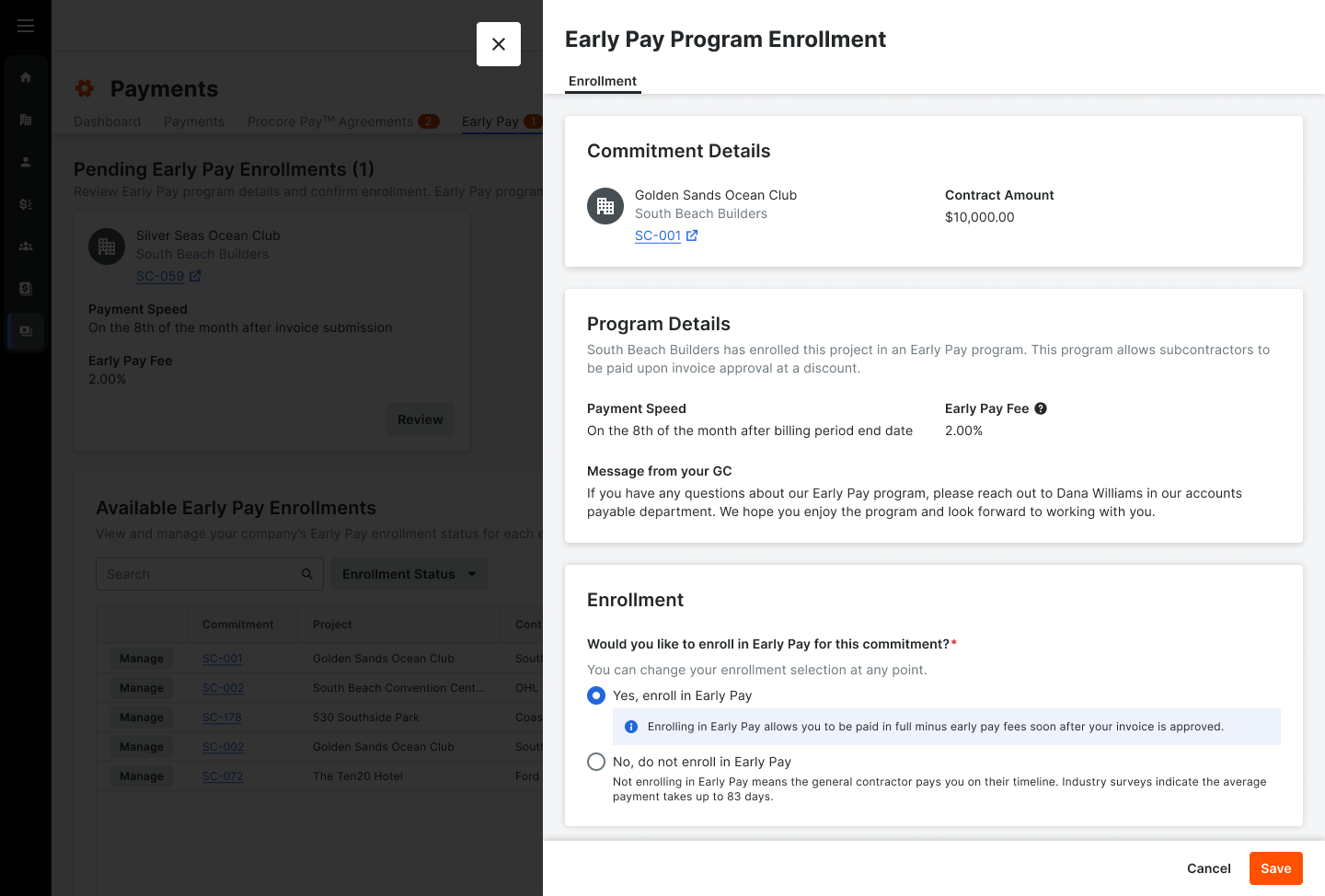
Eligible payees who provide goods or services can opt in and out of a project's Early Pay Program. Offering programs on a project, instead of a single invoice, provides collaborators with greater financial insights when forecasting projects.
Payees can accept or decline early invoice payments for a commitment on their Procore projects.
Payors can classify payees as Standard, Preferred, or Excluded to control program participation, offer different fees, or exclude payees.
This is an example of the Early Pay Enrollment page in the Payments tool.
Track Early Pay Due Dates on Invoices in Payment Details
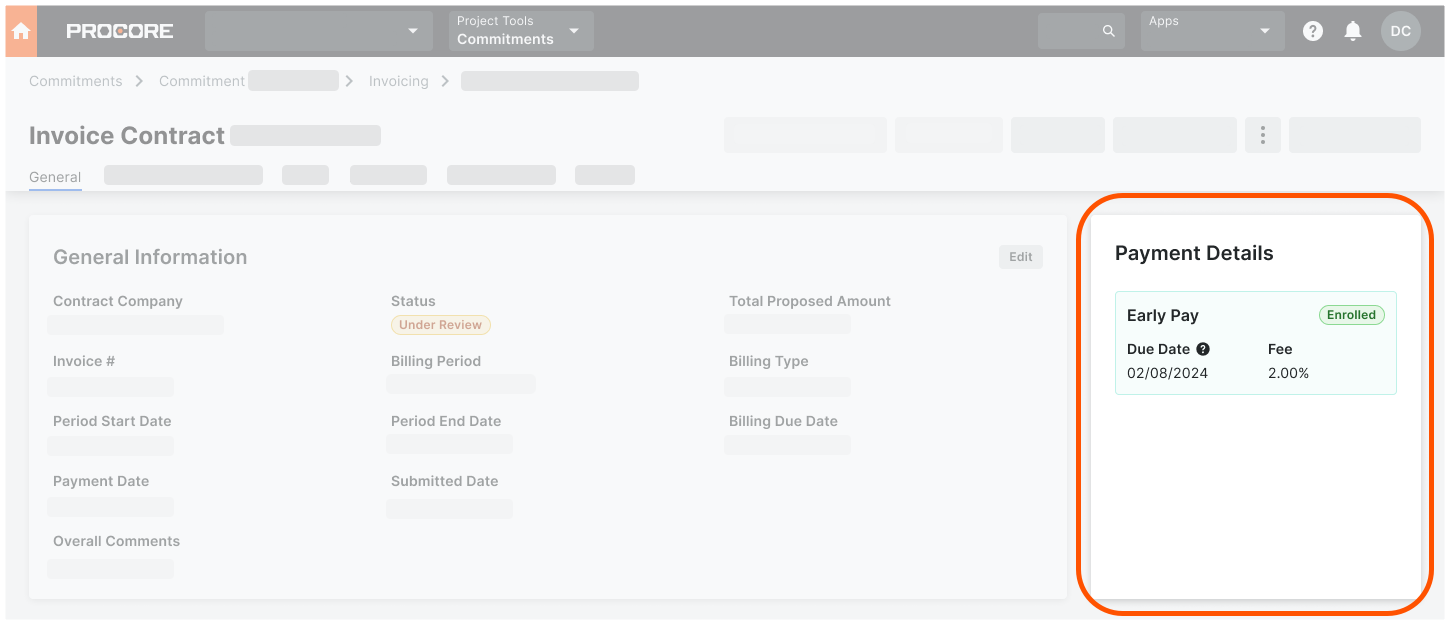
Once a specialty contractor enrolls in a program, invoice administrators can use Procore's Invoice Management tools to track Early Pay Program status, fees, and due dates using the Payment Details card on a subcontractor invoice. This card is only visible to users who can create, edit, and review subcontractor invoices for a payor.
This is an example of the Payment Details card in the General tab of a subcontractor invoice.
Track Early Pay Due Dates in Payments
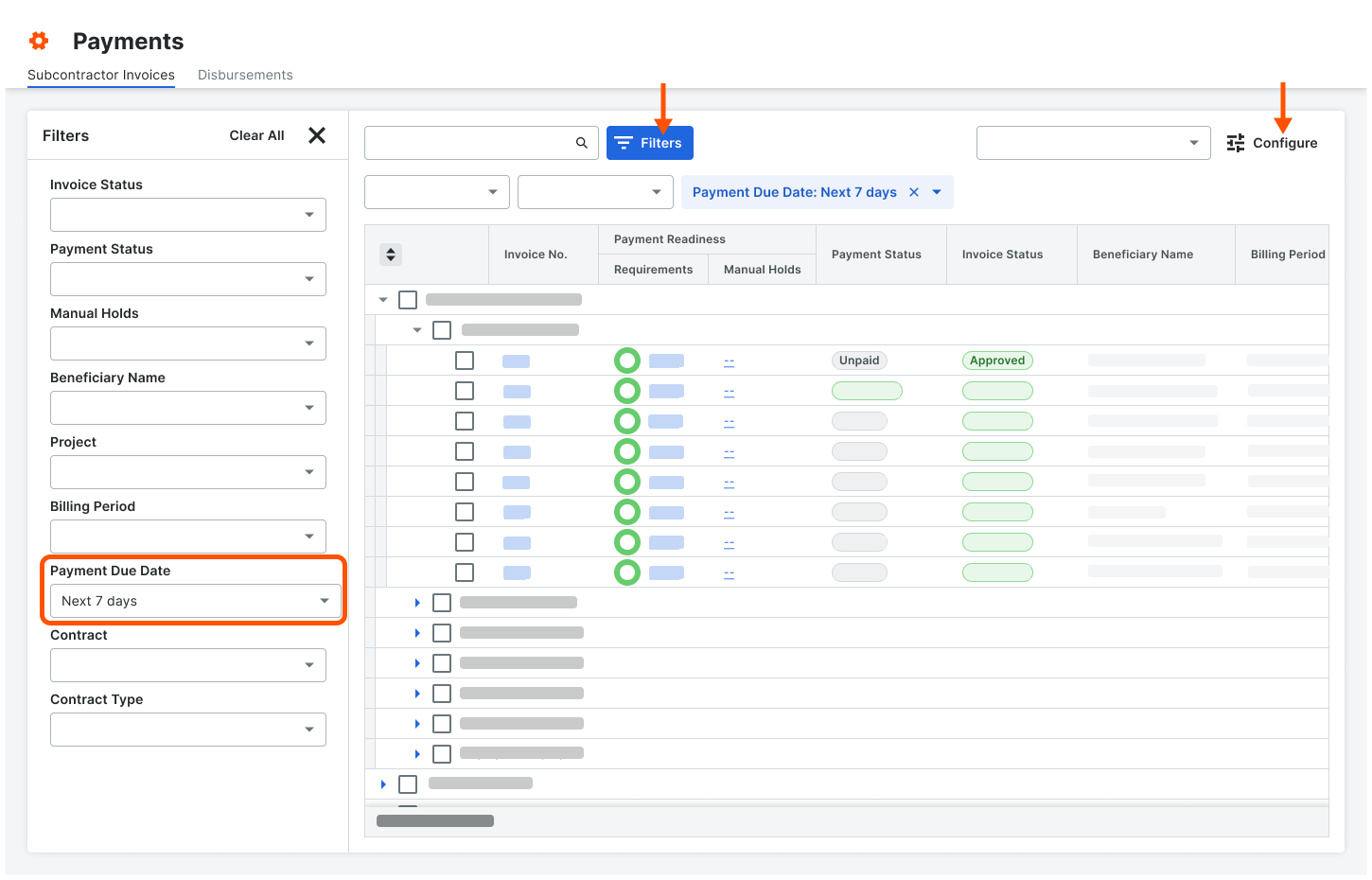
Payments Admins and Payments Disbursers can track Early Pay Due Dates in the Payments tool in the Subcontractor Invoices tab. Click the Configure button to open the Filters pane or click the Filters button apply these new filter options to the tab: OverdueToday, Next 7 Days, or a Custom date range.
This is an example of the Filters options in the Subcontractor Invoices tab of the Payments tool.
View the Change History of an Early Pay Program
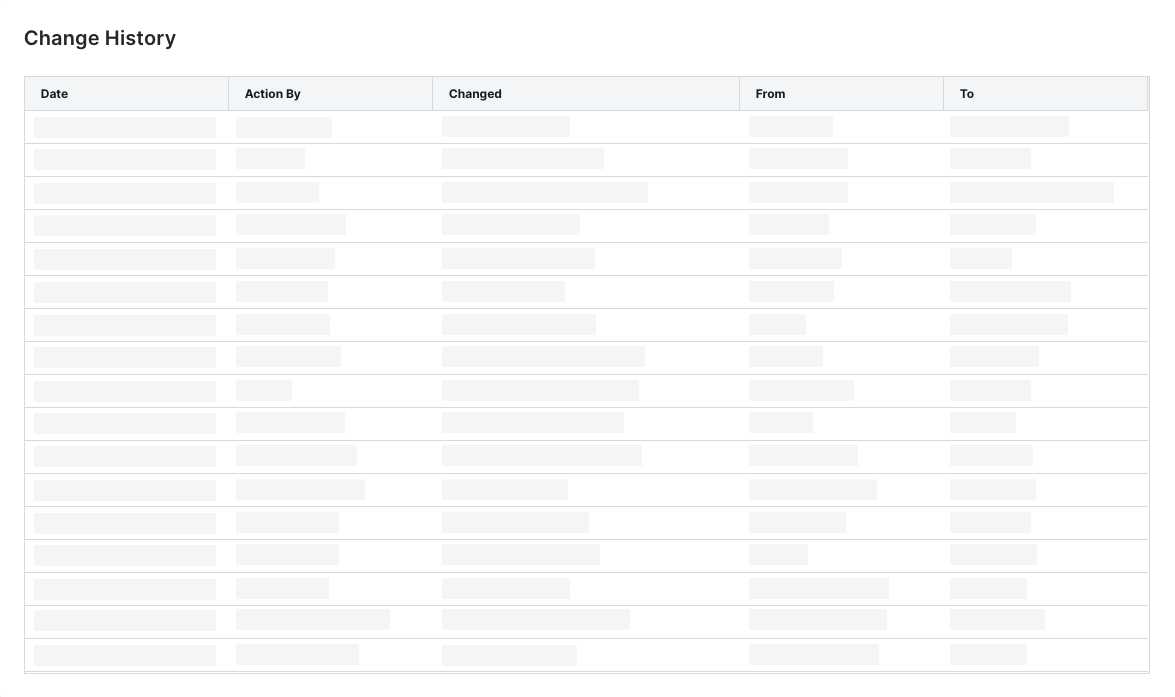
A table on the Change History tab on a program logs the program's changes to an Early Pay Program. A record is added when a user adds, updates, assigns, deactivates, or removes a program.
This is an example of the Change History tab in an Early Pay Program card in the Payments tool.
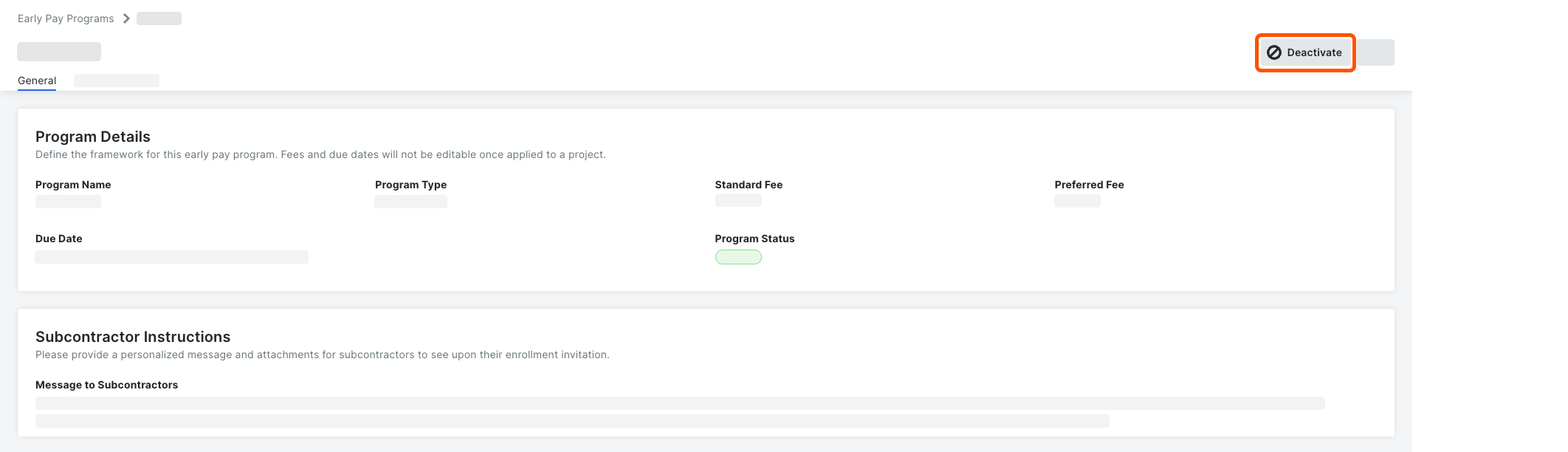
Deactivate Early Pay Programs
When deactivating a program, Procore Pay removes all program participants. In addition, Procore projects connected to the program are also disconnected, so the program's fees are no longer applied to subsequent invoice payments. When deactivating a program to offer a new one, payees must enroll in that new program.