Escalier
Étape 1 : créer une nouvelle vue du budget
Étape 2 : ajouter les colonnes recommandées
Pas. 3 : (facultatif) masquer les colonnes vides inutilisées de la vue du budget
Étape 4 : assigner la vue du budget à un projet Procore
Étape 1 : créer une nouvelle vue du budget
Accédez à l’outil Admin de l’entreprise.
Sous Paramètres des outils, cliquez sur Budget.
Cliquez sur Configurer une nouvelle vue du budget.
Sous Vues standard, sélectionnez Coût de productivité du travail Procore.
Cliquez sur Créer.
Nommez votre vue comme suit :
Nom de l’affichage. Saisissez un nom pour votre nouvelle vue. Dans cet exemple, nous l’avons nommé : Productivité de la main-d’œuvre en temps réel
Voir la description. Saisissez une description pour votre vue. Dans cet exemple, nous avons saisi : Vue recommandée pour la productivité de la main-d’œuvre en temps réel
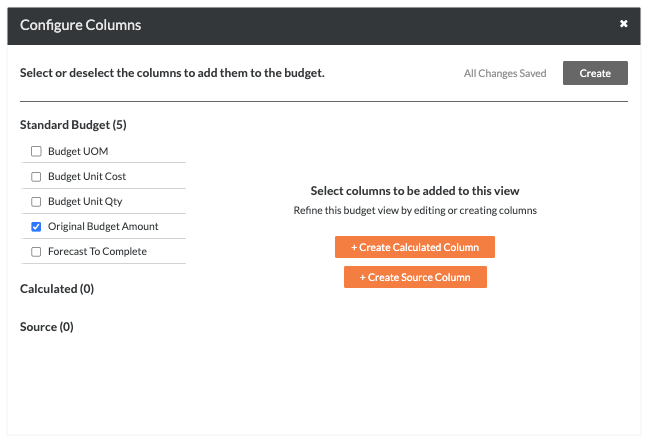
Cliquez sur Configurer les colonnes.
Passez à l’étape suivante pour ajouter des colonnes recommandées.
Étape 2 : ajouter les colonnes recommandées
Il s’agit d’une vue du budget recommandée. L’administrateur Procore de votre entreprise crée les vues du budget utilisées pour vos projets, de sorte que les paramètres des colonnes présentés ci-dessous peuvent être différents dans votre environnement. Pour d’autres recommandations concernant les vues du budget, voir Quelles vues du budget dois-je ajouter à mon projet Procore ?
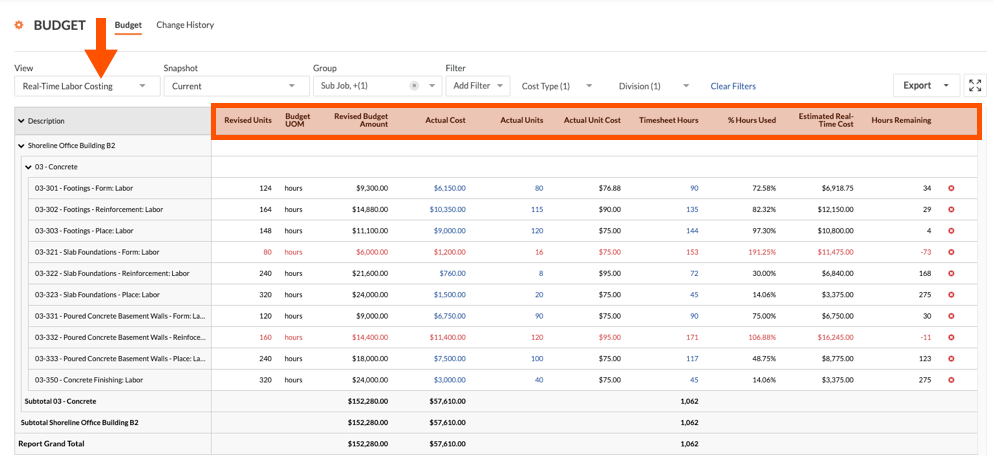
Voici les paramètres de colonne recommandés pour la vue du budget Productivité de la main-d’œuvre en temps réel :
Nom de la colonne | Type de colonne | Format de colonne | Description |
|---|
Montant des OC approuvés | Source | Monnaie | Il s’agit d’une colonne cachée que vous créez pour effectuer un calcul sur les valeurs apparaissant dans la colonne « Montant du budget révisé ». |
Quantité unitaire des OC approuvés | Source | Nombre | Il s’agit d’une colonne cachée que vous créez pour effectuer un calcul sur les valeurs apparaissant dans la colonne « Unités révisées ». |
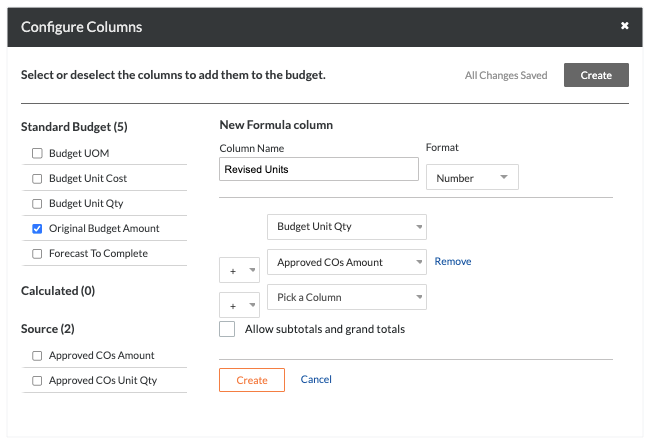
Unités révisées | Calculé | Nombre | Ceci montre la quantité d’unités du budget initiale + la quantité unitaire des OC approuvés. |
Unité de mesure du budget | Standard | N/A | Ceci montre l’unité de mesure (UdM) pour le poste budgétaire. |
Modification du budget Quantité produite | Source | Nombre | Représente les modifications internes des quantités produites budgétées à installer (sorties). Il comprend la quantité unitaire et l’unité de mesure. |
Quantité unitaire de modification budgétaire | Source | Nombre | Ceci montre la quantité unitaire et le montant des unités de mesure d’une modification budgétaire. |
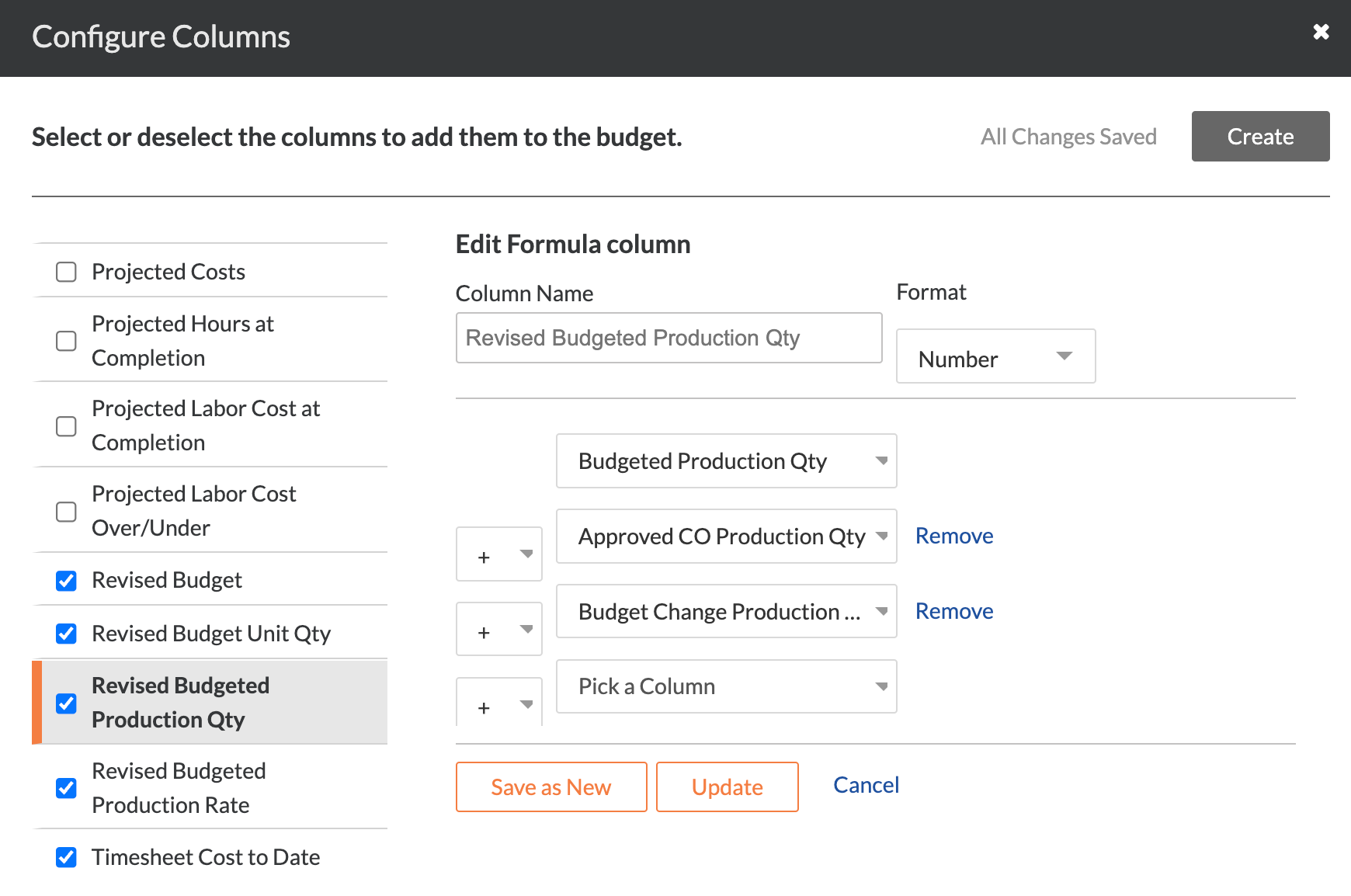
Budget révisé - Quantité produite | Calculé | Nombre | Affiche la quantité de production budgétée initiale + la quantité de production d’OC approuvée + la quantité de production de modifications budgétaires approuvées. |
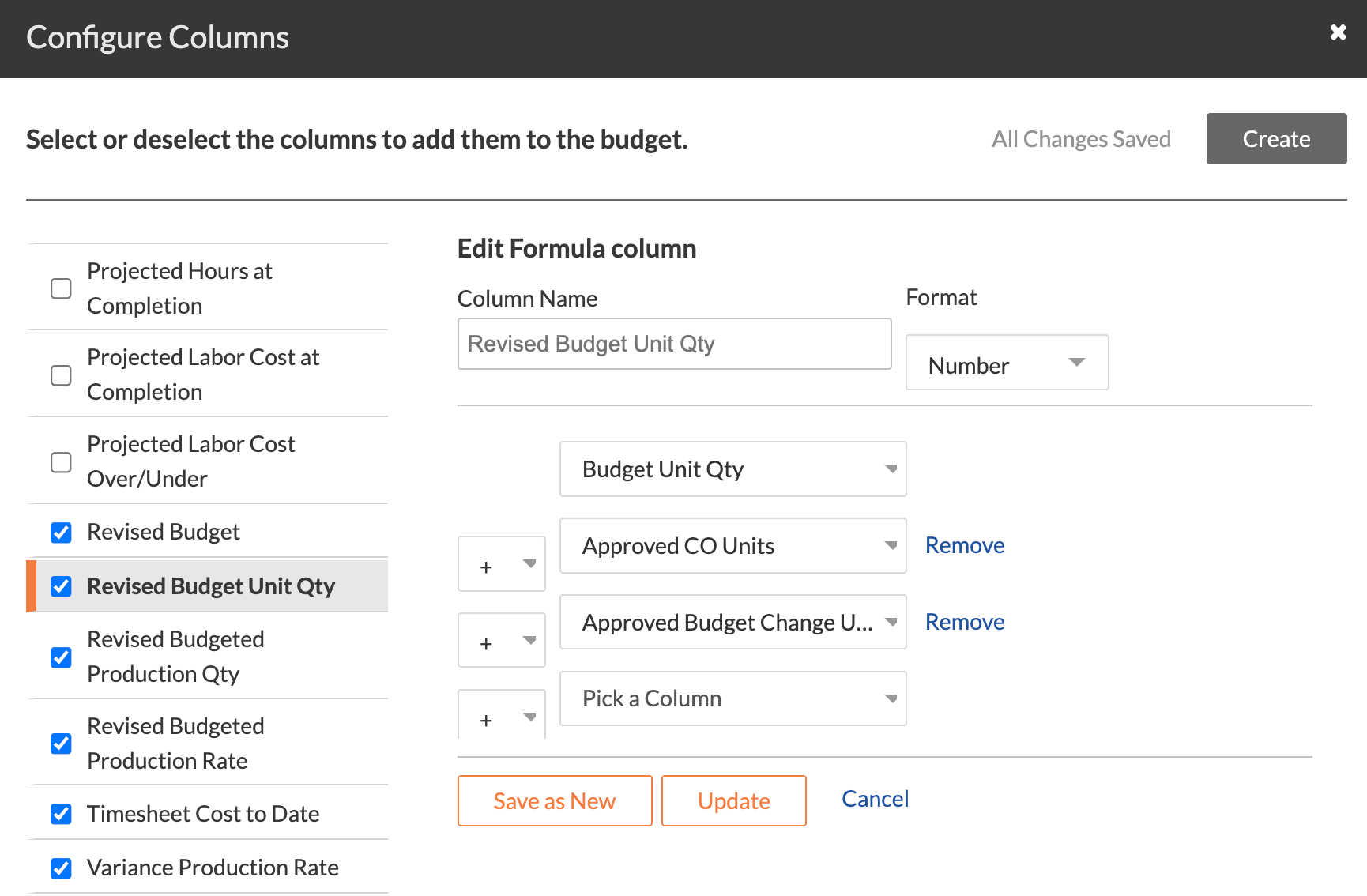
Quantité unitaire du budget révisée | Calculé | Nombre | Affiche la quantité d’unités du budget initiale + les unités d’OC approuvées + la quantité d’unités des modifications budgétaires approuvées. |
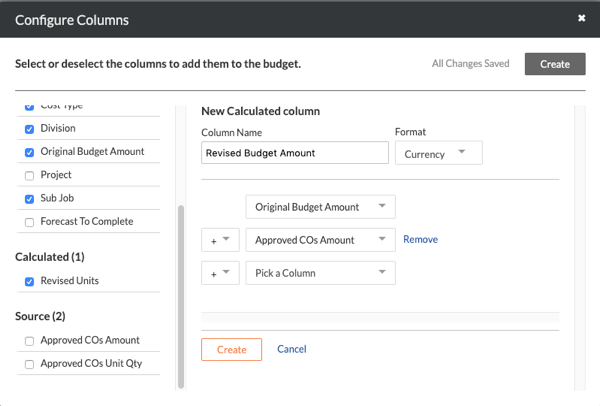
Montant du budget révisé | Calculé | Monnaie | Ceci montre le montant du budget initial + le montant des OC approuvés. |
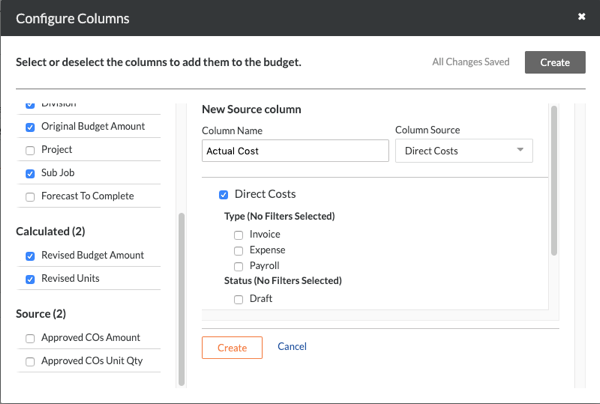
Coût réel | Source | Monnaie | Ceci montre le montant des coûts directs. |
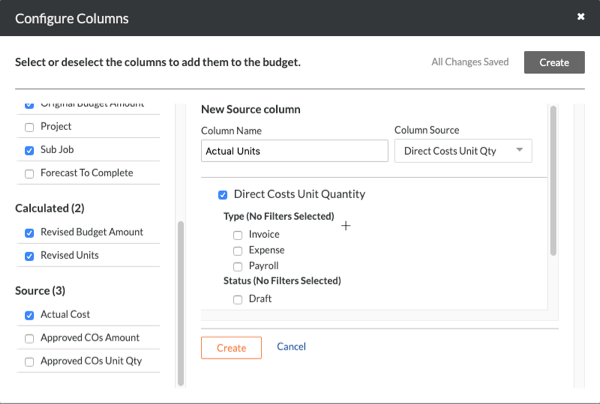
Unités réelles | Source | Nombre | Ceci montre la quantité d’unités des coûts directs. |
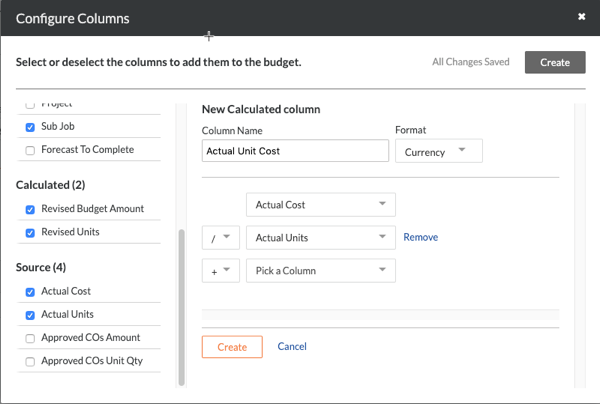
Coût unitaire réel | Calculé | Monnaie | Ceci montre le coût réel/les unités réelles |
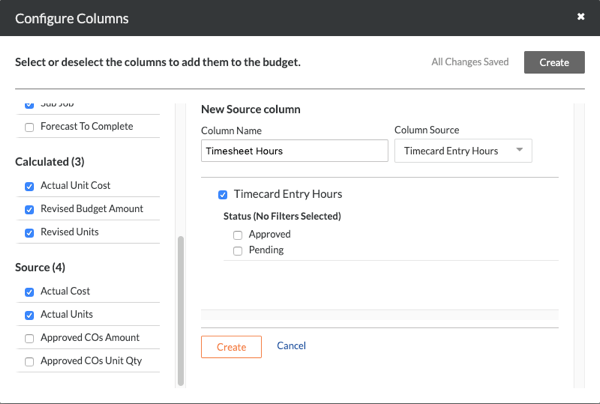
Heures de la feuille horaire | Source | Nombre | Ceci montre toutes les heures d’entrée de pointage |
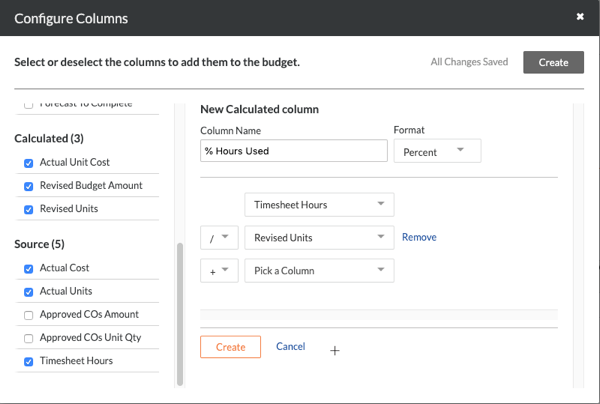
% d’heures utilisées | Calculé | Pour cent | Ceci affiche les heures de la feuille horaire/les unités révisées. |
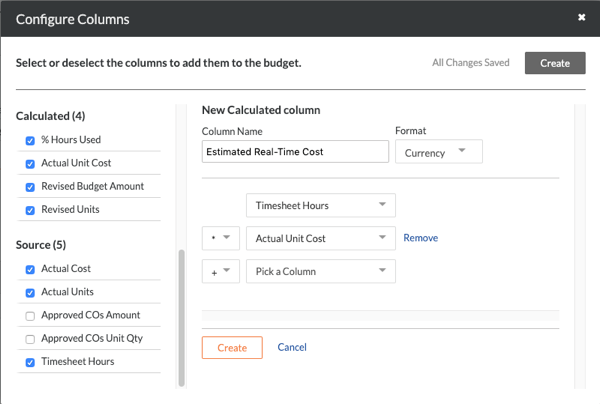
Estimation du coût en temps réel | Calculé | Monnaie | Ceci affiche le coût unitaire réel multiplié par les heures de la feuille horaire. |
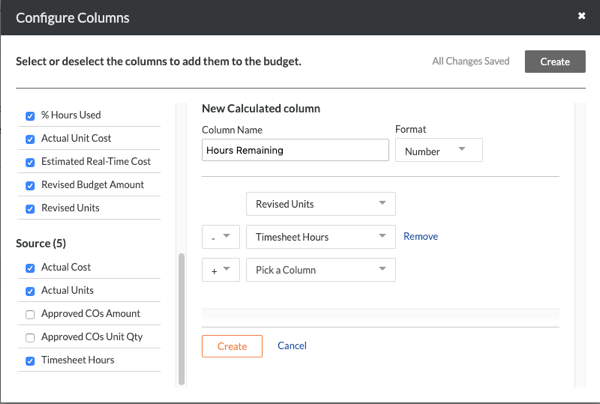
Heures restantes | Calculé | Nombre | Ceci affiche les unités révisées - Heures de la feuille horaire. |
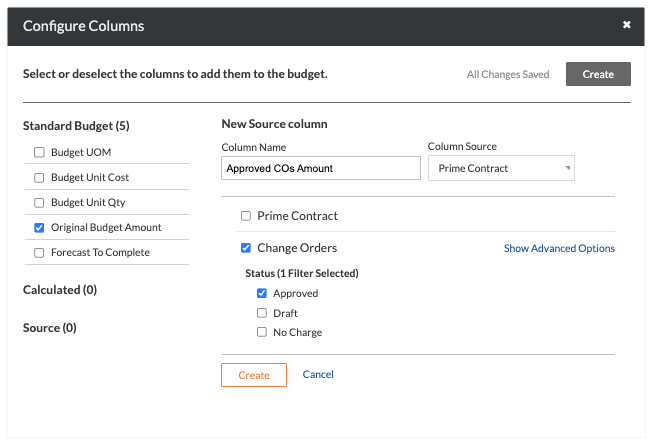
Montant des OC approuvés
Note: Vous devez ajouter cette colonne avant de pouvoir ajouter une colonne calculée nommée « Montant du budget révisé ».
Procédure à partir de la fenêtre Configurer les colonnes... | Paramètres |
|---|
Cliquez sur le bouton Créer et choisissez Source dans la liste déroulante. Sous « Nouvelle colonne source », procédez comme suit : Cochez la case Ordres de service. Sous « Statut », cochez la case Approuvé. Cliquez sur Créer. Sous Source à gauche, masquez la colonne de la vue du budget en décochant la case Montant des OC approuvés .
| 
|
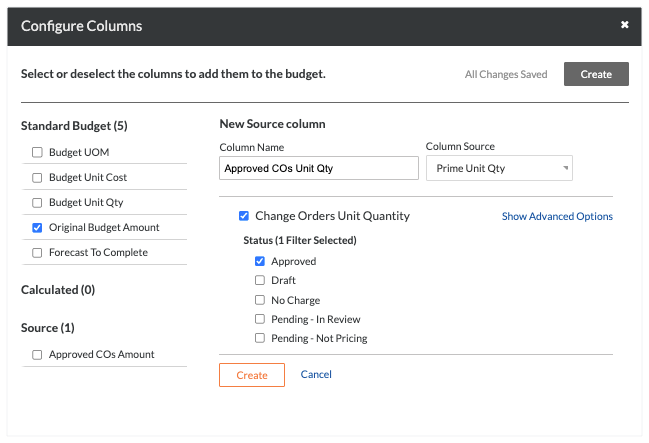
Qté unitaire des OC approuvés
Note: Vous devez ajouter cette colonne avant de pouvoir ajouter une colonne calculée nommée « Unités révisées ».
Procédure à partir de la fenêtre Configurer les colonnes... | Paramètres |
|---|
Cliquez sur Créer et choisissez Source. Sous « Nouvelle colonne source », procédez comme suit : Cochez la case Quantité unitaire des ordres de service. Sous « Statut », cochez la case Approuvé. Cliquez sur Créer. Sous la liste Source , masquez la case de la vue du budget en décochant la case de la Qté unitaire des OC approuvés.
| 
|
Unités révisées
Note: Vous devez d’abord créer la colonne « Qté unitaire des OC approuvés ».
Procédure à partir de la fenêtre Configurer les colonnes... | Paramètres |
|---|
Cliquez sur Créer et choisissez Calculé. Sous « Nouvelle colonne de formule », procédez comme suit : Sélectionnez ces paramètres de calcul comme indiqué dans les listes déroulantes : Optionnel: Si vous souhaitez afficher les sous-totaux et les totaux généraux dans cette colonne dans l’outil Budget au niveau projet, cochez la case Autoriser les sous-totaux et les totaux généraux . Cliquez sur Créer.
| 
|
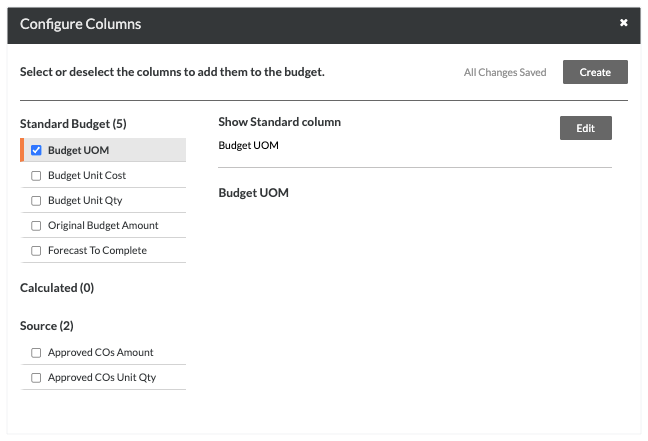
Unité de mesure du budget
Note: Vous devez également supprimer toutes les autres colonnes sous Budget standard.
Procédure à partir de la fenêtre Configurer les colonnes... | Paramètres |
|---|
Sous Budget standard à gauche, cochez la case Unité de mesure du budget . Décochez toutes les autres colonnes de la section « Budget standard ».
| 
|
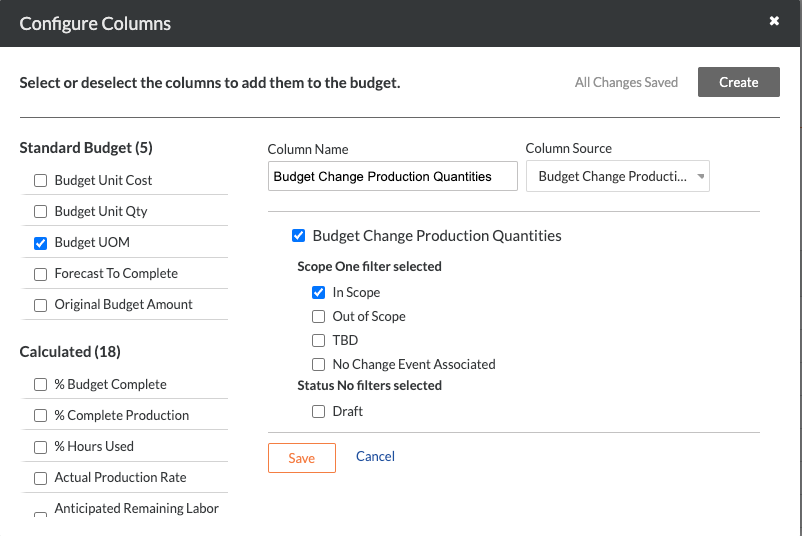
Modification du budget Quantité produite
Note: Ceci ajoute une colonne source nommée « Modifications budgétaires : quantités produites ». Vous devez ajouter cette colonne avant de pouvoir ajouter une colonne calculée nommée « Quantité de production du budget révisé ».
Procédure à partir de la fenêtre Configurer les colonnes... | Paramètres |
|---|
Cliquez sur Créer et choisissez Source. Sous « Nouvelle colonne source », procédez comme suit : Cochez la case Modifications budgétaires : Quantités produites. Sous « Portée », cochez la case Dans la portée. Sous « Statut », cochez la case Approuvé. Cliquez sur Créer.
| 
|
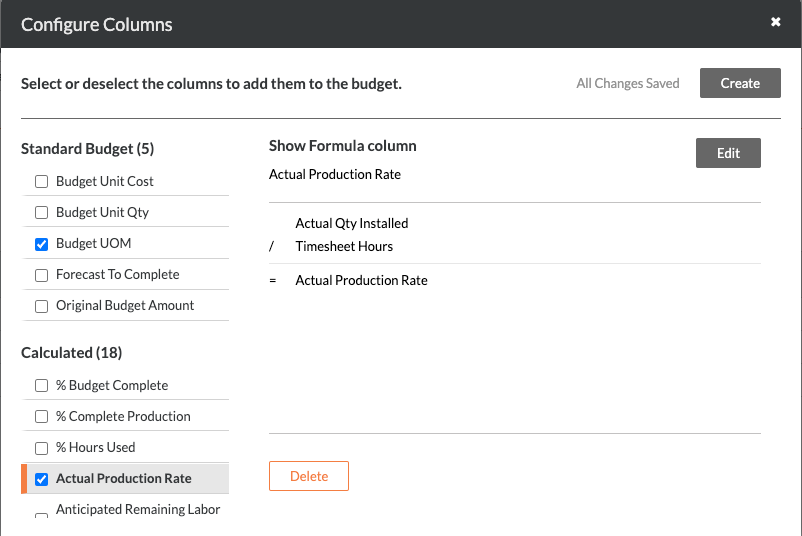
Quantité unitaire de modification budgétaire
Note: Ceci ajoute une colonne source nommée « Quantités unitaires de modification budgétaire ». Vous devez ajouter cette colonne avant de pouvoir ajouter une colonne calculée nommée « Quantité unitaire du budget révisée ».
Procédure à partir de la fenêtre Configurer les colonnes... | Paramètres |
|---|
Cliquez sur Créer et choisissez Source. Sous « Nouvelle colonne source », procédez comme suit : Cochez la case Quantités unitaires de modification du budget. Sous « Statut », cochez la case Approuvé. Cliquez sur Créer.
| 
|
Budget révisé - Quantité produite
Note: Vous devez d’abord créer la colonne Modification du budget : Quantité produite. Voir Modification du budget Quantité produite.
Procédure à partir de la fenêtre Configurer les colonnes... | Paramètres |
|---|
Cliquez sur Créer et choisissez Calculé. Sous « Nouvelle colonne de formule », procédez comme suit : Sélectionnez ces paramètres de calcul comme indiqué dans les listes déroulantes : Quantité produite budgétée Signe plus (+) Quantité de production de CO approuvée Signe plus (+) Modification du budget Quantité produite
Optionnel: Si vous souhaitez afficher les sous-totaux et les totaux généraux dans cette colonne dans l’outil Budget au niveau projet, cochez la case Autoriser les sous-totaux et les totaux généraux . Cliquez sur Créer.
| 
|
Quantité unitaire budgétée révisée
Note: Vous devez d’abord créer la colonne Quantité unitaire de changement budgétaire. Voir Quantité d’unités de modification budgétaire.
Procédure à partir de la fenêtre Configurer les colonnes... | Paramètres |
|---|
Cliquez sur Créer et choisissez Calculé. Sous « Nouvelle colonne de formule », procédez comme suit : Sélectionnez ces paramètres de calcul comme indiqué dans les listes déroulantes : Optionnel: Si vous souhaitez afficher les sous-totaux et les totaux généraux dans cette colonne dans l’outil Budget au niveau projet, cochez la case Autoriser les sous-totaux et les totaux généraux . Cliquez sur Créer.
| 
|
Montant du budget révisé
Procédure à partir de la fenêtre Configurer les colonnes... | Paramètres |
|---|
Cliquez sur Créer et choisissez Calculé. Sous « Nouvelle colonne de formule », procédez comme suit : Sélectionnez ces paramètres de calcul comme indiqué dans les listes déroulantes : Cliquez sur Créer.
| 
|
Coût réel
Pour les entreprises utilisant l’outil Intégrations ERP :
Sage 300 CRE® ne peut ajouter cette colonne que si l’outil Coûts directs est activé.
Pour les autres intégrations ERP (Trimble® Vista, Trimble Spectrum (Spectre de trimble®) ou Sage 100 Sous-traitant®), la colonne Source ci-dessous doit être définie sur la colonne « Coûts ERP du projet à ce jour » (au lieu de « Coûts directs »).
Procédure à partir de la fenêtre Configurer les colonnes... | Paramètres |
|---|
Cliquez sur Créer et choisissez Source. Sous « Nouvelle colonne source », procédez comme suit : Cochez la case Coûts directs . Cliquez sur Créer.
| 
|
Unités réelles
Pour les entreprises qui utilisent l’outil Intégrations ERP, gardez à l’esprit que vous ne pourrez PAS configurer une colonne « Unités réelles » dans une vue du budget, à moins que l’outil Coûts directs ne soit activé et que vous n’utilisiez le connecteur pour synchroniser les transactions de coût du Sage 300 CRE® projet. Voir Ajouter les colonnes pour la synchronisation des transactions de coût de la tâche à une vue du budget pour Intégrations ERP.
Procédure à partir de la fenêtre Configurer les colonnes... | Paramètres |
|---|
Cliquez sur Créer et choisissez Source. Sous « Nouvelle colonne source », procédez comme suit : Cochez la case Qté d’unités des coûts directs . Cliquez sur Créer.
| 
|
Coût unitaire réel
Pour les entreprises qui utilisent l’outil Intégrations ERP, gardez à l’esprit que vous ne pourrez PAS configurer une colonne « Unités réelles » dans une vue du budget, à moins que l’outil Coûts directs ne soit activé et que vous n’utilisiez le connecteur pour synchroniser les transactions de coût du Sage 300 CRE® projet. Voir Ajouter les colonnes pour la synchronisation des transactions de coût de la tâche à une vue du budget pour Intégrations ERP.
Procédure à partir de la fenêtre Configurer les colonnes... | Paramètres |
|---|
Cliquez sur Créer et choisissez Calculé. Sous « Nouvelle colonne de formule », procédez comme suit : Sélectionnez ces paramètres de calcul comme indiqué dans les listes déroulantes : Coût réel Signe de division (/) Unités réelles
Optionnel: Si vous souhaitez afficher les sous-totaux et les totaux généraux dans cette colonne dans l’outil Budget au niveau projet, cochez la case Autoriser les sous-totaux et les totaux généraux . Cliquez sur Créer.
| 
|
Heures de la feuille horaire
Lors de l’ajout d’une colonne source « Heures de la feuille horaire » à la vue du budget, il est recommandé d’inclure les entrées de pointage dans les statuts « Approuvé » et « En attente ». Toutefois, l’administrateur Procore de votre entreprise peut préférer utiliser un paramètre différent pour le compte de votre entreprise.
L’utilisation de la vue du budget « Productivité de la main-d’œuvre en temps réel » est recommandée pour les clients utilisant les outils de suivi des ressources de Procore. Toutefois, la colonne « Heures de la feuille horaire » peut être ajoutée à d’autres vues du budget. Pour savoir comment ajouter la colonne, voir Pouvons-nous importer nos entrées de pointage tierces pour travailler avec la colonne « Heures de la feuille horaire » dans l’outil Budget de Procore ?
Pour afficher les heures dans cette colonne sur le budget en tant que client Procore Resource Tracking :
Un utilisateur disposant de l’autorisation « Admin » dans l’outil Feuilles horaires de l’entreprise doit également configurer les types de coût par défaut pour les entrées de pointage. Voir Configurer les paramètres avancés : feuilles horaires au niveau entreprise.
Lorsque vous appliquez un nouveau type de coût par défaut à vos pointages existants en cliquant sur le bouton Appliquer aux pointages existants dans l’outil Feuilles horaires, gardez à l’esprit qu’il s’agit d’une action ponctuelle et ne peut être annulée qu’en contactant votre Point de contact Procore.
Procédure à partir de la fenêtre Configurer les colonnes... | Paramètres |
|---|
Cliquez sur Créer et choisissez Source. Sous « Nouvelle colonne source », procédez comme suit : Cochez la case Heures d’entrée de pointage . Pour refléter les heures d’entrée de pointage approuvées et en attente dans votre vue du budget, laissez les deux cases vides. Cliquez sur Créer.
| 
|
% d’heures utilisées
Procédure à partir de la fenêtre Configurer les colonnes... | Paramètres |
|---|
Cliquez sur Créer et choisissez Calculé. Sous « Nouvelle colonne de formule », procédez comme suit : Sélectionnez ces paramètres de calcul comme indiqué dans les listes déroulantes : Cliquez sur Créer.
| 
|
Estimation du coût en temps réel
Procédure à partir de la fenêtre Configurer les colonnes... | Paramètres |
|---|
Cliquez sur Créer et choisissez Calculé. Sous « Nouvelle colonne de formule », procédez comme suit : Sélectionnez ces paramètres de calcul comme indiqué dans les listes déroulantes : Cliquez sur Créer.
| 
|
Heures restantes
Pour créer la colonne « Heures restantes », vous devez d’abord créer les colonnes« Unités révisées » et « Heures de la feuille horaire », comme décrit ci-dessus.
Procédure à partir de la fenêtre Configurer les colonnes... | Paramètres |
|---|
Cliquez sur Créer et choisissez Calculé. Sous « Nouvelle colonne de formule », procédez comme suit : Sélectionnez ces paramètres de calcul comme indiqué dans les listes déroulantes : Cliquez sur Créer.
| 
|
Étape 3 : masquer les colonnes vides de la vue du budget inutilisées (facultatif)
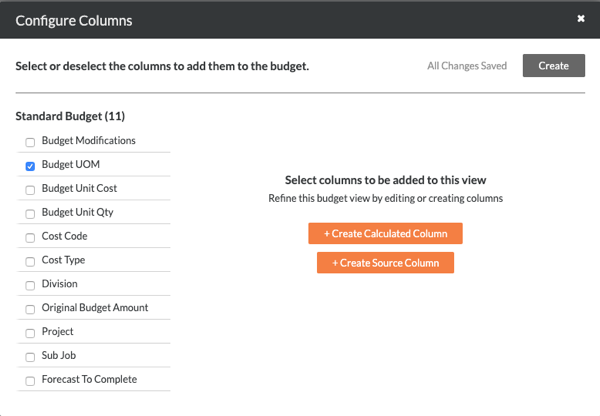
Si vous avez créé la vue du budget « Productivité de la main-d’œuvre en temps réel » à partir du modèle « Vue vierge de budget », vous pouvez masquer quelques colonnes de cette vue. Il s’agit d’une étape facultative.
Procédure à partir de la fenêtre Configurer les colonnes... | Paramètres |
|---|
Sous Budget standard, la « Vue vierge de budget » est configurée pour afficher les colonnes suivantes par défaut : (Facultatif) Pour masquer ces colonnes, décochez ces cases.
| 
|
Étape 4 : assigner une vue du budget à un projet Procore
Accédez à l’outil Admin de l’entreprise.
Sous Paramètres des outils, cliquez sur Budget.
Sous Vues du budget, cliquez sur la vue du budget que vous souhaitez ajouter à un ou plusieurs projets.
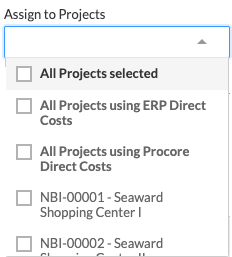
Placez des coches à côté des cases de votre choix dans la liste Assigner aux projets .
Remarque : Sélectionnez des modèles de projet à reporter dans la vue du budget les nouveaux projets créés à l’aide de ces modèles. Voir Report de vues du budget à partir d’un modèle de projet.
Répétez les étapes ci-dessus pour chaque vue que vous souhaitez ajouter à vos projets.
Cliquez sur Terminé.
Voir aussi
Chargement des articles connexes...