Ajouter un lieu de bureau
Éléments à prendre en compte
Autorisations utilisateur requises :
Pour ajouter un lieu de bureau d’entreprise, Autorisation de niveau « Admin » dans l’outil Admin au niveau entreprise.
Pour associer un lieu de bureau d’entreprise à un projet, Autorisation de niveau « Admin » dans l’outil Admin au niveau projet.
Informations complémentaires :
Les bureaux doivent être gérés à partir de la section «Informations sur l’entreprise ». Si cette option n’est pas dans votre compte, vous devrez gérer les bureaux à partir de la section « Paramètres généraux ».
Les informations que vous saisissez dans les étapes ci-dessous apparaîtront dans les rapports de Procore et dans la plupart des fichiers PDF que vos utilisateurs exportent depuis les outils de projet de Procore.
Escalier
Ajouter des bureaux à partir des informations sur l’entreprise
Accédez à l’outil Admin au niveau entreprise.
Sous « Paramètres de l’entreprise », cliquez sur Informations sur l’entreprise.
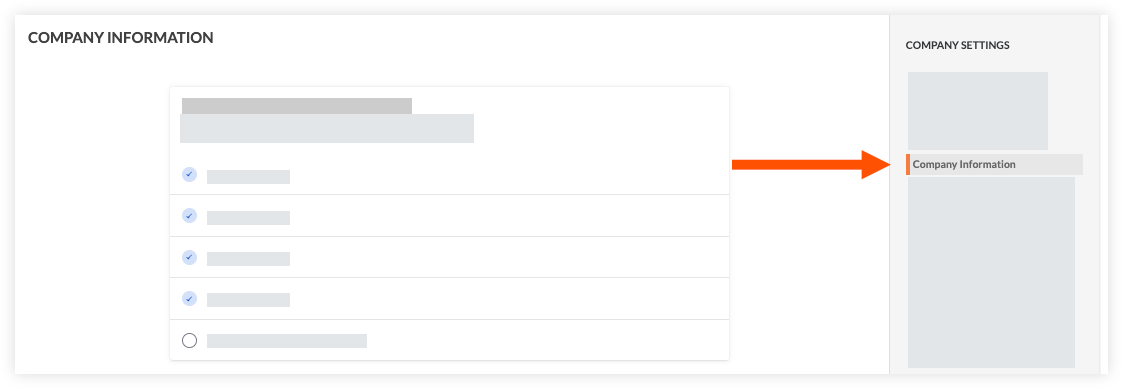
Cliquez sur Nouvelle adresse dans la section « Adresses ».
Entrez les informations d’adresse.
Cliquez sur Enregistrer.
Ajouter des bureaux à partir des paramètres généraux
Accédez à l’outil Admin au niveau entreprise.
Sous « Paramètres de l’entreprise », cliquez sur Paramètres généraux.
Faites défiler jusqu’à « Paramètres du bureau ».
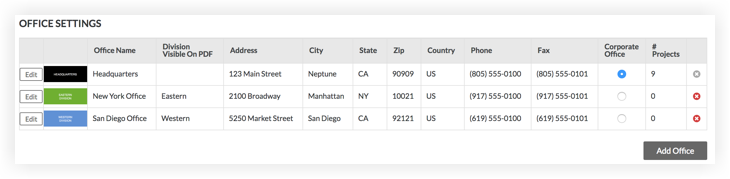
Cliquez sur Ajouter un bureau.
Procédez comme suit :
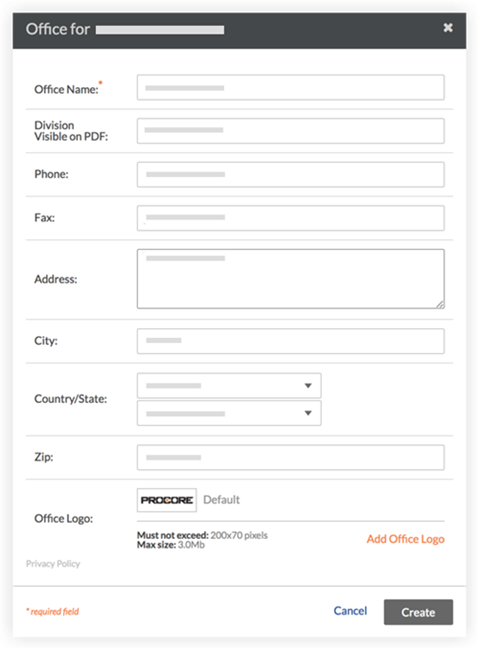
* Nom du bureau. Ajoutez le titre du bureau. Il s’agit d’un champ obligatoire (Remarque: Le nom d’un bureau ne peut pas contenir une apostrophe ('), un guillemet double (« ) ou le mot « ou »).
Division visible sur PDF: Le texte saisi dans ce champ, s’il est rempli, remplacera le nom de l’entreprise qui est visible sur les PDF exportés à partir des projets associés à ce bureau. Voir Assigner un lieu de bureau à un projet. Si votre entreprise classe ses bureaux en divisions ou succursales, vous pouvez saisir le nom du bureau ici. Par exemple, les divisions commerciales peuvent être utilisées pour désigner des régions spécifiques (c’est-à-dire le Nord-Ouest, le Nord-Est, le Sud-Ouest), des types de construction (c’est-à-dire l’infrastructure, le résidentiel, le commercial) ou même des subdivisions spécifiques d’une entreprise. Remarque: le nom de la division ne peut pas contenir le mot « ou »).
Téléphone. Tapez le numéro de téléphone du contact principal associé à ce bureau.
Fax: saisissez le numéro de fax principal associé à ce bureau.
Adresse. Entrez le numéro et le nom de la rue du bureau.
Ville. Entrez le nom de la ville.
pays. Sélectionnez le pays dans le menu déroulant.
l’État. Sélectionnez l’état dans le menu déroulant.
Code postal. Entrez le code postal.
Chargez le logo du bureau. Cliquez sur Choisir un fichier ou glissez-déposez un fichier depuis votre ordinateur qui servira de logo au bureau. Les logos des bureaux ne doivent pas dépasser 200 x 70 pixels. Limite de taille de fichier : 3,0 Mo. Le logo que vous chargez ici apparaîtra sur la plupart des e-mails, formulaires, pages et rapports associés au bureau. Voir Charger un logo de bureau.
Cliquez sur Créer.
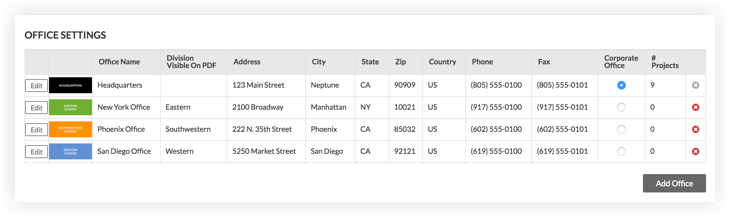
Note: Le bureau peut désormais être assigné à un projet Procore. Voir Assigner un lieu de bureau à un projet.Si votre entreprise possède plusieurs bureaux, désignez celui qui représente le siège social ou le bureau principal de votre entreprise en sélectionnant le bouton d’option Siège social approprié.
Prochaine étape
Voir aussi
Chargement des articles connexes...