Create Automatic Billing Periods

Vous utilisez la terminologie du maître d’ouvrage ou de l’entrepreneur spécialisé ?

Procore peut être configuré pour utiliser une terminologie spécifique aux entreprises générales, aux maîtres d’ouvrage ou aux entreprises spécialisées. Découvrez comment appliquer les options du dictionnaire.
  • To learn the differences: Show/Hide

    • This table shows the differences in tool names (bold) and terms across the point-of-view dictionaries for Project Financials.

      Entrepreneurs généraux
      Anglais (États-Unis) - Par défaut

      Propriétaire
      Anglais (Terminologie du propriétaire V2)

      Entrepreneurs spécialisés
      Anglais (terminologie des entrepreneurs spécialisés)

      Facturation

      Facturation

      Facturations proportionnelles

      Propriétaire

      Financement

      Propriétaire

      Maître d’ouvrage/Client

      Maître d’ouvrage/Client

      CG/client

      Ordre de changement au contrat principal

      Ordre de changement de financement

      Ordre de changement du contrat client

      Contrats principaux

      Financement

      Contrats clients

      Revenu

      Financement

      Revenu

      Sous-traiter

      Contrat

      Sous-traiter

      Sous-traitant

      Entrepreneur

      Sous-traitant

      Ventilation des coûts du sous-traitant (VDCS)

      Ventilation des coûts de l’entrepreneur (VDCST)

      Ventilation des coûts du sous-traitant (VDCS)

      About These Dictionaries
      • Default Setting: The 'General Contractor' dictionary is enabled by default for all accounts.

      • Availability: These alternate dictionaries in italics are available in US English only.

      How to Switch Your Dictionary

      To change your company's terminology to the Owner or Specialty Contractor dictionary, contact your company's . They will work with your Procore Point of Contact to make the change.

Background

Une période de facturation définit le cycle de facturation utilisé par l’équipe d’un projet et les contacts de facturation sur les factures et les facturations proportionnelles de Procore. En plus de définir la fréquence du cycle de facturation (par exemple, mensuelle ou hebdomadaire), une période de facturation définit également la date de début/fin du cycle de facturation et la date d’échéance de la facture ou de la facturation proportionnelle.

Examples

Common billing periods include:

  • Monthly
    Examples of common monthly billing periods are below:

    • Starts on the 1st day of a month and ends on the 30th of the same month.

    • Starts on the 15th of one month and ends on the 14th of the following month.

  • Weekly
    Examples of common weekly billing periods are below:

    • Starts on Sunday of this week and ends on Saturday of this week.

Things to Consider

  • Required User Permissions

  • Additional Information:

    • When you create a new billing period Procore automatically sets:

      • The new billing period's status to Open.

      • The previous billing period's status to Closed.

      • There can only be one (1) billing period in the Open status at any given time.

    • You can only create billing periods in the Project level Invoicing tool.

      • You cannot create or manage billing periods at the Company level.

    • These Invoice Management features rely on billing periods:

Prerequisites

Steps

  1. Navigate to the project's Invoicing tool.

  2. Optional: Click the Billing Periods tab.

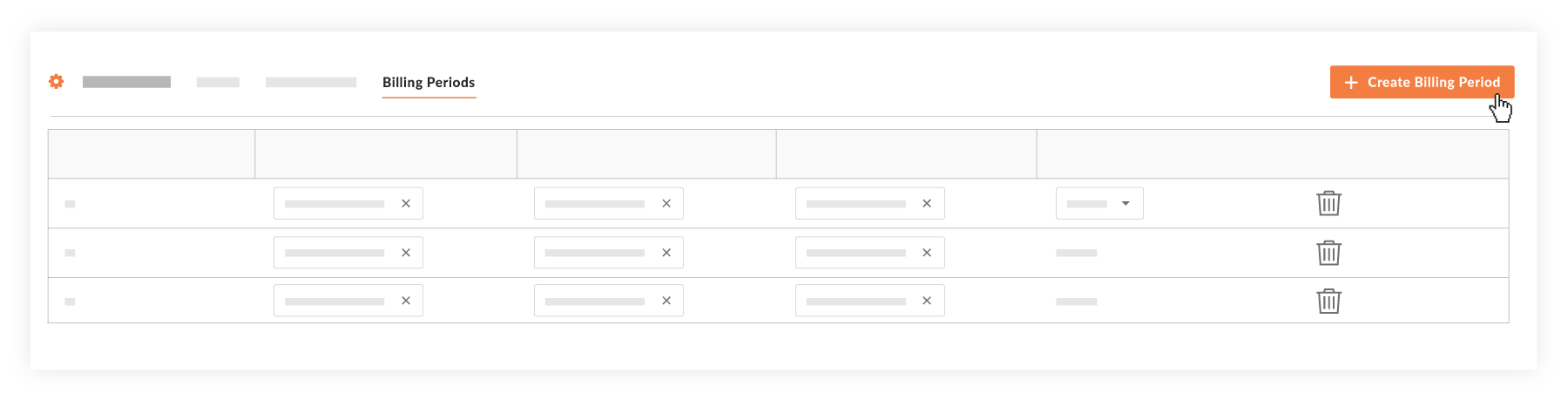
  3. Click the Create Billing Period button.
    start-new-billing-period.png

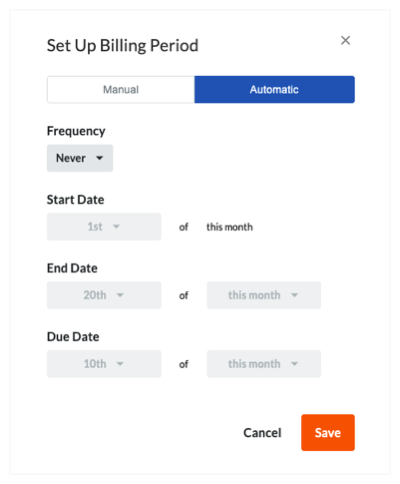
  4. In the 'Set Up Billing Period' dialog box, click Automatic.

  5. Under 'Automatic', configure the billing period's settings as follows:
    set-up-automatic-billing-period.png

    • Frequency

      • Monthly. Select this option then choose the date you want the billing period to start.

      • Weekly. Select this option then choose the date you want the billing period to start.

      • Never. Select this option to never create an automatic billing period.

         Tip

        When would I choose the 'Never' option? If you have previously configured Procore to automatically create new billing periods, you can cancel that process at a later time by clicking Create Billing Period and selecting the 'Never' option in the Automatic tab as described above. This overrides the tool's previous billing period creation settings and stops Procore from creating new ones.

    • Start Date. Select the date of each month you want the billing period to start.

       Note
      • To create automatic billing periods that occur after your selected 'Start Date', you must manually create the first billing period on your project with the Invoicing tool. See Create Manual Billing Periods.

      • Keep in mind that Procore creates automatic billing periods for future periods on the future period's start date. For example, if you want to automatically create billing periods that start on the first of the month, Procore automatically creates the new billing period on the first of each month.

    • End Date. Select the date of each month you want the billing period to end.

    • Due Date. Select the date of each month you want the invoice to be due.

  6. Click Save.

Next Steps

See Also

Loading related articles...