Créer un rapport sur les postes financiers personnalisés pour comparer les instantanés de budget
Arrière-plan
Vous pouvez utiliser la fonction de rapport personnalisé de Procore pour créer un rapport personnalisé sur les postes financiers afin de comparer les instantanés du budget de votre projet. Un instantané du budget est une image de votre budget dans son état actuel et les instantanés peuvent être pris à différents moments du cycle de vie d’un projet. Par exemple, votre équipe de projet peut prendre un instantané du budget à la fin de chaque mois ou après une mise à jour des prévisions. L’utilisation d’instantanés du budget vous permet d’analyser l’évolution de votre budget au cours d’un projet et vous pouvez améliorer cette capacité en créant un rapport sur les postes financiers pour comparer les instantanés du budget de votre projet.
Éléments à prendre en compte
Autorisations utilisateur requises :
« Admin » dans l’outil Rapports au niveau projet.
Exigences :
Pour créer et exécuter un rapport avec des données significatives :Le projet doit comporter au moins une (1) vue du budget. Voir Configurer une nouvelle vue du budget.
Le budget du projet doit contenir des données. Voir Configurer un budget dans un nouveau projet Procore.
Le projet nécessite au moins un (1) instantané du budget. Voir Créer un instantané du budget.
Escalier
Accédez à l’outil Rapports au niveau projet.
Cliquez sur Créer un rapport et sélectionnez Rapport à outil unique.
Procédez comme suit :
Saisir le nom du rapport
Saisissez un nom pour le rapport. Il s’agit d’un champ obligatoire.Facultatif : Saisir une description
Saisissez une description du rapport.
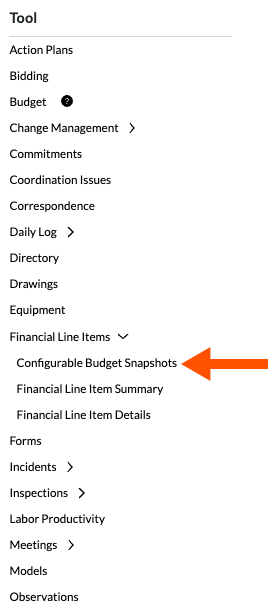
Sous Outil, développez Postes financiers et cliquez sur Instantanés configurables du budget.
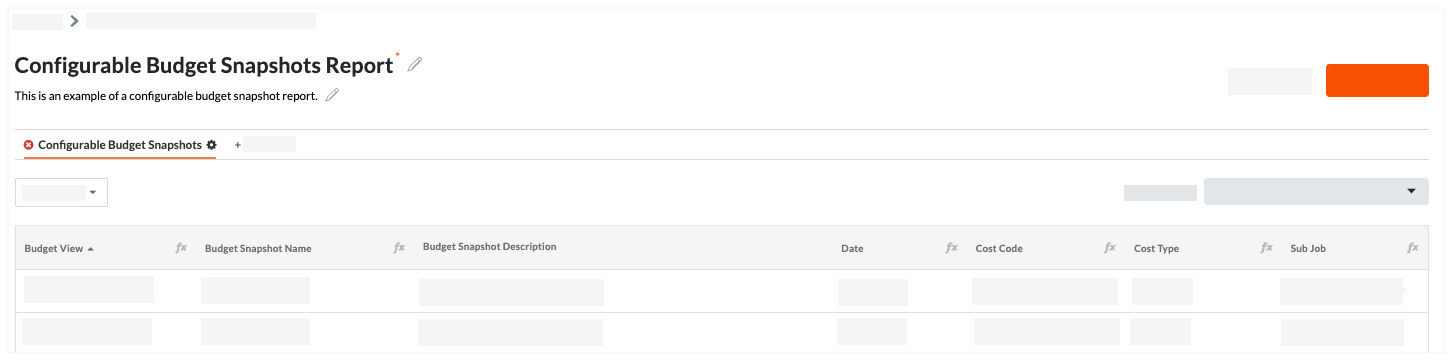
Ajoutez les colonnes source suivantes dans l’onglet Instantanés configurables du budget du nouveau rapport par glisser-déposer.
Ajoutez un filtre de rapport comme suit :
Cliquez sur le menu Ajouter un filtre et sélectionnez Vue du budget.
Dans le menu secondaire qui apparaît, les options suivantes sont à votre disposition :
Pour inclure toutes les vues du budget, cliquez sur Sélectionner tout.
Pour inclure une (1) ou plusieurs vues du budget, placez une coche à côté des vues du budget souhaitées.
Remarque : Si vous cliquez sur Effacer tout, le système supprime la coche de toutes les vues sélectionnées. Cependant, vous devez sélectionner au moins une (1) vue pour ajouter ce filtre à votre rapport.
Regroupez les données du rapport en cliquant sur le menu Ajouter un groupe et sélectionnez un nom ou une date d’instantané budgétaire.
PourboireVous souhaitez comparer différentes colonnes de différentes vues du budget ? Vous pouvez ajouter plusieurs onglets à un seul rapport. Par exemple, vous pouvez ajouter un onglet pour la « vue du budget standard Procore » afin de comparer la colonne « Au-dessus/en dessous du budget prévu » et un deuxième onglet pour comparer la colonne « Économies de rachat » dans la vue « Économies de rachat ». Pour en savoir plus sur les vues du budget par défaut de Procore, voir Quelles sont les vues du budget standard de Procore ?
Cliquez sur Créer un rapport.