Quelles sont les vues du budget standard de Procore ?

Répondre

Dans Procore, une vue du budget est une présentation visuelle de vos données budgétaires. En utilisant la fonction de vue du budget de Procore dans l’outil Admin de l’entreprise (voir Configurer une nouvelle vue du budget), vous pouvez créer des vues personnalisées du budget de votre projet de construction. Vous pouvez également utiliser l’un des modèles de vue du budget par défaut disponibles.

  • Vue du budget standard Procore

  • Budget standard Procore (vue des rapports personnalisés)

  • Vue du budget vierge

  • (Multi-niveaux) Vue du budget standard Procore

  • Vue du coût de productivité de la main-d’œuvre Procore

Vue du budget standard Procore

Tous les comptes d’entreprise Procore incluent la « vue Budget standard Procore », qui est la vue par défaut disponible pour une utilisation avec l’outil Budget du projet. Cette vue peut également être personnalisée comme décrit dans Configurer une nouvelle vue du budget.

Example

Procore Standard Budget View

The illustration below shows you the default layout for the 'Procore Standard Budget' view, as it looks when assigned to a project's Budget tool.

budget-standard-budget-view

Colonnes par défaut

Le tableau suivant détaille la colonne et la disposition par défaut de l’affichage « Budget standard Procore ».

Column Name

Column Type

Column Format

Description

Sub Job

Standard

n/a

If sub jobs are enabled in Procore, this column shows the name of the sub job associated with the budget line item.

Division

Standard

n/a

Shows the division associated with the budget line item.

Cost Code

Standard

n/a

Shows the cost code associated with the budget line item.

Cost Type

Standard

n/a

Shows the cost type associated with the budget line item.

Original Budget Amount

Standard

Currency

Shows the original budget amount for the budget line item.

Budget Modifications

Standard

Currency

Shows the amount of a budget modification for the budget line item.

Approved COs

Source

n/a

Shows the Prime Contract Change Orders in the Approved status by default. It also provides advanced options that permit you to include/exclude change orders in other statuses and Prime Contracts. This column is also used to calculate the 'Forecast to Complete' value in the budget line item.

Revised Budget

Calculated

Currency

Shows the total amount of any Budget Modifications + Approved COs. This column is also used to calculate the 'Forecast to Complete' value in the budget line item.

Pending Budget

Source

Currency

Shows the all budget changes in the Pending - statuses for the budget line item.

Committed Costs

Source

Currency

Shows the commitment costs for subcontracts in the Approved and Complete statuses, purchase orders in the Approved status, and change orders in the Approved status. It also provides advanced options that permit you to include/exclude other status options for commitments and change orders.

Direct Costs

Source

Currency

Shows direct costs in the Pending, Revise and Resubmit, and Approved status.

Job to Date Costs

Calculated

Currency

Shows Direct Costs + Subcontractor Invoices.

Pending Cost Changes

Source

Currency

Shows subcontracts in the Out for Signature status, purchase order contracts in the Processing, Submitted, Partially Received, and Received Status, and change orders in the Pending - statuses.

Projected Costs

Calculated

Currency

Shows Committed Costs + Direct Costs + Pending Cost Changes.This column is also used to calculate the 'Forecast to Complete' value in the budget line item.

Forecast to Complete

Standard

Currency

Shows an automatic calculation of the Projected Budget - Project Costs.

Estimated Cost at Completion

Calculated

Currency

Calculates the Projected Costs + Forecast to Complete.

Projected Over/Under

Calculated

Currency

Calculates the Projected Budget - Estimated Cost at Completion.

1 La colonne Modifications budgétaires oblige les utilisateurs à migrer leurs données vers la nouvelle fonctionnalité Modifications budgétaires. Voir Migration de Modifications budgétaires vers des changements budgétaires.

2 Cette colonne reflète les valeurs des contrats de l’outil Engagements de Procore. Cependant, l’engagement doit être fixé à un statut spécifique. Pour en savoir plus, consultez Quels sont les statuts d’engagement par défaut dans Procore ?

Procore Standard Budget (Custom Reporting View)

By default, the columns in the 'Procore Standard Budget (Custom Reporting View)' exactly matches the columns in the 'Procore Standard Budget' view. You can use this view to create a customized budget view to use as a source for generating custom reports with the Company and Project level Reports tool. To learn how to set up a budget view for custom reporting, see Set Up a Budget View for Custom Reporting.

Exemple

Budget standard Procore (vue des rapports personnalisés)

L’illustration ci-dessous vous montre la disposition par défaut du « Budget standard Procore (vue des rapports personnalisés) », tel qu’il apparaît lorsqu’il est assigné à l’outil Budget d’un projet.

custom-reporting-view.png

Default Columns

The following table details the default column and layout of the 'Procore Standard Budget (Custom Reporting View).'

Column Name

Column Type

Column Format

Description

Sub Job

Standard

n/a

If sub jobs are enabled in Procore, this column shows the name of the sub job associated with the budget line item.

Division

Standard

n/a

Shows the division associated with the budget line item.

Cost Code

Standard

n/a

Shows the cost code associated with the budget line item.

Cost Type

Standard

n/a

Shows the cost type associated with the budget line item.

Original Budget Amount

Standard

Currency

Shows the original budget amount for the budget line item.

Budget Modifications

Standard

Currency

Shows the amount of a budget modification for the budget line item.

Approved COs

Source

n/a

Shows the Prime Contract Change Orders in the Approved status by default. It also provides advanced options that permit you to include/exclude change orders in other statuses and Prime Contracts. This column is also used to calculate the 'Forecast to Complete' value in the budget line item.

Revised Budget

Calculated

Currency

Shows the total amount of any Budget Modifications + Approved COs. This column is also used to calculate the 'Forecast to Complete' value in the budget line item.

Pending Budget

Source

Currency

Shows the all budget changes in the Pending - statuses for the budget line item.

Committed Costs

Source

Currency

Shows the commitment costs for subcontracts in the Approved and Complete statuses, purchase orders in the Approved status, and change orders in the Approved status. It also provides advanced options that permit you to include/exclude other status options for commitments and change orders.

Direct Costs

Source

Currency

Shows direct costs in the Pending, Revise and Resubmit, and Approved status.

Job to Date Costs

Calculated

Currency

Shows Direct Costs + Subcontractor Invoices.

Pending Cost Changes

Source

Currency

Shows subcontracts in the Out for Signature status, purchase order contracts in the Processing, Submitted, Partially Received, and Received Status, and change orders in the Pending - statuses.

Projected Costs

Calculated

Currency

Shows Committed Costs + Direct Costs + Pending Cost Changes.This column is also used to calculate the 'Forecast to Complete' value in the budget line item.

Forecast to Complete

Standard

Currency

Shows an automatic calculation of the Projected Budget - Project Costs.

Estimated Cost at Completion

Calculated

Currency

Calculates the Projected Costs + Forecast to Complete.

Projected Over/Under

Calculated

Currency

Calculates the Projected Budget - Estimated Cost at Completion.

Blank Budget View

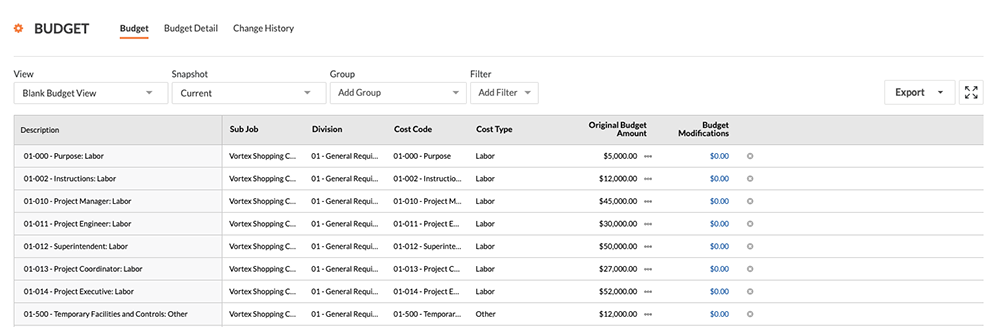
The Blank Budget View provides you with a basic set of budget columns to manage a simple budget.

Exemple

Vue du budget vierge

L’illustration ci-dessous vous montre la disposition par défaut de la « vue vierge du budget », telle qu’elle apparaît lorsqu’elle est assignée à l’outil Budget d’un projet.

blank-budget-view-ungrouped.png

Default Columns

The following table details the default column and layout of the 'Blank Budget View.'

Column Name

Column Type

Column Format

Description

Sub Job

Standard

n/a

If sub jobs are enabled in Procore (see Enable Sub Jobs on Projects for WBS), this column shows the name of the sub job associated with the budget line item.

Division

Standard

n/a

Shows the division associated with the budget line item.

Cost Code

Standard

n/a

Shows the cost code associated with the budget line item.

Cost Type

Standard

n/a

Shows the cost type associated with the budget line item.

Budget Unit Qty

Standard

n/a

Shows the unit quantity for the budget line item.

Budget UOM

Standard

n/a

Shows the UOM for the budget line item

Budget Unit Cost

Standard

n/a

Shows the unit cost for the budget line item.

Original Budget Amount

Standard

n/a

Shows the original budget amount for the budget line item.

Budget Modifications

Standard

n/a

Shows the amount of a budget modification for the budget line item.

(Multi-Level) Procore Standard Budget View

This budget view provides users with a multi-level cost code structure. This view can also be customized as described in Set up a New Budget View.

Exemple

(Multi-niveaux) Vue du budget standard Procore

L’illustration ci-dessous vous montre la disposition par défaut de la « vue du budget standard Procore (multi niveaux) », tel qu’elle apparaît lorsqu’elle est assignée à l’outil Budget d’un projet. Il affiche également votre budget lorsqu’il est regroupé par sous-projet et type de coût.

multi-level-standard-budget-view.png

Default Columns

The following table details the default column and layout of the '(Multi-Level) Procore Standard Budget View.'

Column Name

Column Type

Column Format

Description

Cost Code Level 1

Standard

n/a

This column shows the first level of the multi-level cost code associated with the budget line item.

Cost Code Level 2

Standard

n/a

This column shows the second level of the multi-level cost code associated with the budget line item.

Cost Code Level 3

Standard

n/a

This column shows the third level of the multi-level cost code associated with the budget line item.

Cost Code Level 4

Standard

n/a

This column shows the fourth level of the multi-level cost code associated with the budget line item.

Cost Code Level 5

Standard

n/a

This column shows the fifth level of the multi-level cost code associated with the budget line item.

Cost Type

Standard

n/a

This visible column shows the cost type associated with the budget line item.

Budget Unit Qty

Standard

n/a

Shows the unit quantity for the budget line item.

Budget UOM

Standard

n/a

Shows the UOM for the budget line item

Budget Unit Cost

Standard

n/a

Shows the unit cost for the budget line item.

Original Budget Amount

Standard

n/a

Shows the original budget amount for the budget line item.

Budget Modifications

Standard

n/a

Shows the amount of a budget modification for the budget line item.

Project

Standard

n/a

Shows the name of the project.

Sub Job

Standard

n/a

If sub jobs are enabled in Procore, this column shows the name of the sub job associated with the budget line item.

Forecast to Complete

Standard

n/a

Shows an automatic calculation of the Projected Budget - Project Costs.

Non-Budgeted Source View

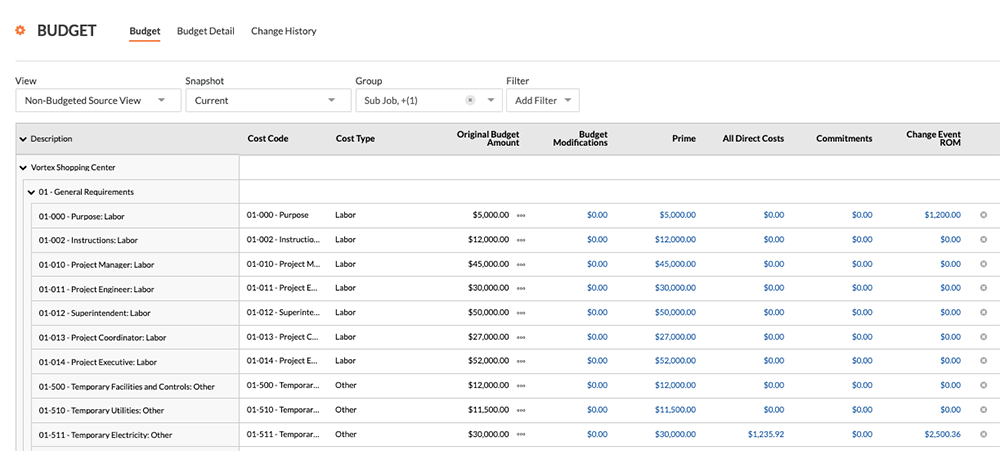
All Procore company accounts include the 'Non-Budgeted Source View.' This view helps you identify non-budgeted items in a projects by showing contracts, change orders, direct costs, and change events. This view can also be customized as described in Set up a New Budget View.

Exemple

Vue des sources non budgétées

L’illustration ci-dessous présente la disposition par défaut de la « vue des sources non budgétées », telle qu’elle apparaît lorsqu’elle est assignée à l’outil Budget d’un projet. Il affiche également votre budget regroupé par sous-projet et par division.

non-budgeted-source-view.png

Default Columns

The following table details the default column and layout of the 'Non-Budgeted Source View.'

Column Name

Column Type

Column Format

Description

Sub Job

Standard

n/a

If sub jobs are enabled in Procore, this column shows the name of the sub job associated with the budget line item.

Division

Standard

n/a

Shows the division associated with the budget line item.

Cost Code

Standard

n/a

Shows the cost code associated with the budget line item.

Cost Type

Standard

n/a

Shows the cost type associated with the budget line item.

Budget Unit Qty

Standard

n/a

Shows the unit quantity for the budget line item.

Budget UOM

Standard

n/a

Shows the UOM for the budget line item

Budget Unit Cost

Standard

n/a

Shows the unit cost for the budget line item.

Original Budget Amount

Standard

Currency

This visible column shows the original budget amount for the budget line item.

Budget Modifications

Standard

Currency

This visible column shows the amount of a budget modification for the budget line item.

Project

Standard

n/a

This hidden columns provides the project information.

Prime

Source

Currency

This visible column shows prime contracts and prime contract change orders associated with the budget line item.

All Direct Costs

Source

Currency

This visible column shows all of the direct costs associated with the budget line item.

Commitments

Source

Currency

This visible column shows the purchase orders and subcontractors associated with the budget line item.

Change Event ROM

Source

currency

This visible column shows the estimated Rough Order of Magnitude (ROM) value for any change events associated with the budget line item.

Procore Labor Productivity Cost View

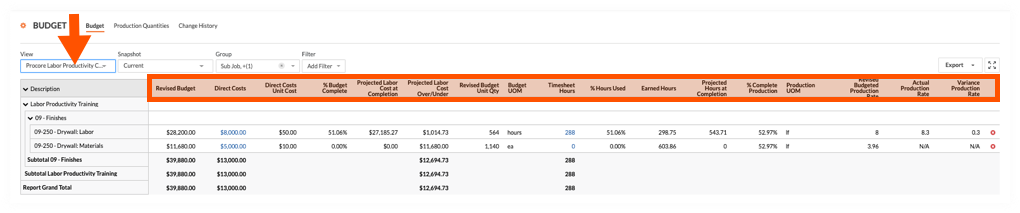
La vue du budget « Coût de productivité du travail Procore » permet aux équipes de projet d’inclure les quantités produites dans le budget du projet. Voir Que sont les « quantités produites » ? S’appuyant sur la fonction de calcul des coûts de main-d’œuvre en temps réel , la vue du budget « Coût de productivité de la main-d’œuvre Procore » est conçue pour fournir aux entrepreneurs autonomes et spécialisés la possibilité de mieux comprendre les taux de production de votre projet afin de prendre de meilleures décisions et de maximiser les marges bénéficiaires. Avec cette version, vous pouvez :

  • Ajouter et importer des unités de production au budget d’un projet dans les outils de gestion financière de Procore : budget, événements de changement et ordres de changement.

  • Collectez les unités de production du personnel de chantier avec les entrées de pointage dans le rapport journalier et les outils Pointage et Feuilles horaires.

  • Suivez et comparez les unités de production budgétées aux unités de production installées à l’aide des outils Budget et Rapports de Procore.

Par défaut, Procore met à disposition de ses utilisateurs la vue du budget standard « Coût de productivité du travail Procore », qui est disponible pour l’administrateur Procore de votre entreprise dans l’outil Admin au niveau entreprise.

Exemple

Vue du budget Coût de productivité du travail Procore dans l’outil Budget

L’illustration ci-dessous vous montre la disposition recommandée pour la vue du budget « Coût de productivité du travail Procore », telle qu’elle apparaîtra lorsqu’elle sera appliquée à l’outil Budget de votre projet.

budget-procore-labor-prod-cost-view.png

See Also

Loading related articles...