Configurer la fonctionnalité d’exportation de factures de sous-traitants pour Sage 300 CRE®
Arrière-plan
Si vous disposez de l’autorisation « Admin » dans l’outil Intégrations ERP de l’entreprise, vous pouvez terminer la configuration initiale de la Sage 300 CRE® fonction de factures de sous-traitant afin que votre équipe puisse synchroniser les factures de Procore vers Sage 300 CRE®.
Éléments à prendre en compte
Autorisations utilisateur requises:
Contactez le support technique pour demander l’activation de la fonction et désigner la
personne qui sera autorisée à synchroniser les factures. Vous devez être l’administrateur Procore de votre entreprise pour faire cette demande.Dans Procore, un approbateur de comptabilité est une personne ayant l'autorité d'accepter et de rejeter les données Procore pour l'exportation vers un système ERP intégré. Les approbateurs de comptabilité peuvent dissocier plusieurs types d'éléments, tels que les engagements, les ordres de service de l'engagement, les ordres de service au contrat général et les factures de sous-traitants, qui ont été synchronisés entre Procore et un système ERP intégré. Voir Quelles intégrations ERP sont prises en charge par Procore ?
Pour effectuer les étapes de configuration initiale ci-dessous, « Admin » dans l’outil Intégrations ERP de l’entreprise et identifiants de connexion pour le de
votre entreprise.Le client de synchronisation hh2 est une application cliente tierce développée par hh2. Lorsque l'outil Intégrations ERP est activé sur le compte Procore d'une entreprise et que l'outil est configuré pour fonctionner avec Sage 300 CRE®CRE, votre Point de contact Procore travaillera avec votre administrateur Procore pour installer et configurer le client de synchronisation hh2 sur votre serveur Sage 300 CRE®. Cela permet aux données de se synchroniser entre votre serveur de base de données Sage 300 CRE® et Procore.
Exigences:
Le client de synchronisation hh2 doit exécuter la version 1.31.467.xxxx ou une version ultérieure.
L’outil Intégrations ERP doit être activé sur le compte de l’entreprise.
L’outil Intégrations ERP doit être configuré pour fonctionner avec Sage 300 CRE®.
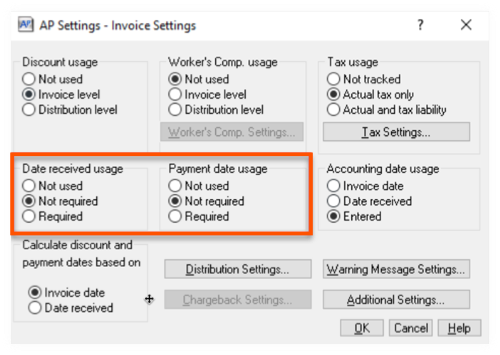
L’option Non obligatoire, mais doit être définie pour « Date de réception » et « Utilisation de la date de paiement » dans les « Paramètres AP - Paramètres de facture » comme Sage 300 CRE® décrit ci-dessous.
Informations complémentaires:
Certains champs d’une facture de sous-traitant Procore ne sont PAS exportés directement vers Sage 300 CRE®. Au lieu de cela, le système utilise d’abord ces champs pour calculer une valeur, puis exporte la valeur calculée vers Sage 300 CRE®. Pour plus de détails, voir Sage 300 CRE® - Mappage des données.
Limites:
Si votre entreprise utilise l’outil Intégrations ERP pour importer Sage 300 CRE® des codes fiscaux et des groupes fiscaux dans Procore, vous ne pourrez pas exporter les factures de sous-traitants vers Sage 300 CRE®. Pour en savoir plus sur les codes et les groupes fiscaux, voir Comment utiliser les codes fiscaux dans un projet Procore ? et Configurer la fonctionnalité d’importation de groupes fiscaux Sage 300 CRE®.
Flux de travail
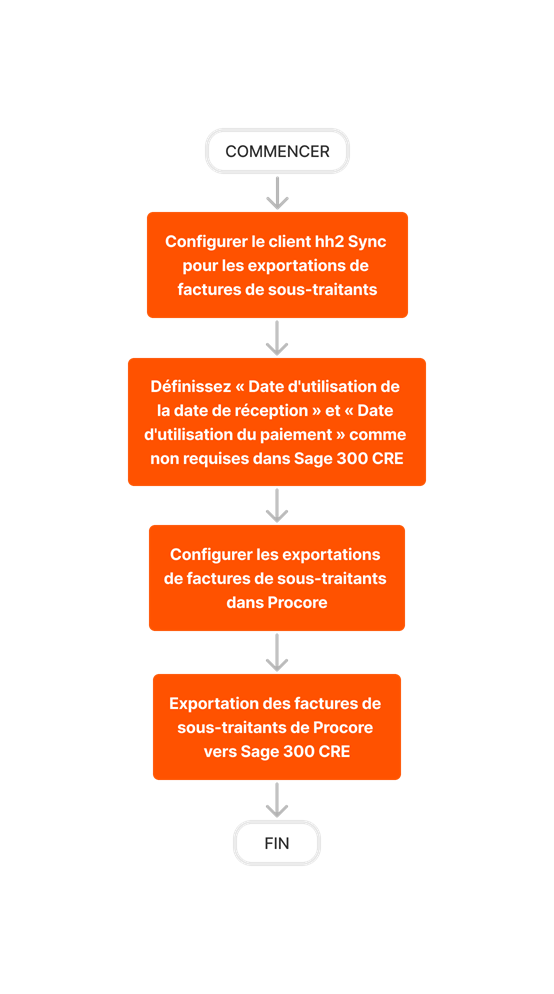
Escalier
Configurer le client de synchronisation hh2 pour les exportations de facture de sous-traitant
Définissez les champs « Date de réception » et « Utilisation de la date de paiement » sur Non requis dans Sage 300 CRE®
Configurer facture de sous-traitant exportations dans Procore
Configurer le client de synchronisation hh2 pour les exportations de facture de sous-traitant
Tout d’abord, configurez les paramètres d’exportation des factures de sous-traitants dans le Le client de synchronisation hh2 est une application cliente tierce développée par hh2. Lorsque l'outil Intégrations ERP est activé sur le compte Procore d'une entreprise et que l'outil est configuré pour fonctionner avec Sage 300 CRE®CRE, votre Point de contact Procore travaillera avec votre administrateur Procore pour installer et configurer le client de synchronisation hh2 sur votre serveur Sage 300 CRE®. Cela permet aux données de se synchroniser entre votre serveur de base de données Sage 300 CRE® et Procore.
Connectez-vous à votre Sage 300 CRE® serveur à l’aide d’un compte disposant de privilèges administratifs.
Lancez le client de synchronisation hh2 de votre entreprise.
ImportantLe client de synchronisation hh2 doit exécuter la version 1.31.467.xxxx ou une version ultérieure.

Cliquez sur Connecter.
Accédez à l’onglet Connexions locales .
Cliquez sur Mappages.
Cliquez sur Mappages avancés.
Placez un coche dans ces cercles :
Distribution (AP)
Distribution Paiement (AP)
Facture (AP)
Paiement (AP)
Facture Paiement (AP)
Paramètres de facture (AP)
Cliquez sur Enregistrer.
Définissez la « Date de réception » et « l’utilisation de la date de paiement » sur Non requis dans Sage 300 CRE®
Le bouton d’option Non utilisé ou Non requis doit être sélectionné pour « Date de réception de l’utilisation » et « Utilisation de la date de paiement » dans les « Paramètres du fournisseur – Paramètres de la facture » dans Sage 300 CRE®. Pour en savoir plus sur ces paramètres, consultez votre guide de l’utilisateur ou votre Sage 300 CRE® système d’aide.
Configurer facture de sous-traitant exportations dans Procore
Ensuite, effectuez la tâche de configuration suivante dans Procore :
Envoyez votre liste d’approbateurs de comptabilité par e-mail à Procore
Demandez au commanditaire directeur Procore de votre entreprise de contacter le support technique en lui fournissant les informations suivantes :
Adresses e-mail des approbateurs de comptabilité qui doivent recevoir l’autorisation supplémentaire d’exporter les factures des sous-traitants vers Sage 300 CRE.®
RemarqueSi vous ne connaissez pas le commanditaire exécutif de votre entreprise, consultez le champ Commanditaire exécutif sous Informations sur le compte dans l’outil Admin .
Si aucun commanditaire exécutif n’est répertorié, contactez le
.Un administrateur Procore est un utilisateur qui dispose d'autorisations de niveau « Admin » pour tous les outils au niveau Entreprise dans Procore. L'octroi à un utilisateur d'autorisations de niveau « Admin » dans l'outil Annuaire au niveau Entreprise lui attribue automatiquement des autorisations « Admin » dans tous les outils au niveau Entreprise. Il est aussi appelé administrateur entreprise.