Ajouter un soumissionnaire et des approbateurs au flux de travail de livrable
Arrière-plan
Lors de la création ou de la modification d’un livrable, vous pouvez ajouter deux (2) types de personnes (alias 'rôles') à un flux de travail de livrable :
Lorsque vous utilisez Procore pour gérer le processus de livrables de votre projet, un soumissionnaire est un terme qui identifie la personne qui a fourni les informations contenues dans un livrable (par exemple, des plans, des documents, etc.) à l'entreprise générale, afin que l'équipe de conception puisse réviser et approuver le livrable. En règle générale, la personne désignée comme ayant le rôle de soumissionnaire pour un livrable est un contact qui travaille pour l'entrepreneur responsable (par exemple, un sous-traitant ou un conducteur de travaux).
Un approbateur est une personne désignée pour approuver un livrable avant que les travaux puissent commencer. En règle générale, un flux de travail de livrable inclut plusieurs approbateurs et membres de l'équipe de conception (par exemple, un architecte, un ingénieur de projet, un ingénieur en structure, etc.). Toutefois, votre flux de travail de livrable particulier peut comprendre d'autres approbateurs.
Éléments à prendre en compte
Autorisations utilisateur requises :
Pour ajouter des utilisateurs au flux de travail du livrable pour un livrable que vous avez créé :
Autorisations de niveau « Lecture seule » ou « Standard » dans l’outil Livrables du projet avec l’autorisation granulaire « Créer un livrable » activée sur votre modèle d’autorisation.
OUDes autorisations de niveau « Standard » dans l’outil Livrables du projet sans qu’un modèle d’autorisation ne vous soit attribué.
Note: Si vous n’avez pas d’autorisations de niveau « Admin » dans l’outil Livrables du projet, vous ne pouvez ajouter au flux de travail du livrable que des utilisateurs disposant d’autorisations de niveau « Admin » dans l’outil Livrables du projet.
Pour ajouter des utilisateurs au flux de travail du livrable pour un livrable que vous n’avez pas créé : Autorisations de niveau « Standard » dans l’outil Livrables du projet et être désigné comme gestionnaire des livrables.
Pour ajouter des utilisateurs au flux de travail du livrable pour n’importe quel livrable : Autorisations de niveau « Admin » dans l’outil Livrables du projet.
Note: Avec des autorisations de niveau « Admin » dans l’outil Livrables du projet, vous pouvez ajouter au flux de travail du livrable tous les utilisateurs disposant d’autorisations de niveau « Standard » ou supérieures dans l’outil Livrables du projet.
Informations complémentaires :
Si votre entreprise prévoit d’ajouter un soumissionnaire d’une autre entreprise au livrable, nous vous recommandons de toujours désigner un gestionnaire des livrables en tant que premier approbateur dans le flux de travail d’approbation séquentielle du livrable. Le Gestionnaire des livrables pourra ainsi veiller à ce que le livrable soit pleinement revu par votre équipe interne avant d’être envoyé aux approbateurs suivants (c’est-à-dire l’équipe de conception) dans le flux de travail du livrable.
Escalier
Appliquer un modèle de flux de travail de livrable à un livrable
Ajouter des utilisateurs au flux de travail de livrable
Appliquer un modèle de flux de travail de livrable à un livrable
Un utilisateur disposant d’une autorisation de niveau « Admin » dans l’outil Livrables de votre projet peut créer un (1) ou plusieurs modèles de flux de travail de livrable que vous pouvez ensuite ajouter à un nouveau livrable lorsque vous le créez pour la première fois. Cela permet de gagner du temps lors de la saisie des données, car vous évitez d’avoir à ajouter un nouveau flux de travail de livrable à chaque fois que vous créez un livrable.
Sous Livrable Flux de travail, procédez comme suit :
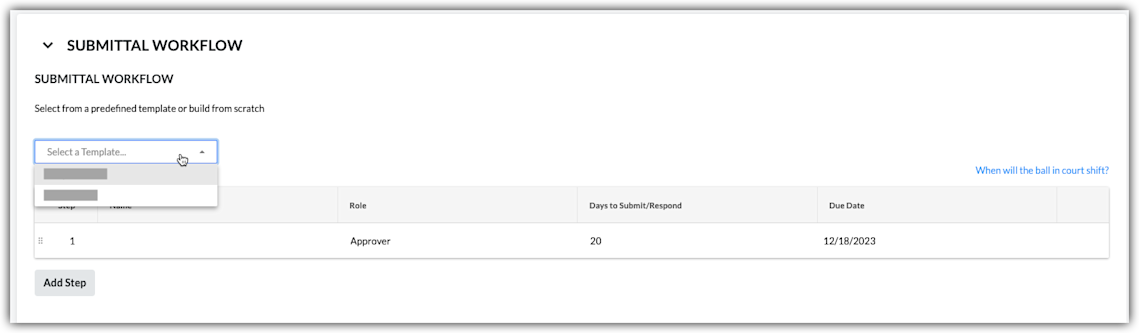
Sélectionnez un modèle. Sélectionnez un modèle de flux de travail dans la liste déroulante.
Remarques:Cette liste déroulante n’est visible et disponible que pour les utilisateurs disposant d’une autorisation de niveau « Admin » dans l’outil Livrables.
Cette action applique la ou les personnes nommées dans le modèle de flux de travail du livrable à votre livrable.
Pour savoir comment les modèles de flux de travail des livrables sont créés, voir Gérer les modèles de flux de travail des livrables.
Pour continuer, modifiez au besoin les champs Nom, Rôle et Jours pour soumettre/répondre en fonction du livrable. Vos modifications affectent uniquement le flux de travail du livrable, PAS le modèle de flux de travail du livrable.
(Facultatif) Continuez avec les étapes de la section Ajouter des utilisateurs au flux de travail de livrable.
Ajouter des utilisateurs au flux de travail de livrable
Sous Flux de travail du livrable, procédez comme suit pour chaque poste souhaité dans le livrable :
Nom. Commencez à taper le nom d’un utilisateur du projet dans le champ Rechercher . Sélectionnez ensuite l’utilisateur approprié dans la liste.
Si vous souhaitez que la réponse de l’utilisateur soit requise, cochez la case accolée à son nom.
Si vous ne souhaitez PAS demander de réponse à l’utilisateur, désactivez la case à cocher. Remarque: si vous ajoutez plus d’un utilisateur à un groupe de flux de travail d’approbation parallèle, la responsabilité est transférée au groupe de flux de travail suivant lorsque toutes les personnes désignées comme faisant partie du groupe ont répondu au livrable.
Rôle. Sélectionnez Approbateur ou Soumissionnaire dans la liste. Voir Quelle est la différence entre un soumissionnaire et un approbateur pour les livrables ?
Remarques:
Pour être désignée comme approbateur, la personne doit exister dans l’outil Annuaire au niveau projet (voir Ajouter un compte utilisateur à l’annuaire du projet) et disposer d’autorisations de niveau « Admin » ou « Standard » dans l’outil Livrables (voir Définir les autorisations utilisateur pour l’outil Livrables).
Si vous disposez d’autorisations de niveau « Standard » dans l’outil Livrables, vous pouvez seulement ajouter des utilisateurs disposant d’autorisations de niveau « Admin » dans le flux de travail.
Si vous prévoyez d’ajouter un Livrableur au livrable, il est recommandé de désigner un gestionnaire des livrables en tant que premier approbateur dans le flux de travail d’approbation séquentielle du livrable. Le Gestionnaire des livrables pourra ainsi veiller à ce que le livrable soit pleinement revu par votre partie prenante interne avant d’être transmis aux utilisateurs lors de l’étape suivante du flux de travail de livrable.
Si, en tant qu’utilisateur, vous disposez d’autorisations de niveau 'Admin' dans l’outil Livrables, vous pouvez ajouter des utilisateurs disposant d’autorisations de niveau 'Admin' ou 'Standard' dans le flux de travail. Remarque: si vous souhaitez que le flux de travail de livrable utilise l’approbation séquentielle, n’ajoutez qu’un seul utilisateur à chaque poste du flux de travail. Si vous souhaitez qu’une étape du flux de travail du livrable utilise l’approbation parallèle, ajoutez au moins deux utilisateurs à un poste.
Date d’échéance. Sélectionnez la date d’échéance de la réponse au livrable dans le calendrier. Note: Le champ 'Date d’échéance' est automatiquement renseigné en fonction du nombre de jours par défaut spécifié dans la page Configurer les paramètres de l’outil Livrables. Voir Configurer les paramètres : outil Livrables. La date d’échéance respecte également les jours définis comme 'jours ouvrables' pour le projet. Voir Définir les jours ouvrables du projet.
Cliquez sur Ajouter une étape.
Répétez cette même procédure pour ajouter un autre utilisateur au flux de travail.
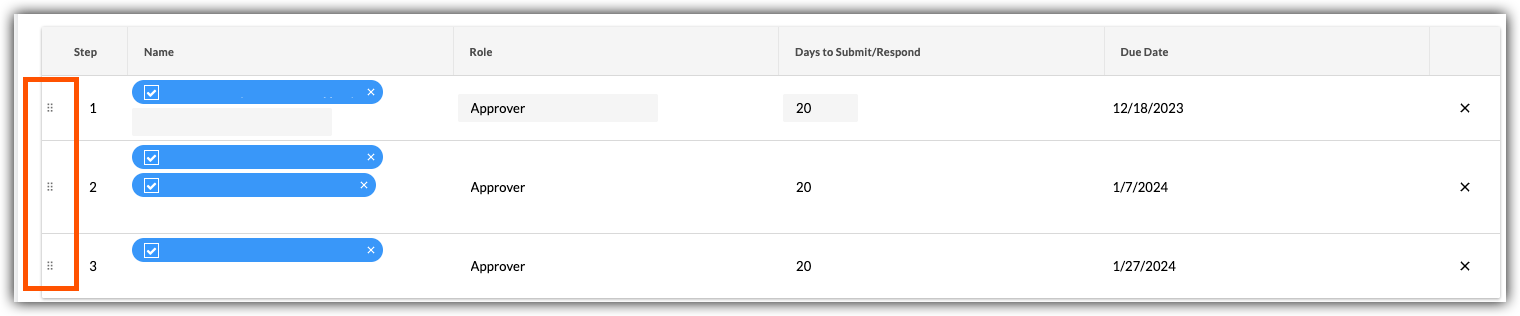
Si vous souhaitez modifier l’ordre des étapes du flux de travail, procédez comme suit :
Saisissez le poste à l’aide du Poignée verticale (⋮⋮).
Utilisez une opération de glisser-déposer pour déplacer le poste dans l’ordre souhaité.

Voir aussi
Chargement des articles connexes...