Edit a Transmittal
Background
Using the project's Transmittals tool, you can create a record of project information that has been sent to others via fax and shipping channels. When you create a transmittal and email a copy of it to your recipients, all of the information is captured and stored with your Procore project, including the names of the sender, recipient, and any relevant dates. For example, perhaps a user's email system is down and the only way to send an official response is via fax or a phone call. In such cases, you would want to create a transmittal in order to keep track of the correspondence, so a historical record is available for audit purposes in Procore.
Things to Consider
Required User Permissions:
To edit any transmittal, 'Admin' level permissions on the project's Transmittals tool.
ORTo edit a transmittal that you created, 'Standard' level permissions or higher on the project's Transmittals tool.
Additional Information:
The 'Related Items', 'Emails', and 'Change History' tabs become visible and available after a transmittal is created.
Prerequisites
Steps
Edit General Information
Navigate to the project's Transmittals tool.
Locate the desired transmittal in the list.
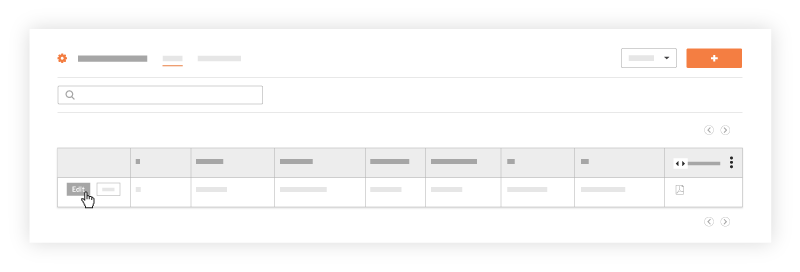
Click Edit. This opens the transmittal in edit mode.
In the 'General Information' area, you can edit the following fields:
Numérotation : Procore attribue automatiquement des numéros aux nouveaux envois, par ordre séquentiel. Vous pouvez modifier ce numéro à votre guise.
Objet : Objet descriptif du document.
À : Sélectionner des personnes ou des groupes de distribution dans le répertoire du projet. Cette action attribue la transmission aux personnes nommées. Si vous choisissez de cliquer sur le bouton « Créer et envoyer par courriel » (ou « Enregistrer et envoyer par courriel » si vous êtes un utilisateur « Administrateur » modifiant une transmission existante), le système enverra automatiquement une notification par courriel aux destinataires concernant la transmission.
CC : Sélectionnez des personnes ou des groupes de distribution dans le répertoire du projet. Cette action reproduit la transmission aux personnes nommées. Si vous choisissez de cliquer sur le bouton « Créer et envoyer par courriel » (ou « Enregistrer et envoyer par courriel » si vous êtes un utilisateur « Administrateur » modifiant une transmission existante), le système enverra automatiquement une notification par courriel aux destinataires concernant la transmission.
Envoyé via : Sélectionnez Pièce jointe pour joindre un élément de Procore à la transmission ou Sous enveloppe séparée. Si vous sélectionnez « Sous enveloppe séparée », vous pouvez également choisir l'une de ces options : Courriel, Courrier postal américain, Remise en main propre, FedEx, UPS, DHL, Courrier express, Fax et Autre.
Privé : Cochez cette case pour masquer le message à tous, sauf aux utilisateurs de niveau « Administrateur », aux utilisateurs désignés dans les champs « À » et « Cc », et aux membres du groupe de distribution par défaut (voir Configurer les paramètres avancés : Transmissions).
Objet : Cochez les cases correspondant à la raison de l'envoi de ce document. Vous avez le choix entre les options suivantes : Approbation, Votre utilisation, Conformément à la demande, Examen et commentaires, ou Traitement ultérieur.
Action à effectuer : Cochez les cases correspondant à l’action souhaitée. Vous avez les options suivantes : En attente de signature, Approuvé tel que soumis, Approuvé tel que noté, Soumettre, Soumis à nouveau, Retourné, Retourné pour corrections, Soumettre à nouveau, Date limite, Reçu, Reçu tel que noté et Date d’envoi. (Remarque: Il est recommandé de collaborer avec la direction de votre projet afin de définir l'utilisation appropriée de chacune de ces actions par défaut dans votre environnement).
Choose from the following options:
Click Save to save the transmittal without emailing it to the recipients in the 'To' and 'Cc' fields.
Click Save and Email to save the transmittal and email it to the recipients designated in the 'To' and 'Cc' fields.
Next Steps
See Also
Loading related articles...