Add 2D Sheet Overlays to a 3D Model

Procore Model Manager - Beta Access & Feedback

The Model Manager (Beta) features and documentation are subject to change without notice. Please be aware that this content is restricted to beta participants and requires a direct link to access.

  • To learn about the beta program, see the Beta Participant Guide.

  • To access the beta and provide feedback Show/Hide Details

    • How to Access: Participating companies must sign the Procore Beta Agreement. Once signed, your Procore Administrator coordinates with your Procore point of contact to enable Model Manager (Beta) on specific Procore projects.

    • How to Provide Feedback During Beta: Contact your dedicated Beta program lead.

    • How to report critical issues: Report breaking changes to Procore Customer Support. For general feedback or non-critical issues, contact your Beta program lead or Procore point of contact.


Currently, only Admin permissions are available. Procore will add more permission levels later.

Mapping allows you to spatially anchor 2D PDF drawing sheets directly to your 3D model. By aligning specific points on a sheet with the 3D geometry, you create a visual overlay that sits on top of 3D structures. This provides a clear connection between 2D plans and 3D designs to help your team navigate to precise locations within the model.

Things to Consider

  • Required User Permissions

  • Additional Information:

    • You can overlay up to 5,000 drawing sheets onto a single model.

    • The source of your PDF drawing sheets depends on your project's chosen document repository:

      • Document Management: Add drawing sheets to the model from the Documents Management tool.

      • Documents: Add drawing sheets to the model from the Project level Drawings tool.

Prerequisites

Steps

  1. Navigate to the Model Manager (Beta) tool.

  2. Open the model.

  3. In the left toolbar, click 2D Sheets .

  4. In the 2D Sheets window, click Add Overlay.
    This shows the Add Overlay button in the 2D Sheets feature which can be accessed from the left toolbar in the viewer of the Model Manager tool.

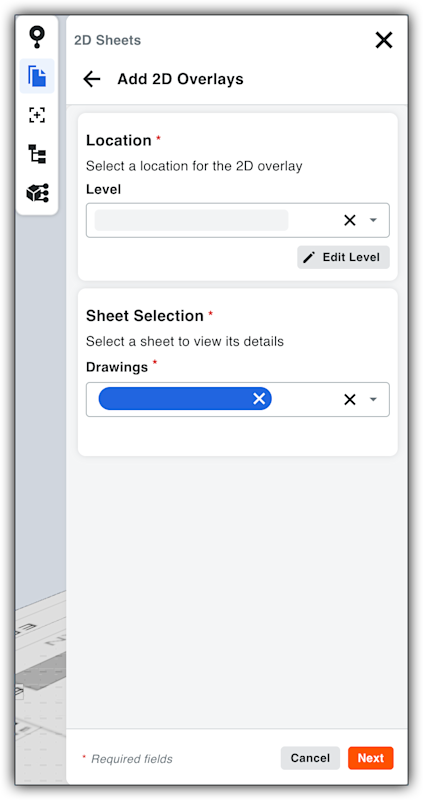
  5. Under Add 2D Overlays, do the following:

    1. In the Location card, select the location for the 2D overlay from the Level list.

      For additional location options Show/Hide Details

      If you have sufficient access permissions to the Project Admin tool, you can:

      • Go to Locations. Click this link to open the Locations page in the Project Admin tool to add, edit, ore remove a location.

      • Edit a Level. Click this button to change the selected level for the 2D sheet.

      • Define a New Level. Click the drop-down list to click this button. You can search existing locations or select a location.

    2. In the Sheet Selection card, select a drawing sheet from the Drawings list. If you have sufficient permissions to access the Drawings tool, you can also click Go to Drawings tool.
      This image shows the Add 2D Overlays features for Location and Sheet Selection in the 2D Sheets window. This is available in the viewer of the Model Manager tool.

  6. Click Next.

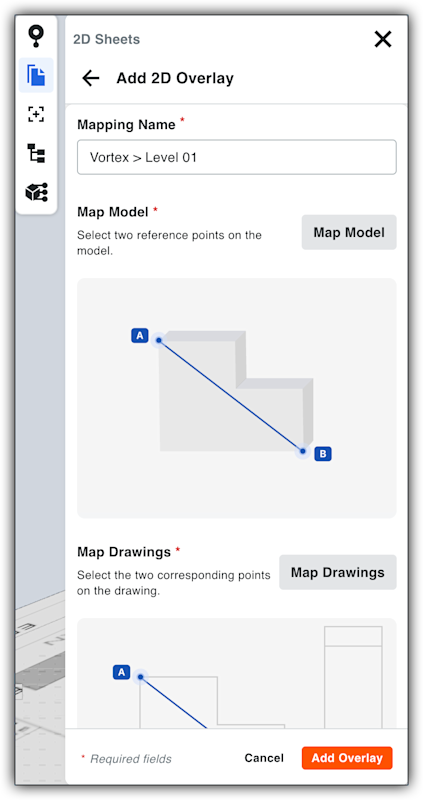
  7. In the Mapping Name box, change the name if you want.

  8. Choose from these options:

    1. Map Model. Click this button to select two reference points on the model.

    2. Map Drawings. Click this button to select the two corresponding points on the drawing. This shows the mapping options in the Add 2D Overlay feature for 2D sheets in the Model Manager viewer.

  9. When finished, click Add Overlay.
    Procore aligns your 2D drawing with the 3D model. Once set, the drawing overlays the model at the specified elevation. A notification reminds you to reload the page to see updated scene.


Windows is a registered trademark of Microsoft Corporation in the United States and other countries. Google Chrome, Android, and Google Play are trademarks of Google LLC. iPhone, iPad, and App Store are trademarks or service marks of Apple Inc., registered in the U.S. and other countries and regions. iOS is a trademark or registered trademark of Cisco in the U.S. and other countries and is used under license by Apple Inc. Autodesk, AutoCAD, Civil 3D, Navisworks, and Revit are registered trademarks or trademarks of Autodesk, Inc., and/or its subsidiaries and/or affiliates in the USA and other countries. All other trademarks are the property of their respective owners.