Add a Section Plane

Procore Model Manager - Beta Access & Feedback

The Model Manager (Beta) features and documentation are subject to change without notice. Please be aware that this content is restricted to beta participants and requires a direct link to access.

  • To learn about the beta program, see the Beta Participant Guide.

  • To access the beta and provide feedback Show/Hide Details

    • How to Access: Participating companies must sign the Procore Beta Agreement. Once signed, your Procore Administrator coordinates with your Procore point of contact to enable Model Manager (Beta) on specific Procore projects.

    • How to Provide Feedback During Beta: Contact your dedicated Beta program lead.

    • How to report critical issues: Report breaking changes to Procore Customer Support. For general feedback or non-critical issues, contact your Beta program lead or Procore point of contact.


Currently, only Admin permissions are available. Procore will add more permission levels later.

Section planes let you cut through a model to view internal details or specific cross-sections of a project. This helps you better understand complex spatial relationships and inspect areas that are otherwise hidden from view.

Things to Consider

Prerequisites

Steps

Follow these steps to add a section plane to surface in the 3D space:

  1. Navigate to the Model Manager (Beta) tool.

  2. Open the federated project model or a model file.

  3. In the right toolbar, click the Section Tools This image shows the Section Tools icon in the right toolbar of the viewer in the Model Manager tool. icon.

    Tip: Managing Your Changes

    Need to save your progress or exit without saving? To learn how, see How can I tell which tool is active in the Model Manager's right toolbar?

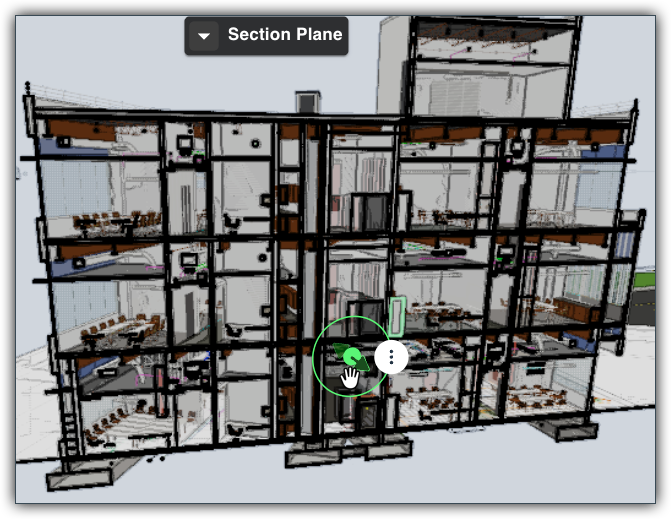
  4. Click a surface to place a section plane. The plane snaps flat to the surface and hides the model in front of it.

  5. When you see the hand icon, you can move the plane to the desired position. This image shows a section plane that has just been placed on a model with the Hand icon showing, which indicates the user can move the plane.

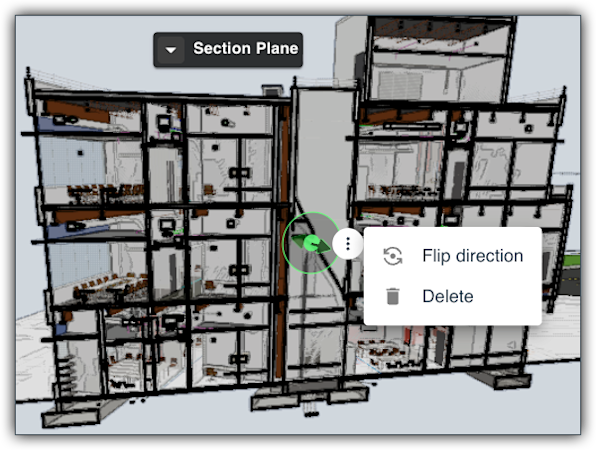
  6. Further manage the plane by clicking the More (:) icon and choosing a menu option:
    This images shows the More menu options for a section plane on a 3D model in the viewer of the Model Manager tool.

    • Flip Direction. Flip the direction of the plane.

    • Delete. Remove the plane from the surface.

  7. When finished, click Confirm This shows the Save and Exit button in the right toolbar in the viewer in the Model Manager tool on the toolbar.


Windows is a registered trademark of Microsoft Corporation in the United States and other countries. Google Chrome, Android, and Google Play are trademarks of Google LLC. iPhone, iPad, and App Store are trademarks or service marks of Apple Inc., registered in the U.S. and other countries and regions. iOS is a trademark or registered trademark of Cisco in the U.S. and other countries and is used under license by Apple Inc. Autodesk, AutoCAD, Civil 3D, Navisworks, and Revit are registered trademarks or trademarks of Autodesk, Inc., and/or its subsidiaries and/or affiliates in the USA and other countries. All other trademarks are the property of their respective owners.