Send Estimate Drawings to the Documents Tool
Background
Sending drawings to the Documents tool allows you to centralize your project files and organize them within your project's folder structure. This ensures that the plans used for your estimate are archived alongside other project-related documents, making them easily accessible for administrative and record-keeping purposes.
Things to Consider
Required User Permissions:
‘Standard’ or ‘Admin’ level permissions on the project’s Estimating tool.
AND'Admin' permissions on the project’s Drawings tool.
Additional Information:
When using the Estimating tool, sending estimate drawings to the drawings tool is only available for projects that originated in the Bid Board tool. See Add a Bid Board Project to the Portfolio Tool.
Takeoff measurements and markups added in the Estimating tool do not transfer to the Documents tool. Only the base drawing file is sent.
This action creates a copy of the drawing file in the Documents tool; it does not remove the drawing from the Estimating tool.
Steps
Navigate to the Bid Board or Portfolio Planning tool and select the project.
OR
Navigate to the project's Estimating tool.Click the Documents tab.
Depending on your needs, choose one of the following methods to send your attachments:
Send All Attachments
Select Attachments on the left.
Click the vertical ellipsis
 icon.
icon.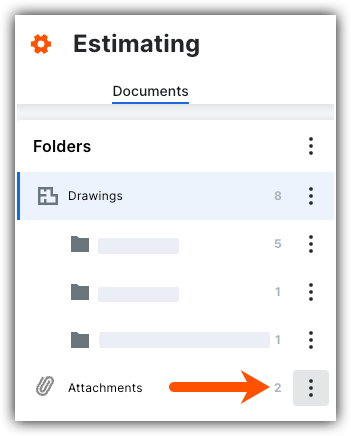
Click Send to Documents tool.

Send Multiple Selected Attachments
Select Attachments on the left.
In the list view, mark the checkboxes next to the attachments you want to send.
Click the Send To button.
Click Send to Documents tool.
Send a Single Attachment
Select Attachments on the left.
In the list view, locate the specific attachment.
Click the vertical ellipsis
icon in that attachment's row.Click Send to Documents tool.
See Also
Loading related articles...