Configure Mobile Sync Settings for Inspections (iOS)
Background
Configuring sync settings limits the volume of inspection data downloaded to your mobile device. Applying filters for inspection status and timeframe reduces sync times and conserves local device storage. This ensures you download only the items essential to your immediate work on large-scale projects.
Things to Consider
Additional Information:
Sync Interruption: Updating configuration settings restarts the sync process using the updated criteria. Verify your filter choices before saving to prevent unnecessary re-syncing.
Syncing full datasets on large projects can consume significant time and bandwidth.
Applying status and timeframe limits optimizes overall application performance
Steps
Navigate to the Inspections tool on a mobile device.
Tap the settings gear icon on the right side of the sync header.
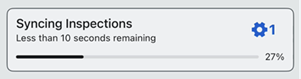
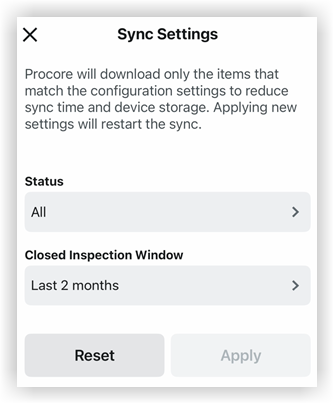
Tap Status to select which items download.
Tap Closed Inspection Window to set a timeframe limit for closed items.
Tap Apply.


See Also
Loading related articles...