Configure Measurement Units for 3D Models
The Settings button in the toolbar lets you configure your preferred system of measurement when viewing and calculating dimensions within 3D models. This setting ensures that all line items, dimensions, and model details align with your project's regional standards or personal working preferences.
Things to Consider
Prerequisites
Changing this setting updates the visual display for your current session and does not permanently alter the source model file metadata.
You must open an active 3D model in the viewer before you can access the Settings menu.
Before making a selection, determine which measurement system your project workflow requires:
Imperial Units (Ft' In")
Metric Units (Meters or Millimeters)
Steps
Navigate to the project's Models tool.
Locate the tile for the model to work with.
Click the model's tile to open it in the viewer.
Click Settings on the model viewer toolbar.
Click the Measurement Units drop-down menu.
Choose one option from the drop-down menu:
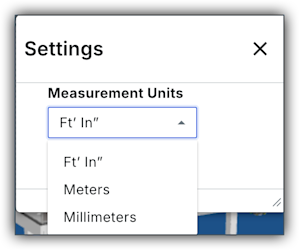
Ft' In". View dimensions in feet and inches.
Meters. View dimensions in metric meters.
Millimeters. View dimensions in metric millimeters.
Click Close to save your preferences and return to the model viewer.
See Also
Loading related articles...