Check Your AI Inbox
Background
Inbox is a notification feed that collects updates about your AI events in one place, so you don't have to open each AI chat, page, or automation to check for new activity. Each item shows who or what it came from, the type of item, a preview, and how long ago it arrived.
Messages you have not read are marked with a dot, and a number next to Inbox in the menu shows how many you have. Inbox can include the following:
Agent replies: Replies from agents in your chats. A reply is marked unread only if you were not in that chat when the reply finished.
Automation activity: Agent runs started by a trigger, such as when an RFI is created or updated, and scheduled automations that are waiting for your approval. You also get a notice if a trigger is turned off automatically because of high event volume. Inbox does not list every automation run.
Page activity: New comments and replies on a Page, and when a comment thread is resolved or reopened.
Budget alerts: Alerts from Control Tower when your AI budget reaches about 80 percent and when it reaches 100 percent.
Things to Consider
Prerequisites
Your Procore account must have an active subscription to a Digital Coworker package, and a Company Admin must have enabled your project and assigned you a role. Learn more about enabling Procore AI.
Availability
Inbox is available on the web in Procore AI.
Note: Datagrid has a similar Inbox feature, but this tutorial discusses the Inbox in Procore AI.
Steps
Review your notifications from agents, automations, and Pages, and keep track of which ones you have read.
Open Inbox
Log in to Procore.
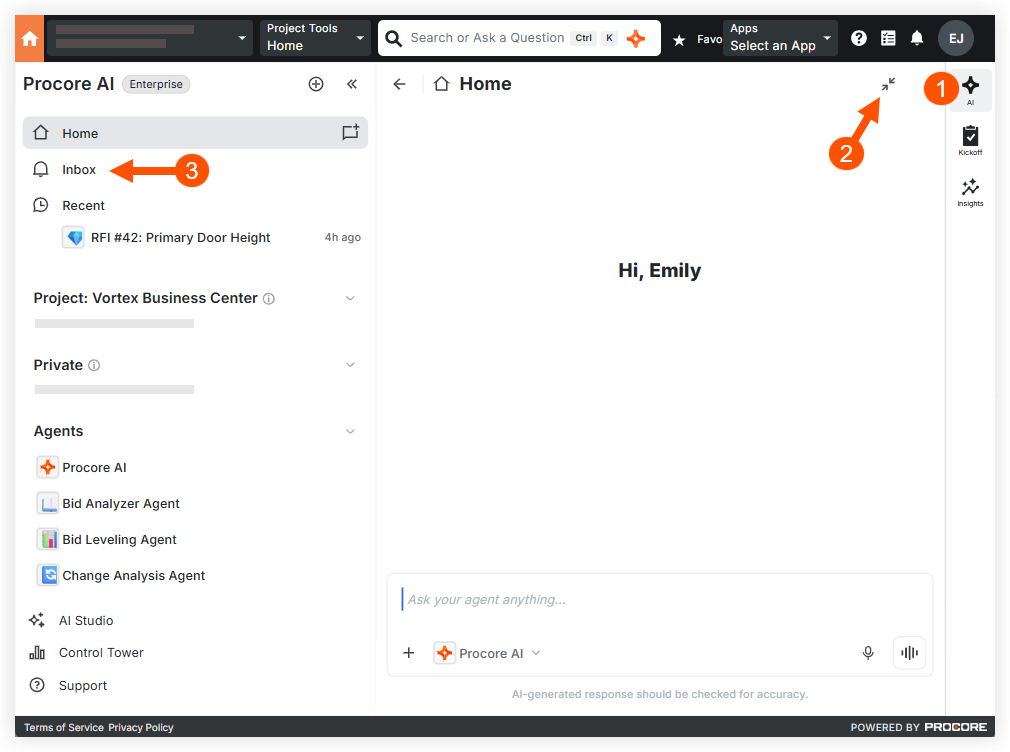
Click the AI icon on the right.
Open Inbox in one of these ways:
Click the menu
 icon, and then click Inbox.
Click the expand
 arrows for the full screen view. Then, in the left pane, click Inbox.
Choose your task from the remaining sections in this article.

Review a message
In Inbox, find the message you want to review.
Click the message to open the item it came from, such as a chat or an automation run.
Show only unread messages
In Inbox, click the Unreads toggle to turn it on.
Optional: To show all messages again, click the Unreads toggle to turn it off.
Mark a message as read or unread
In Inbox, hover over the message.
Click the checkbox at the right of the message. The checkbox label shows what happens when you click it:
If the message is unread, the label is Mark as read. Click the checkbox to mark the message as read.
If the message is read, the label is Mark as unread. Click the checkbox to mark the message as unread.
Note: The message stays in the same place in the list. The unread dot on the message and the number next to Inbox in the menu update.
Mark all messages as read
In Inbox, click the more
 menu at the top of the list.
Click Mark as read.
This marks all messages currently shown in Inbox as read, not only the messages you hovered over or clicked.
The unread dots clear away and the number next to Inbox in the menu goes down. The messages stay in the list.
Optional: To check the result, click the Unreads toggle to turn it on. If all messages are now read, the list is empty.
Note: If the Unreads toggle is on when you click Mark as read, the action only applies to the messages shown.
See Also
Loading related articles...