Create Custom Transaction Detail Reports in QuickBooks® Desktop
Background
Compare QuickBooks Desktop job costs with Procore budget values to isolate and resolve accounting discrepancies across platforms. Running this report provides detailed item-level visibility into costs and invoiced commitments. Use this data to ensure cost synchronization between both systems.
Things to Consider
Required User Permissions:
You must have the appropriate access permissions in QuickBooks® Desktop to run custom financial reports.
Additional Information:
Selecting improper transaction types or service items will result in mismatched budget figures. Ensure you select All Services and include all relevant transaction types when matching invoiced commitments.
Steps
Navigate to Reports in QuickBooks® Desktop.
Click Custom Reports.
Select Transaction Detail.
Change Dates dropdown option to ‘All’.
Click the Display tab to modify the report columns, and select the following options:
Type
Item
Date
Source Name
Memo (Optional)
Amount
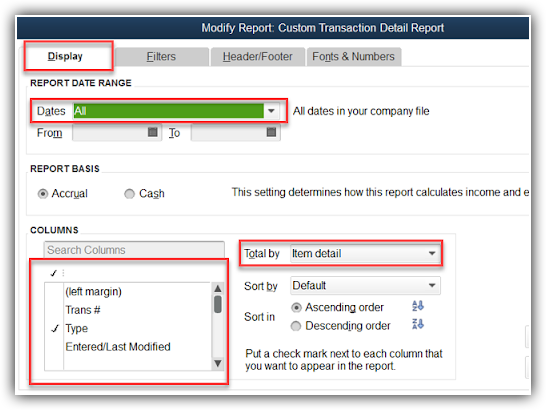
Select Item Detail from the Total by drop-down menu to sort and summarize costs by item.
Click the Filters tab and configure the following filters:
a. Select Name and choose the job name you want to report on.
Select Item and choose All Services.
Select Account and choose the account(s) used for your service items (Optional).
Review the Amount total to ensure it matches the Job to Date Costs on the synced Procore Budget.
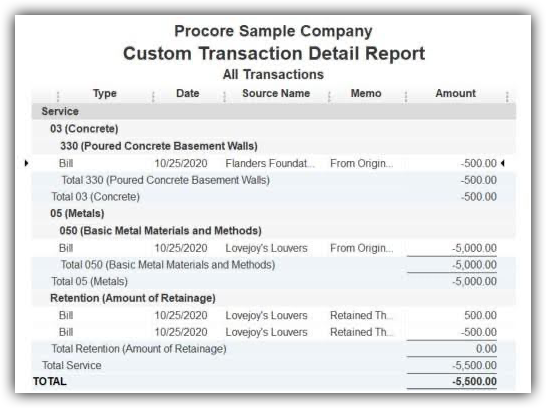
To filter the above report to show Commitments Invoiced amounts, return to the Filters tab and add the following filters:
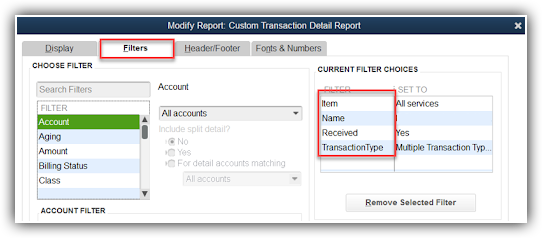
Select Received and set the value to Yes.
Select Name and choose the relevant job name.
Select Transaction Type.
Click Multiple Transaction Types, and mark the checkboxes for the following items:
Check
Credit Card
Bill
CCard Credit
Bill Credit
Bill CCard
Paycheck
Verify the Amount column to confirm the total matches your Commitments Invoiced amount in Procore.


See Also
Loading related articles...