Respond to a Resource Planning Message
Background
When managing your resource, you can send messages to provide helpful information such as updates to weather, schedules, or information about certain job titles. People can respond to messages so that communication can be tracked and managed in Resource Planning.
Things to Consider
Messages sent in Resource Planning will not appear in the Emails tool in Procore.
When replying to an individual message, the response is sent to the sender of the original message.
When replying to a group message, the response is sent to everyone the original message was sent to.
People receiving messages:
Cannot reply by SMS. See What messages and alerts can people respond to in Resource Planning?
Note: Message and data rates may apply when receiving SMS messages.Can reply from their own email client. Emailed replies appear in your Resource Planning Inbox.
Can respond using the Resource/LaborChart Planning App.
Can respond using the Messages tool.
Prerequisites
Steps
Respond by Email
In your email client, open the email message.
Click Reply.
Click Send to send the email message.
Respond using the Messages tool (Beta)
Navigate to the company's Resource Planning tool.
Click the Communications (Beta) tab.
Click Messages from the drop-down menu.
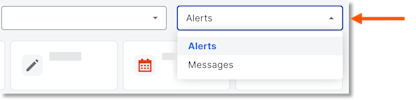
Click Inbox.
In the 'Date/Time Sent' column, select the envelope
 icon for the message.
Enter your reply.
Optional: Mark the checkbox to include your signature.
Click Reply.
Respond using the Messages tool (Legacy)
Navigate to the Company level Resource Planning tool.
Click Communications and select Messages.
Select the message to reply to.
Enter your response.
Click Reply.
See Also
Loading related articles...