Set up Configurable Views for the Change Events Line Items View
Background
The Change Events tool offers five default views Classic Detail, Classic Summary, Complete View, Owner's View, and Scope View. Each view arranges columns differently to highlight specific data. If the defaults does not fit your needs, you can create a custom configurable view. Creating configurable views allows users to customize the list view of the Change Events tool with the columns of their choice and save the view so it can be standardized across Procore projects.
Things to Consider
Required User Permissions:
'Admin' level permissions on the Company level Admin tool.
Additional Information:
Newly created views are automatically applied to all projects.
Newly created views are set to 'Hidden' until they are published. See Change the Status of a Configurable Change Events View.
Custom Fields are NOT supported by configurable views.
Steps
Create a New View
Navigate to the Company level Admin tool.
Under 'Tool Settings', click Change Management.
Click the Configurable Views tab.
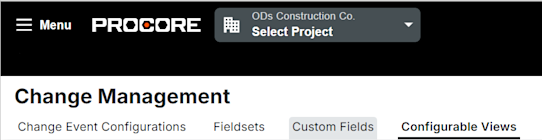
Click Create View.
Note: To edit an existing view, click the title of the view in on the Configurable Views page.Enter a name and description for the view.
Optional: Select a project from your company to preview the new view with up to 25 rows of data.
Optional: Choose an existing view to use as a template for creating the new view. The new view will automatically be populated with the columns from the selected existing view.
Click Configurable Views to begin configuring the new view.
Click the configuration icon
 to view the list of available columns to add to the view.
Toggle the switches on
 to include a column in the view.
Configure Columns
Click the Columns icon to open Table Settings, where you can configure row heights and column
Row Height: Choose between small, medium, and large row height for the change events list view.
Configure Columns: Use the toggle switch to determine which columns will be displayed or hidden from the change events list-view.
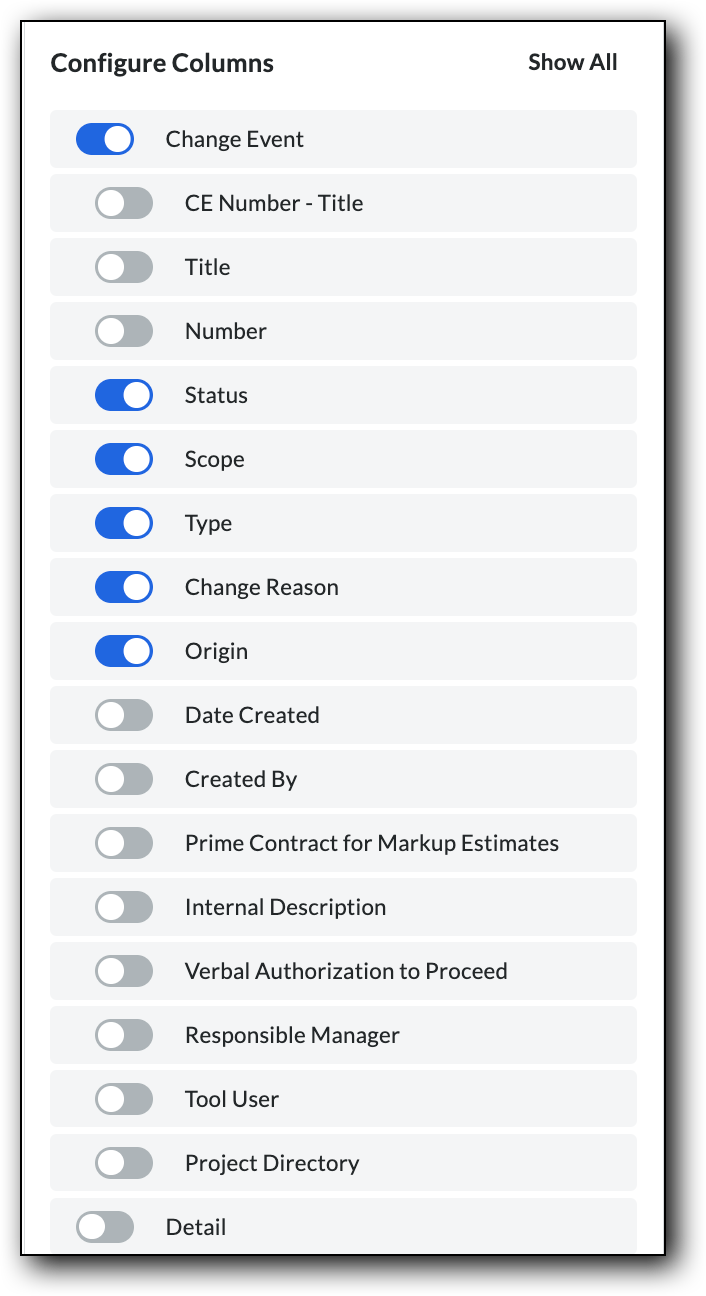
Note: Clicking Reset To Default will set all columns to display.
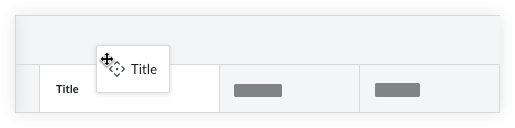
To reorder columns, click and drag a column title to move their position in the table to left or right.
Click the vertical ellipsis
 when hovering over a column header/title to open additional column settings:
Group by Change Reason
Pin Column
Pin Left
Pin Right
No Pin
Autosize This Column
Autosize All Columns
Hide Column
Sort By This Column
Sort Column Ascending
Sort Column Descending
Column Not Sorted
Reset Columns
View Line Items
The Line Items card on an individual change event lets you perform different viewing and editing functions. To learn about your options, see (Beta) View the Change Events Line Items View.
Change Event Data Columns
Change Event General Information
CE Number - Title
Shows the change event number and the title combined that was assigned at creation.
Title
Shows the title of the change event.
Number
The change event number.
Status
Show the current status of the change event. To learn about Procore's default statuses, see What are the default statuses for change events in Procore?
Scope
Shows the following scope options: In Scope, Out of Scope, or TBD. See What are the default scope options for change events in Procore?
Type
Shows the type associated with the change event: TBD, Allowance, Contingency, Owner Change, or Transfer to indicate the type of cost you are preparing for. See Set the Default Change Management Configurations.
Change Reason
Shows the reason associated with the change. See Set the Default Change Management Configurations.
Origin
Shows a link to the item in a Procore project tool from which the change event originated. See Which Procore tools can I use to create a change event?
Date Created
The date the change event was created.
Created By
The name of the user who created the change event.
Prime Contract for Markup Estimates
The original prime contract associated with markup estimates linked to each change event.
CE Number - Title
Shows the change event number and the title combined that was assigned at creation.Title
Shows the title of the change event.Number
The change event number.
Status
Show the current status of the change event. To learn about Procore's default statuses, see What are the default statuses for change events in Procore?
Scope
Shows the following scope options: In Scope, Out of Scope, or TBD. See What are the default scope options for change events in Procore?Type
Shows the type associated with the change event: TBD, Allowance, Contingency, Owner Change, or Transfer to indicate the type of cost you are preparing for. See Set the Default Change Management Configurations.
Change Reason
Shows the reason associated with the change. See Set the Default Change Management Configurations.
Origin
Shows a link to the item in a Procore project tool from which the change event originated. See Which Procore tools can I use to create a change event?Date Created
The date the change event was created.
Created By
The name of the user who created the change event.
Prime Contract for Markup Estimates
The original prime contract associated with markup estimates linked to each change event.
Detail
Item Type
Shows the type associated with the line item: Line Item, or Markup.
Budget Code
Select a budget code or click Create Budget Code. See What is a budget code in Procore's WBS?
Description
Enter a description for the line item.
Vendor. Select the vendor's company name from the drop-down menu. See Add a Company to the Project Directory.
Contract
Select the impacted purchase order or subcontract from the drop-down menu. See Create a Purchase Order or Create a Subcontract.
Unit of Measure
The unit of measure selected for the change event line item. See Which units of measure are included on Procore's master list?
Item Type
Shows the type associated with the line item: Line Item, or Markup.
Budget Code
Select a budget code or click Create Budget Code. See What is a budget code in Procore's WBS?
Description
Enter a description for the line item.Vendor. Select the vendor's company name from the drop-down menu. See Add a Company to the Project Directory.
Contract
Select the impacted purchase order or subcontract from the drop-down menu. See Create a Purchase Order or Create a Subcontract.
Unit of Measure
The unit of measure selected for the change event line item. See Which units of measure are included on Procore's master list?
Revenue
Quantity
The number of the chosen units of measure associated with the revenue of the change event line item.
Unit Cost
The value assigned to each unit associated with the revenue of change event line item.
Revenue ROM
The rough order of magnitude (ROM) is the preliminary revenue value assigned to the change event line item.
Prime/Prime PCO
The value of the prime change order SOV line item connected to the change event line item.
Prime PCO Title
The title of the change order or potential change order connected to the change event line item.
Stage
The current status in the change event workflow.
Stage Status
The completion state of the active stage.
In Status Since
The date the current status took effect.
Latest Price
The most up to date value associated with the revenue of the change event line item.
Quantity
The number of the chosen units of measure associated with the revenue of the change event line item.Unit Cost
The value assigned to each unit associated with the revenue of change event line item.
Revenue ROM
The rough order of magnitude (ROM) is the preliminary revenue value assigned to the change event line item.Prime/Prime PCO
The value of the prime change order SOV line item connected to the change event line item.
Prime PCO Title
The title of the change order or potential change order connected to the change event line item.
Stage
The current status in the change event workflow.
Stage Status
The completion state of the active stage.
In Status Since
The date the current status took effect.
Latest Price
The most up to date value associated with the revenue of the change event line item.
Cost
Quantity
The number of the chosen units of measure associated with the cost of the line item.
Unit Cost
The value assigned to each unit associated with the cost change event line item.
Cost ROM
The rough order of magnitude (ROM) is the preliminary cost value assigned to the change event line item.
Request for Quote
The value of a returned RFQ associated with the change event line item.
RFQ Title
The title of an RFQ associated with the change event line item.
Request for Quote Status
The current state of vendor pricing requests.
Commitment/Commitment CO/PCO
The value of the commitment or commitment change order SOV line item connected to the change event line item.
Commitment Title
The title of the of the contract or change order connected to the change event line item.
Commitment Status
The current lifecycle state such as Draft, Out for Bid, Pending Approval, or Approved of the purchase order or subcontract associated with the change event line item.
Stage
The specific workflow phase such as In Review, Issued, or Executed of the commitment tied to the change event.
Days in Stage
Tracks the total number of consecutive days remained in its current workflow phase.
Stage Status
The completion state of the active stage.
In Status Since
The date the current status took effect.
Latest Cost
The most up to date value associated with the cost of the change event line item.
Quantity
The number of the chosen units of measure associated with the cost of the line item.
Unit Cost
The value assigned to each unit associated with the cost change event line item.
Cost ROM
The rough order of magnitude (ROM) is the preliminary cost value assigned to the change event line item.
Request for Quote
The value of a returned RFQ associated with the change event line item.
RFQ Title
The title of an RFQ associated with the change event line item.
Request for Quote Status
The current state of vendor pricing requests.
Commitment/Commitment CO/PCO
The value of the commitment or commitment change order SOV line item connected to the change event line item.
Commitment Title
The title of the of the contract or change order connected to the change event line item.
Commitment Status
The current lifecycle state such as Draft, Out for Bid, Pending Approval, or Approved of the purchase order or subcontract associated with the change event line item.
Stage
The specific workflow phase such as In Review, Issued, or Executed of the commitment tied to the change event.
Days in Stage
Tracks the total number of consecutive days remained in its current workflow phase.
Stage Status
The completion state of the active stage.
In Status Since
The date the current status took effect.
Latest Cost
The most up to date value associated with the cost of the change event line item.
Over/Under
Over/Under
The difference between the 'Latest Price' and the 'Latest Cost'.
Over/Under
The difference between the 'Latest Price' and the 'Latest Cost'.
Production
Unit of Measure
The unit of measure selected for the measurable amount of work installed on the project that is associated with the change event line item.
Quantity
The number of the chosen units of measure associated with the measurable amount of work installed on the project that is associated with the change event line item.
Unit of Measure
The unit of measure selected for the measurable amount of work installed on the project that is associated with the change event line item.
Quantity
The number of the chosen units of measure associated with the measurable amount of work installed on the project that is associated with the change event line item.
Budget
Quantity
The number of the chosen units of measure associated with the budget of the change event line item.
Unit Cost
The value assigned to each unit associated with the budget of the change event line item.
Budget ROM
The rough order of magnitude (ROM) is the preliminary value assigned to a budget change connected to the change event line item.
Budget Change
The value of the budget change connected to the change event line item.
Stage
Stage reflects the current approval or lifecycle status (such as Draft, Under Review, or Approved) of the budget adjustment tied to the change event.
Days in Stage
Tracks the total number of consecutive days remained in its current workflow phase.
Stage Status
The completion state of the active stage.
In Status Since
The date the current status took effect.
Latest Budget Impact
The most up to date value for the budget impact of the change event line item. The value will match the Budget ROM column or the Budget Change column if there is a value.
Latest Budget Impact
Displays the broken-down components of the budget code such as Cost Code, Cost Type, or Sub Job assigned to the change event line item.
Quantity
The number of the chosen units of measure associated with the budget of the change event line item.
Unit Cost
The value assigned to each unit associated with the budget of the change event line item.
Budget ROM
The rough order of magnitude (ROM) is the preliminary value assigned to a budget change connected to the change event line item.
Budget Change
The value of the budget change connected to the change event line item.
Stage
Stage reflects the current approval or lifecycle status (such as Draft, Under Review, or Approved) of the budget adjustment tied to the change event.
Days in Stage
Tracks the total number of consecutive days remained in its current workflow phase.
Stage Status
The completion state of the active stage.
In Status Since
The date the current status took effect.
Latest Budget Impact
The most up to date value for the budget impact of the change event line item. The value will match the Budget ROM column or the Budget Change column if there is a value.
Latest Budget Impact
Displays the broken-down components of the budget code such as Cost Code, Cost Type, or Sub Job assigned to the change event line item.
Filter and Sort the Line Items View
Filtering
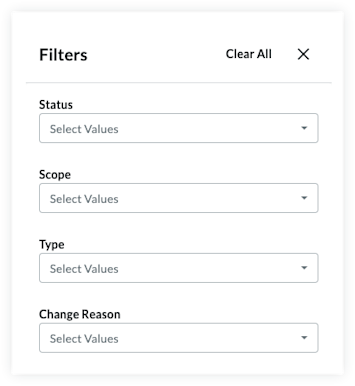
Click the Filters at the top of the change events table.
Select from the following filters:
Status
Scope
Type
Change Reason
Sorting
Click the title of a column to change its sorting behavior.Example: Change the sorting order of the 'Status' column so Open Change events are listed first.
Grouping Columns
Column grouping allows you to better organize the Change Events line items table, especially when it comes to evaluating financial risk in your project. Specify which columns you would like to group and items within that group will roll-up underneath.
To group columns, click the Select Group selector at the top of the change events table and select the columns you want to group together.
If more than one grouping is selected, they can be rearranged within the 'Group By' Selector by clicking and dragging them into the preferred order. A grouping can be deleted by clicking the 'x' on the right side of the group.
Groupings can be reset by clicking Reset at the bottom of the selector.
Change the Status of a Configurable Change Events View
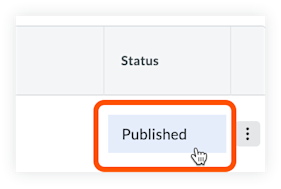
The status of individual configurable views can be toggled between Published and Hidden. Published views are available for use on their assigned projects and hidden views are not available for use. The hidden status is useful for when a configurable view is in creation but not ready to be implemented.
Navigate to the Company level Admin tool.
Under 'Tool Settings', click Change Management.
Click the Configurable Views tab.
Click the Status column in the row of the view being changed.
Duplicate or Delete a View
Configurable views can be duplicated to make building a new view easier. Duplicating a view creates a new view that is an exact copy of the existing view. Deleting a view removes the view permanently.Note: Deleted views are NOT recoverable. Procore's default views cannot be deleted.
Navigate to the Company level Admin tool.
Under 'Tool Settings', click Change Management.
Click the Configurable Views tab.
Click the ellipsis icon in the row of the view being changed.
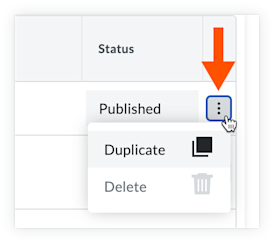
Click Duplicate or Delete.
See Also
Loading related articles...