Add Custom Segments to the Project Budget Code Structure
Background
When your company's Procore Administrator adds new custom segments to your Company level WBS, it is automatically added to your existing project's 'Available Segments' list. These new Company level segments are grayed out and unavailable, to show have not been added to the project's budget code structure. If you want to add that new Company level custom segment to your project, it can be added both before or after you've created budget codes on the project.
Things to Consider
Required User Permissions:
'Admin' level permissions on the Project level Admin tool.
Additional Information:
When a new segment is added to the Company level WBS, Procore adds it to the 'Available Segments' list.
To create a project budget code using that segment, you must add it to your project's budget code structure.
You can add a Company level segment to your project's budget code at any time, before or after you've created budget codes on the project.
To learn how the company and project level budget code structures interact, see What happens to projects when I change the segment order of my company's budget code structure in WBS?
Limitations:
For customers using the Company level ERP Integrations tool
The default segments in WBS are compatible with Procore's ERP Integrations tool. However, some integrations do NOT yet support custom segments.For customers who have independently developed or purchased a third-party solution to integrate with Procore
To take advantage of the custom segment capabilities associated with WBS, any existing API integrations that you have independently developed or purchased to interact with Procore must be updated to support Procore's new WBS API.
Prerequisites
Steps
Navigate to the Project level Admin tool.
Under 'Project Settings', click the Work Breakdown Structure link.
In the 'Available Segments' table, click the to add to your project's budget code structure.
NoteNewly added Company level Segments are grayed out to indicate they are NOT part of the budget code structure in the 'Available Segments' list.
If you are unsure how to use the new segment, consult with your company's Procore Administrator.
Locate the segment to add and Click the + icon next to the custom segment item to Add to Budget Code Structure. Procore adds the new segment to your project's budget code structure. 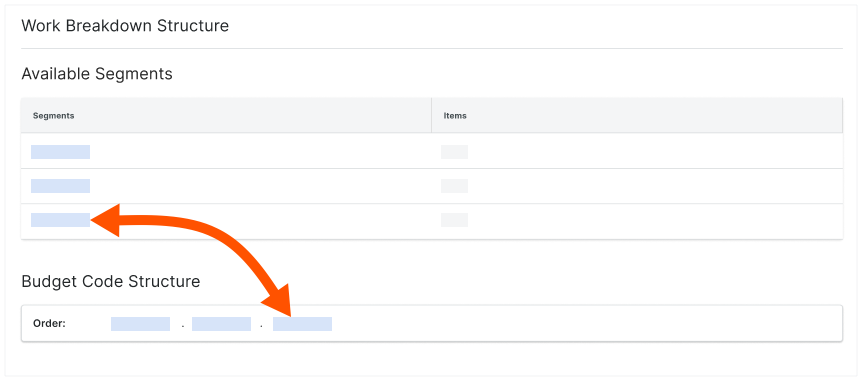
Continue by arranging the segments in the desired order.
你知道你可以为你的项目自定义预算编号描述吗?当你的团队想要为单个预算编号创建两个或更多描述时,自定义非常有用。自定义还可以提高财务明细项编号的最终用户可读性。要了解更多信息,请参阅为什么以及如何为 Procore 的项目财务工具创建自定义预算编号描述?