Navigate the Next-Gen Viewer in Model Manager

Deployment Status & Regional Availability

Model Manager, Procore’s next-generation replacement for the Models tool, officially launches in General Availability across the UK and Ireland (UKI) on October 13, 2026, alongside a global Beta for all other regions. Procore Mobile App (iOS/Android) support is also live in Beta as Procore continues to transform 3D model workflows. Stay tuned for additional features in future releases.

For platform deployment status & regional availability Show/Hide

The Model Manager and the Models tool can be active on the same project at once. Administrators are not required to disable the Models tool.

Platform

Deployment Status/Region

Learn More

Web

  • General Availability: United Kingdom & Ireland (UKI) on October 13, 2026

  • Beta: All other regions

iOS

  • Beta: All regions

Android

  • Beta: All regions

Model Manager Beta: Access & Guidelines

  • Registration: Participating companies must sign the Procore Beta Agreement. Once signed, your Procore Administrator will coordinate with your Procore point of contact to enable Model Manager on specific projects. It is not available in Procore Explore.

  • Support & Feedback: Please report critical or breaking issues directly to Procore Customer Support. For general feedback, feature requests, and non-critical issues, contact your dedicated Beta program lead or Procore point of contact.

  • Beta Notice: This feature and its supporting documentation are in active development. Beta services are provided strictly "as is" for evaluation purposes, carry no standard warranties or liability, and are subject to change or discontinuation without notice. For full terms, please refer to the Procore Subscription Services Agreement.

The Next-Gen Viewer lets you customize how you explore the project model. By adjusting the field of view or switching projection modes, you can view realistic spatial depth or remove distortion to check technical details. These tools help you easily navigate complex sites and precisely verify alignments. Admins can also view appended files here.

Things to Consider

Prerequisites

Open a Model or Project View

  1. Tap the Procore icon on your device to launch the Procore Mobile app.

  2. Find and tap the project to open.

  3. Tap Model Manager in the My Tools menu.

  4. View a model.

View Models in Landscape or Portrait Mode

The Procore Mobile app (iOS/Android) supports viewing in Landscape or Portrait mode. You can the device sideways for landscape and upright for portrait mode.

Show/Hide Details

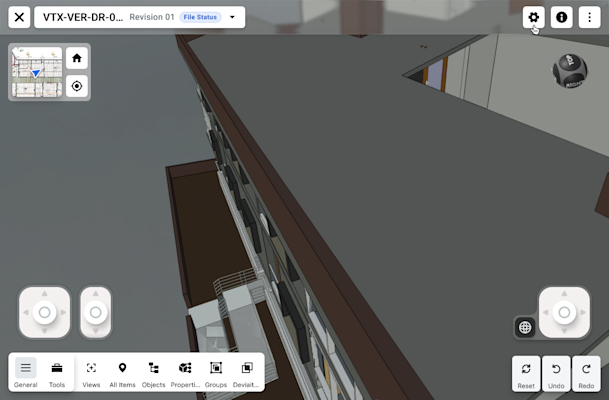
Landscape Mode

This image shows the default state of the Next-Gen Model Viewer in the Model Manager tool when viewed on a tablet.

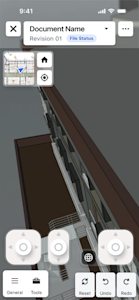
Portrait Mode

This image shows the Next Gen Viewer in the Model Manger tool when viewed on a mobile device in Portrait mode.

Tip

Not rotating between modes? If you are unable to view both modes on your device, check your device manufacturer's documentation to ensure the orientation lock is disabled. Enabling auto-rotate on your device allows the Procore app to switch between modes.

Header & Global Actions

  • Document Info: Displays the active Document Name and current Revision number, and a color-coded File Status badge.

  • Settings: Access viewer preferences, rendering options, and selection resolution.

  • Info: Access the model's metadata.

  • More: Access additional options.

Navigation & Orientation

  • 2D Minimap: Displays a 2D drawing overlay showing your current location (blue arrow) relative to the building footprint.

  • Home Icon: Resets the camera to the Home View.

  • Center/Target Icon: Re-centers the view on a selected object or your current coordinate position.

On-Screen Joystick Controls

Use the joysticks to navigate or walkthrough the model.

  • Left Joystick: Controls lateral movement. Slide the stick to move the camera forward, backward, left, or right. The farther you drag the stick from center, the faster the camera moves. A small drag produces finer, slower movement.

  • Center Slider: Controls vertical movement. Move the camera directly up or down.

  • Right Joystick: Controls camera rotation. Rotating this stick changes the direction you are facing (pan or tilt) without moving your physical position in the model. You can combine the Left Joystick, Center Slider, and Right Joystick at the same time to move, look around, and change elevation together.

  • Gyroscope Button. Click the Gyroscope button to the left of the Right Joystick to use your tablet or mobile device as a gyroscope to visually look around the map.

To learn more, see Explore Models Using Joystick & Touch Gestures.

Touch Gestures

You can also navigate the model using touch gestures instead of the on-screen joysticks.

  • Zoom in or out on the model: Pinch or spread with two fingers

  • Look around the model. Drag with one finger.

  • Pan the view. Drag with two fingers.

  • Orbit around the model: Drag with three fingers.

To learn more, see Explore Models Using Joystick & Touch Gestures.

Analysis & Management Toolbar

  • General/Tools: Switches between high-level management and specific measurement/markup tools.

  • Model Breakdown: Includes Views (saved project views), All Items (tree list), Objects, Properties, Groups, and Deviations (for clash or tolerance analysis).

  • History Controls: Reset (view), Undo, and Redo for model interactions.

Windows is a registered trademark of Microsoft Corporation in the United States and other countries. Google Chrome, Android, and Google Play are trademarks of Google LLC. iPhone, iPad, and App Store are trademarks or service marks of Apple Inc., registered in the U.S. and other countries and regions. iOS is a trademark or registered trademark of Cisco in the U.S. and other countries and is used under license by Apple Inc. Autodesk, AutoCAD, Civil 3D, Navisworks, and Revit are registered trademarks or trademarks of Autodesk, Inc., and/or its subsidiaries and/or affiliates in the USA and other countries. SpaceMouse is a registered trademark of 3Dconnexion. All other trademarks are the property of their respective owners.