Edit funding accounts
Navigate to the Company level Payment tool.
Click the payment settings
 icon. This opens the payment settings page. The 'Business entities' page in the 'Payment processing' tab is active by default and lists the business entities that pay payment applications for your company's Procore Pay software.
Locate the business entity to modify and click its funding account link.
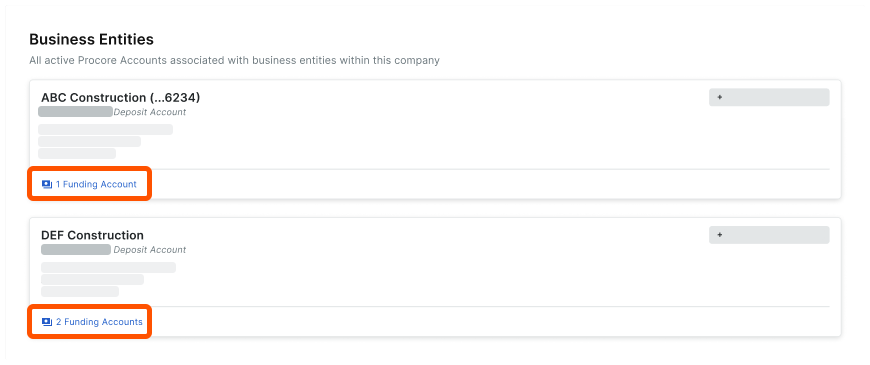
Locate the account to modify.
Click the Overflow menu and choose Edit from the drop-down menu.
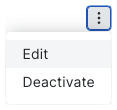
This opens the Edit account details page.
In the Edit account details page, do the following:
Nickname. Enter a unique nickname for the account. Nicknames quickly identify the bank account for disbursements while helping to protect the privacy of its account number.
Business entity. Shows the name of the current business entity.
Bank ID. Enter a bank identifier. Procore uses the bank ID as a prefix for a payment's cheque number. You can change this number at any time. However, any new changes only impact new check numbers.
ImportantFor companies using the
 ERP Integration tool: The bank identifier must match the funding account's 'Bank ID' in your integrated ERP system.


Check number. Enter a check number for the next payment application payment. This provides each check a unique identification number for this account. See How does Procore assign numbers to disbursement payouts? It also helps user who manage disbursements to identify transactions.
For companies using the ERP Integration tool:
After Procore Pay processes a payment application payment in a disbursement, the 'Bank ID' and 'Cheque Number' combination is exported to your integrated ERP system.
To avoid potential ERP synchronisation errors, ensure the Check number entered is higher than the last check number in your ERP system to prevent duplication in your integrated ERP system. See How do payments made in Procore Pay sync with an integrated ERP system?