Create a record for a payment received

Using owner or specialty contractor terminology?

Procore can be configured to use terminology specific to main contractors, owners or specialty contractors. Learn how to apply the dictionary options.

  • To learn the differences: Show/Hide

    • This table shows the differences in tool names (bold) and terms across the point-of-view dictionaries for Project Financials.

      Main Contractors
      English (United States) - Default

      Owners
      English (Owner Terminology V2)

      Speciality Contractors
      English (Speciality Contractor Terminology)

      Payment applications

      Payment applications

      Progress Billings

      Owner

      Funding

      Owner

      Owner/Client

      Owner/Client

      MC/Client

      Main Contract Variation

      Funding Variation

      Client Contract Variation

      Main Contracts

      Funding

      Client Contracts

      Revenue

      Funding

      Revenue

      Subcontract

      Contract

      Subcontract

      Subcontractor

      Contractor

      Subcontractor

      Subcontractor Bill of Quantities (SBOQ)

      Contractor Bill of Quantities (CBOQ)

      Subcontractor Bill of Quantities (SBOQ)

      About these dictionaries
      • Default setting: The 'main contractor' dictionary is enabled by default for all accounts.

      • Availability: These alternate dictionaries in italics are available in US English only.

      How to switch your dictionary

      To change your company's terminology to the owner or specialty contractor dictionary, contact your company's . They will work with your Procore point of contact to make the change.

Background

An Main contract payment application is an itemised record of a financial transaction between a project owner and a company responsible for completing work. Typically, it is issued by a main contractor and submitted to a project owner to signal that payment is due for completed work. When you receive a payment from an owner, you can create a record of that payment in Procore's Payment Applications tool using the steps below.

Things to Consider

Prerequisites

Steps

  1. Navigate to the project's Payment Applications tool.

  2. Click the Owner tab.

  3. Locate the main contract payment application in the list. The click to open it.

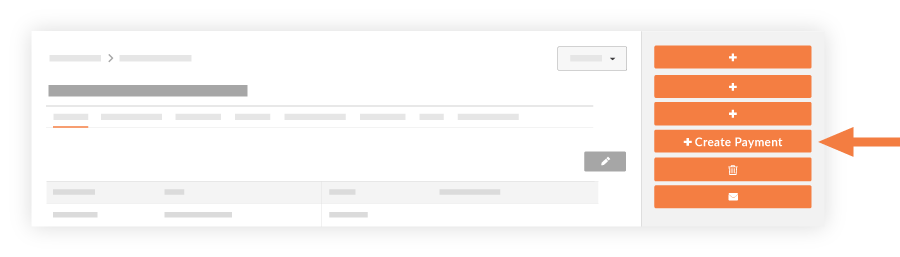
  4. Click Create payment.
    Create Payment Received

  5. Complete the following fields:

    • Payment application. Select the associated payment application from the drop-down list.

    • Date. Select a date that the payment was received.

    • Payment #. Enter the payment number.

    • Payment application #. Enter the payment application number for the payment, if applicable.

    • Check #: Enter the check number for the payment.

    • Notes. Include any additional notes to provide details about the payment.

    • Amount. Enter the amount of the payment received.

    • Attachments. Include any attachment related to the payment. For example, you might want to attach the check image or the payment application file.

  6. Click Add. The payment is listed under the 'contract summary report' section in the 'payment received' column.
    Paymentsreceived2

  7. Click Save.

     Notes
    • You will see a list of all payment received, which you can then export to a PDF by choosing Export > PDF.

    • All payments received on the project are tracked in the contract summary report in the main contract tool's General tab (see illustration below).

See Also

Loading related articles...