Approve a main contract
Background
After the main contract is created, you can follow the steps in Update the Bill of Quantities on a main contract. Once the line items on the BOQ are complete and the agreement between the project owner and your company is finalised, you can place the contract into the Approved status. This action allows your project team to begin creating variations (see Create a main contract variation) and main contract payment applications (see Create a main contract payment application).
Things to Consider
Required User Permissions:
'Admin' level permission on the project's main contract tool
Additional information:
After you complete the steps below, your project team can then perform the following tasks:
Prerequisites
Create a main contract. See Create main contracts.
Update the main contract's Bill of Quantities (BOQ). See Update the bill of quantities on a main contract.
Confirm that all parties to the main contract are in agreement prior to changing its status to 'Approved'.
Steps
Navigate to the project's main contract tool.
Locate the main contract to work with. Then click its Number link.
Click the Edit button.
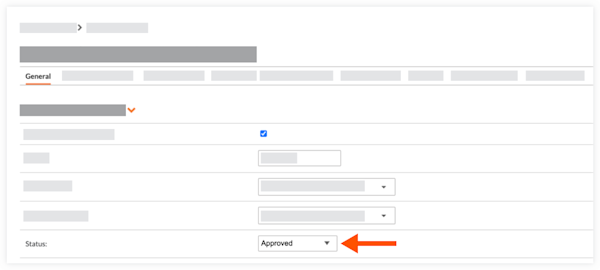
Under General information, choose Approved from the status drop-down list.
Click Save or Save and email.
Next Steps
See Also
Loading related articles...