Update the Bill of Quantities on a Main Contract

Background

After creating a Main Contract, you can choose from three (3) methods to update line item to the BOQ:

  • Add line items to the BOQ
    If your contract's BOQ only has a few line items or if you want to manually add new line items to the BOQ, use the Add line button to manually enter each BOQ line item.

  • Create the BOQ from the project's Budget
    If your want to structure your contract's BOQ to match your budget line items, Procore gives you an option to import your BOQ line items directly from the Procore's Budget tool. This method automatically creates the contract's BOQ for you using your project's budget line items as its data source.

  • Import the BOQ from a CSV file
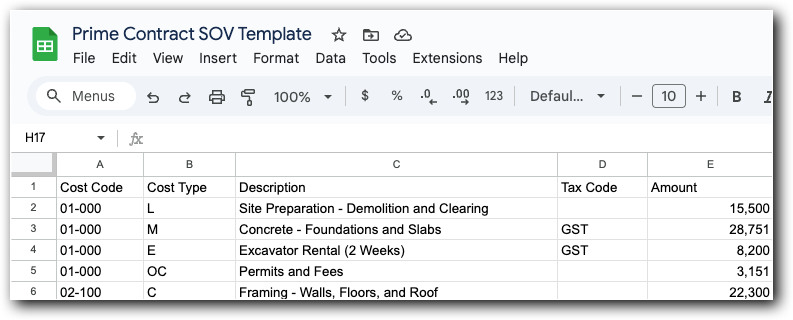
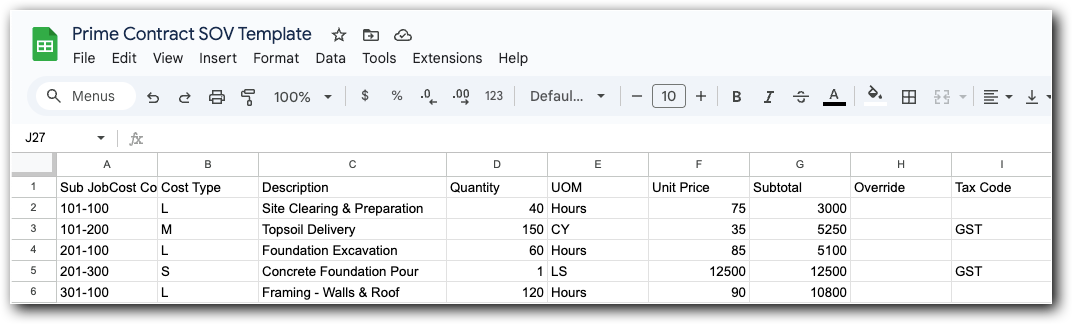
    If you would prefer to build your contract's BOQ using a spreadsheet program, such as Microsoft Excel, you can download a blank template that matches your contract's table structure, add your BOQ line items to the spreadsheet, save the file to the comma separated values (CSV) file format and then import your line items. You can also use the import process to replace all existing line items on your contract's BOQ or you can keep any existing line items and add additional ones.

Things to Consider

  • Required User Permissions:

    • 'Admin' level permissions on the project's main contract tool.

    • 'Standard' or 'Read Only' level permission on the project's main contract tool with specific granular permission enabled on your project permission template.

       Note

      To limit Procore users from viewing your contract data, configure the granular permission feature when applying permission templates. See Edit a project permission template.

  • Additional Information:

  • Limitations:

Prerequisites

Steps

There are several ways to add and update line items on a contract's BOQ:

  • Set the accounting method on a new main contract

  • Add line items to the BOQ

  • Create the BOQ from the project's budget

  • Import the BOQ from a CSV file

Set the accounting method on a new main contract

By default, new main contracts are set to use the 'Amount-based' accounting method. Users can change this to 'Unit quantity-based' by clicking the Change to unit quantity button. In Procore, the accounting method for a contract or funding determines how line items are handled on payment applications. Amount-based accounting using lump sums for line items, while unit quantity-based accounting uses quantities and unit prices to calculate totals. Once a contract's accounting method is set and line items are created, it cannot be changed

Prime Contract Default Accounting Method

Add line items to the BOQ

  1. Navigate to the project's main contract tool.

  2. Locate the contract to update and click its Number link.

  3. Click the Bill of quantities tab.

  4. Click Add line.

  5. Complete the data entry as follows:

    1. Budget code
      Select a budget code or click Create budget code. See What is a budget code in Procore's WBS?

    2. Description
      Enter a description for the line item. For example, type: monthly service fee

    3. Quantity
      Enter the number of units.

    4. UoM
      Select a Unit of Measure (UoM) from the drop-down list. To learn about the default selections in this list, see Which units of measure are included in Procore's master list? and Add a Unit of Measure to the Unit of Measure master list.

    5. Unit cost
      Enter the cost per unit in this box. You'll notice that the value in this column contains four (4) decimal points (for example, £0.0000) to allow you to enter the specific value required to calculate accurate pricing.

      Example

      If you are buying 50,000 units for £1,006,625.00, you would enter a unit price of £20.1325.

    6. Amount
      The system automatically calculates the subtotal for you, based on the quantity, UoM and unit cost entries.

  6. Repeat the above steps for all line item.

     Tip

    Want to arrange the line items on your bill of quantities into groups? Click the Add group menu and select the desired grouping options. The default options include cost code, cost type, sub job (if enabled), as well as any custom segments that have been added for your company or project. See What are segments and segment items.

  7. Choose one of these options:

    • Click Save
      OR

    • Click Save & email.

Create the BOQ from the project's budget

 Note

If you will be creating the contract BOQ from the project's Budget as described below, ensure your contract's BOQ is blank. You can only use these steps below when the BOQ has zero (0) line items. You must also:

  1. Navigate to the project's Main Contracts tool.

  2. Locate the contract to update. Then click its Number link.

  3. Click the Bill of quantities tab.

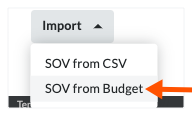
  4. ​Below the Bill of Quantities table, click Import. Then choose BOQ from Budget from the drop-down menu.
    Import Sov From Budget

  5. In the Import bill of quantities from budget? window, click Import.

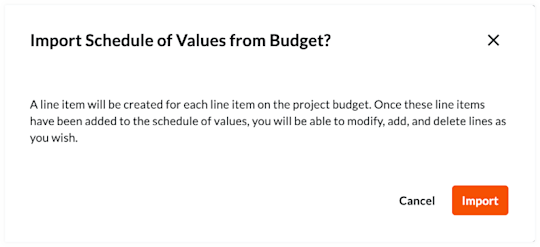
    • If the BOQ is blank, the following message appears.
      Import Sov Blank

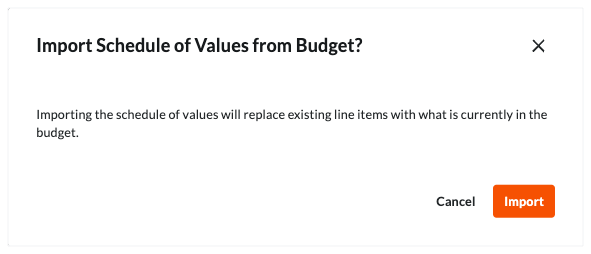
    • If the BOQ has existing line item, all existing line item will be replaced with the line item in the Budget.
      Import Sov From Budget Window
      Procore replaces any existing line item on the Bill of Quantities with the line item current in the project's Budget. This can take several minutes. Once the import is complete, a GREEN banner appears to indicate the action was successful and the line items appear in the 'Bill of Quantities' table.

Import the BOQ from a CSV file

  • Download a CSV Template

  • Add Line Items to a CSV Template

  • Import the Completed CSV Template to Procore

Download a CSV Template

  1. Navigate to the Prime Contracts tool.

  2. In the table, click a Number link to open the contract.

  3. Under the General tab, click Schedule of Values.

  4. In the Schedule of Values card, click Edit.
    This places the SOV into edit mode

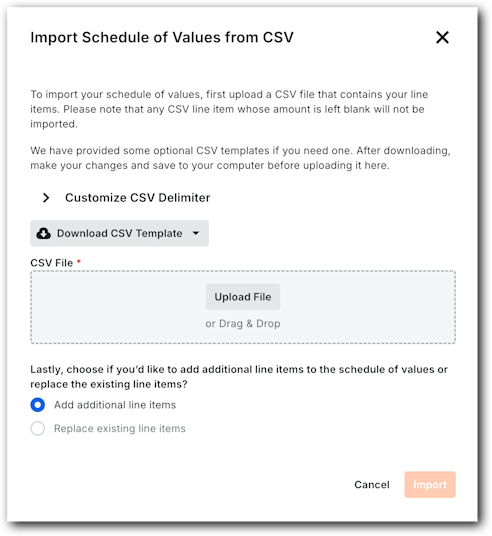
  5. Below the table, click Import and choose SOV from CSV .
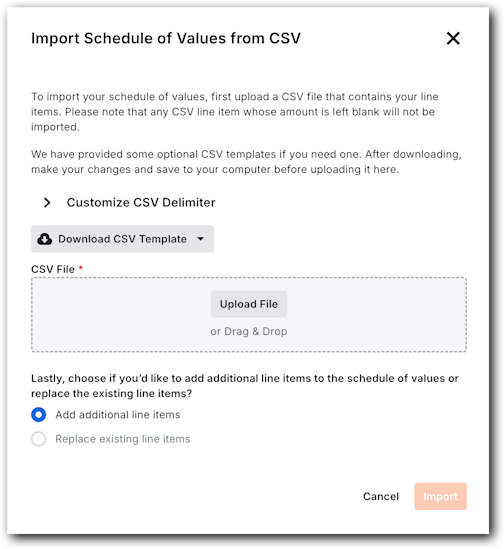
    This opens the Import Schedule of Values from CSV window.
    Prime Import Sov From Csv

  6. Expand Customize CSV Delimiter.

  7. Choose a delimiter for the template file: Comma or Semicolon.
    The system's default option is Comma.

  8. Click Download CSV Template and choose: Blank Template or Template with Existing Line Items.
    The downloads the selected template to your web browser's configured location.

Add Line Items to a CSV Template

  1. Open the downloaded template in a spreadsheet editor.

  2. Enter the line item data using the appropriate accounting method for the prime contract. See How do I set the accounting method for a contract or funding?

Import the Completed CSV Template to Procore

  1. Navigate to the Prime Contracts tool.

  2. In the table, click a Number link to open the contract.

  3. Under the General tab, click Schedule of Values.

  4. In the Schedule of Values card, click Edit.
    This places the SOV into edit mode.

  5. Below the table, click Import and choose SOV from CSV.
    This opens the Import Schedule of Values from CSV window.
    Prime Import Sov From Csv

  6. Upload the file as follows:

    • Click Upload File and select the completed template to upload.
      OR

    • Drag-and-drop the completed template to the CSV File area.

  7. Depending on the state of your prime contract, choose the appropriate option:

    • To add more line items to the prime contract, select Add Additional Line Items, then click Import.

    • To replace all existing line items on the prime contract with the template, select Replace Existing Line Items, then click Import.

Procore imports the template and displays a success banner. If you see an error message, click Show Error to learn why the import failed.

See Also

Loading related articles...