View a main contract's variations (Beta)
Background
To navigate to the variations associated with a main contract, click the Variations tab in the contract. The number of sections in this tab corresponds to the number of variation tiers configured for the project's Main Contracts tool. See What are the different variation tier settings in Project Financials?
Available sections in the variations tab
This table shows which variation sections are available in the variations tab of a main contract.
Variation tier | Main contract variations MCVs | Variation requests VRs | Potential variations prime PVs |
|---|---|---|---|
One (1) tier |
|
|
|
Two (2) tiers |
|
|
|
Three (3) tiers |
|
|
|
These are the available columns in each section's table | Number, revision, title, status, amount, date initiated, due date, review date, designated reviewer, PVs | Number, revision, title, status, amount, date initiated, due date review date, designated reviewer, PVs | Number, revision, title, status, amount, programme impact, date initiated, change reason, VR, MCV, change events, change event type |


Things to Consider
Required User Permissions:
Private contracts:
Admin level permission on the main contract tool.
ORStandard level permissions on the main contract tool can see variations they have created.
Additional Information:
The number of sections in this tab depends on the number of variation tiers configured in the main contract tool.
Prerequisites
Depending on the number of variation tiers configured in your environment, you will need to create one (1) or more of the following item for your main contract, in order for Procore to list in the available section.
Steps
Navigate to the project's main contract tool.
In the contracts table, locate the main contract.
Click the contract's Number link to open it.
In the contract, click the variations tab.
ExampleDepending on the number of variation tiers configured in your environment, the 'Variations' tab includes one (1) to three (3) different sections. See Configure the number of main contract variation tiers.
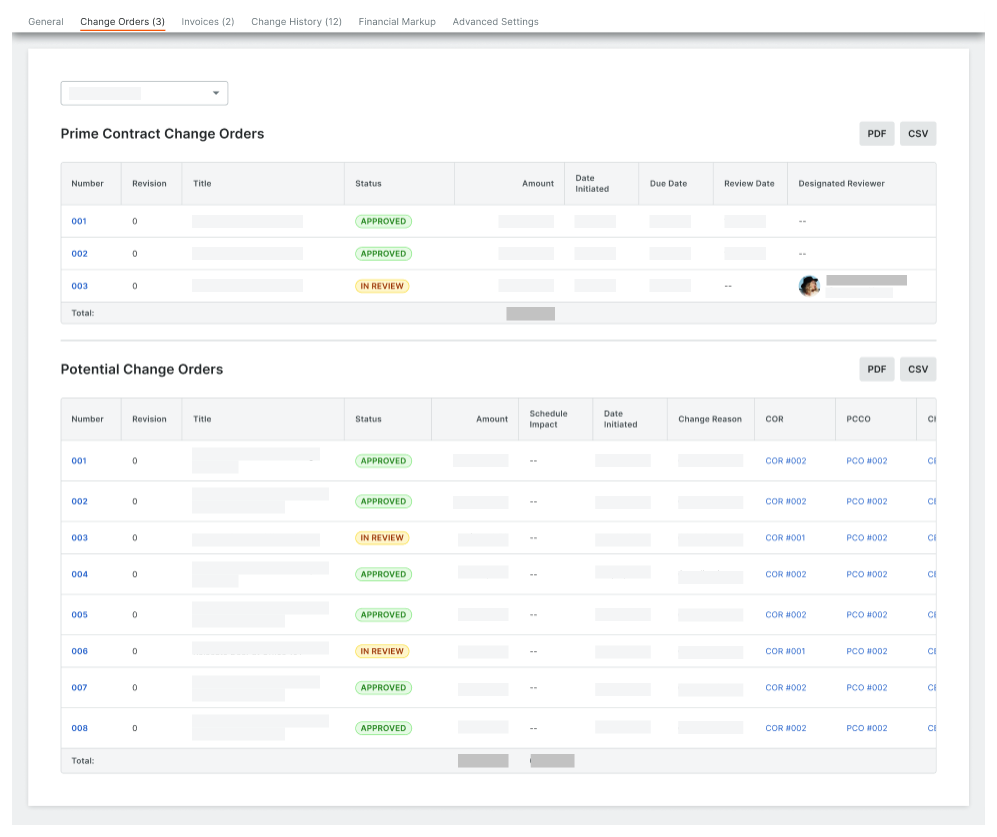
Choose from these options:
To open a variation, click one of the hyperlink in the table in the variation section.
To export a list of the variations, click the PDF or CSV button at the top of the table.