Create Action Plan
Background
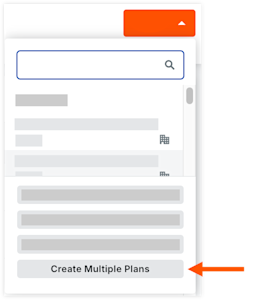
When working with multiple identical units or equipment sets (such as HVAC units or electrical panels), you can automatically generate individual action plans for each asset in a single operation using an action plan template. Each generated plan links directly to its corresponding asset record and appears in the asset's Related Items tab.
Things to Consider
Action Plans are automatically linked to the selected asset records as a related item.
Procore appends the Asset Name to each newly generated action plan title to keep records distinct.
You will receive an email notifying you when your action plans have been created.
Prerequisites
Create a new configurable fieldset for Action Plans with the 'Assets' field enabled, and assign it to the project.
Ensure at least one project-level or company-level Action Plan template is available for the project.
Steps
Create Single Plan
Navigate to the project's Action Plans tool.
Do one of the following:
To create the action plan from a template, click Create and click the template name. Note: Action plan templates that are in edit mode can't be selected.
To create an action plan without a template, click Create and click Create New Plan.
Enter your general information details.
Click Create & Add Sections.
Enter section and item details.
Click Add Item to add a new item within the section.
Click Add Section to add a new section.
Continue adding sections and items as necessary.
When you are finished adding sections and items, click Save Draft to save it as a draft, or click Publish if you're ready for the action plan to be approved to be performed.
NoteClicking Publish shifts the action plan into 'View' mode where it can be approved and performed.