Save Files
If you have made changes to a file in Navisworks®, you can use the Procore BIM Plugin to save those changes directly to the project's Documents tool. This ensures that your project team has access to the most up-to-date model versions.
Things to Consider
Required User Permissions:
'Standard' or 'Admin' level permissions on the project's Documents tool.
Requirements:
This option is currently only available for federated NWF (.nwf) files.
Steps
Click the Procore tab in Navisworks®.
Click Append.
Navigate to the relevant folder.
Select the file.
While the file is selected on the Procore tab, click Save.
Navigate to the project folder.
Enter a name for the updated file in the File Name field.
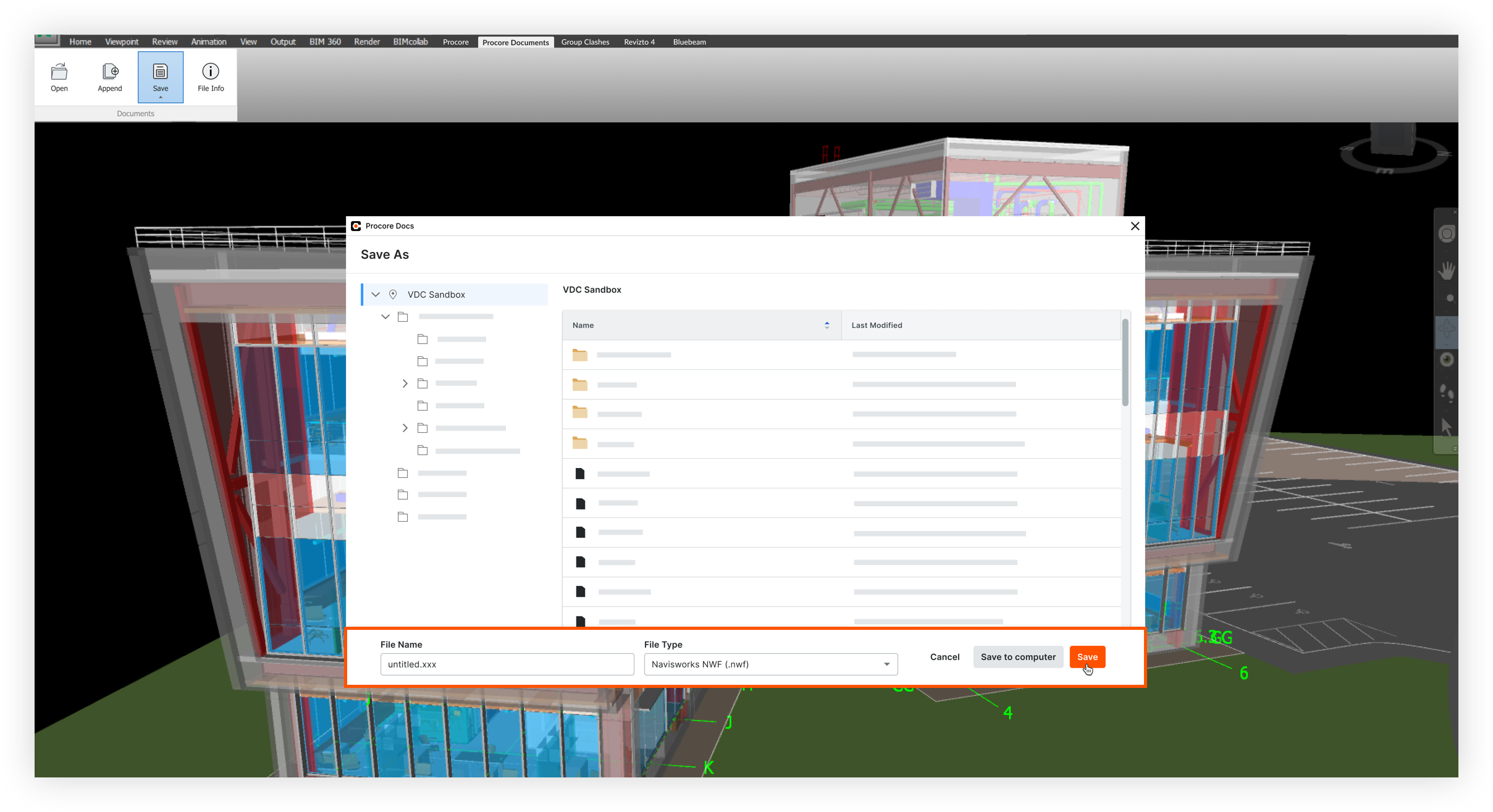
Click Save.
The file will be saved as a .nwf file to Procore. You can also click Save to Computer if you need to save a copy to your computer.
