What fields are in an estimate and how are they calculated?

Fond

Après avoir ajouté des métrés pour le projet, vous pouvez afficher les estimations du projet, définir les coûts de main-d’œuvre et les marges bénéficiaires, et générer des propositions téléchargeables. Vous pouvez également saisir manuellement des informations sur une estimation sans métrés. Chaque section de la page Estimation affiche les éléments appropriés des propositions du projet, tels que la quantité et les coûts des matériaux, la main-d’œuvre et les coûts de main-d’œuvre, les inclusions et les exclusions, ainsi qu’un résumé général de la proposition. Voir

Réponse

Les données d’une estimation s’écoulent généralement de gauche à droite, puis dans la section récapitulative.

Il existe deux façons différentes d’afficher la main-d’œuvre dans une estimation.

  • Taux de main-d’œuvre individuel : lorsque vous utilisez des taux de main-d’œuvre, vous définissez le taux de main-d’œuvre comme coût par heure/minute, puis indiquez le nombre de minutes ou d’heures nécessaires. Vous pouvez également inclure un multiplicateur de « difficulté » qui indique le nombre de personnes nécessaires pour effectuer le travail.

  • Tarification au coût unitaire pour la main-d’œuvre - Lors de l’utilisation de la tarification au coût unitaire pour la main-d’œuvre, la main-d’œuvre est fixée à un taux forfaitaire. Il calcule la main-d’œuvre comme suit : Quantité x Coût de la main-d’œuvre.

En fonction de vos paramètres, vous verrez différents champs dans l’estimation.

 Pointe

Le paramètre par défaut de l’affichage de la main-d’œuvre est configuré dans les paramètres de votre outil :

Vous pouvez également mettre à jour les paramètres d’un projet spécifique en cliquant sur les points de suspension verticaux icon-ellipsis-vertical.png pour l’estimation et en activant ou enicon-toggle-on.png désactivant le bouton « Utiliser la icon-toggle-off.png tarification au coût unitaire pour la main-d’œuvre ».clipboard_ef72e5906b9b656762a889be584abadea.png
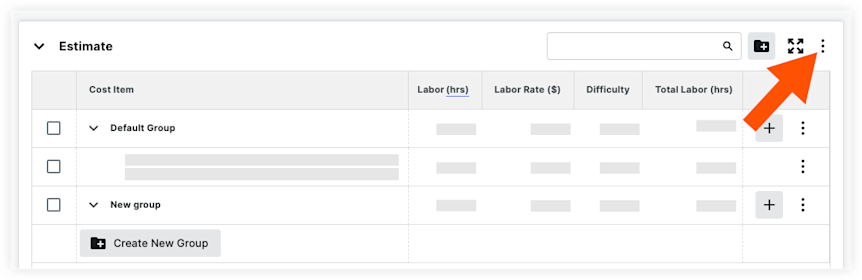
Taux de main-d’œuvre

Show/Hide Field Descriptions and Calculations

Section Estimation

Column Name

Column Type

Override?

Description

Budget Code

Source

Yes

A budget code combination of cost code, cost type, sub job, and custom segments, that creates corresponding line items in your budget. Default settings for an item or assembly are configured in your Cost Catalog.

Quantity

Source

Yes

The quantity of the item as calculated in the takeoff. The default quantity is equal to 2D takeoff quantity + 3D takeoff quantity.

Unit Cost ($)

Source

Yes

The cost of a single item. Default cost settings for the item are configured in your Cost Catalog.

Waste (%)

Source

Yes

A percentage of material over the actual estimated quantity. The default setting is set in the 'Summary' section of the estimate of the estimate, under 'Lost Time & Waste'.

Subtotal Item Cost ($)

Calculated

Yes*

The subtotal cost of an item's materials, equipment, or other, as determined by the cost item type in the Cost Catalog. Subtotal item cost is equal to Quantity x (1+ Waste %) x Item Cost. *Total cost can be overridden on Group level.

Margin/Markup (%)

Source

Yes

Your profit margin for the item cost, as a percent for the item. Margin is based on the sales price. Markup is calculated based on the cost of the item. The default setting for Material, Equipment, Subcontractor, Travel is set in the 'Summary' section of the estimate.

Sales Price ($)

Calculated

No

Sales price is equal to: Total Cost x ( 1 + Markup) OR Total Cost / (1 - Margin).

Subtotal Item Sales ($)

Calculated

No

Subtotal Item Sales is equal to Sales Price x Quantity.

Profit ($)

Calculated

No

Profit is equal to Total Sales - Total Cost.

Unit Labor (mins, hrs)

Source

Yes

Labor time needed for a single item. The default labor settings for an item or assembly are configured in your Cost Catalog.

Labor Rate

Source

Yes

How much one (1) hour of labor costs. The default rate is set in the 'Summary' section of the Estimate.

Difficulty

Source

Yes

The difficulty factor to account for job complexity. The default difficulty is set in the 'Summary' section of the Estimate.

Total Labor (hrs)

Calculated

No

Total Labor is equal to Quantity x Labor (hrs) x Difficulty.

Total Labor Cost ($)

Calculated

No

Total Labor Cost is equal to Total Labor x Labor Rate.

Labor Margin/Markup (%)

Source

Yes

Your profit margin/markup for labor. Margin is based on the sales price. Markup is calculated based on the cost of the labor. The default is set in the 'Summary' section of the Estimate.

Total Labor Sales ($)

Calculated

No

Total Labor Sales is equal to: Total Labor Cost x ( 1 + Labor Markup) OR Total Labor Cost / (1 - Labor Margin).

Total Cost ($)

Calculated

No

Total Cost ($) is equal to: Subtotal Item Cost + Total Labor Cost ($)

Total Cost / sq ft

Calculated

No

Total Cost / sq ft is equal to: Total Cost ($) + Project Square Feet (This number is entered in the project Admin tool - Project Information)

Total Cost (%)

Calculated

No

Total Cost (%) is equal to: A percentage of Total Cost ($) over the Total Sales ($).

Total Sales ($)

Calculated

No

Total Sales ($) is equal to: Subtotal Item Sales ($) + Total Labor Sales ($)

Notes

Standard

Yes

Notes may be typed into this column for each item. Notes are NOT private and will be visible to other users with permissions to view the estimate.

Tax

Source

Yes

Turn on or off material tax for individual items. All other items are considered taxable. Default settings for an item or assembly are configured in your Cost Catalog.

Section Résumé

Tarifs globaux

Column Name

Column Type

Override?

Description

Global Labor Cost

Standard

Yes

The default cost of labor per hour. When set, this updates the 'Labor Rate' column for all rows in the estimate with the Labor item cost type.

Global Labor Sales Rate

Calculated

No

This is equal to Global Labor Cost + Labor Margin/Markup that is set in the 'Summary' section.

Main-d’œuvre et matériaux

 Note

The following are available for each Cost Item type (material, labor, equipment, subcontractor, and travel), defined in your Cost Catalog. See How do Cost Catalog item types relate to cost types in Procore?

These do NOT currently reflect cost types incorporated into budget codes or your work breakdown structure.

Column Name

Column Type

Override?

Description

Total Labor

Calculated

No

Total Labor is equal to the sum of Labor Hours for all rows in the estimate with the Labor item cost type.

Difficulty

Standard

Yes

The difficulty facto to account for job complexity. When set, this updates the 'Difficulty' for all rows in the estimate with the Labor item cost type.

Lost Time & Waste %

Standard

Yes

The default percentage per cost type, based on the item type from the Cost Catalog. When set, this updates the percentage Lost Time & Waste for all rows in the estimate with that cost type.

Total Cost ($)

Calculated

No

For Labor, this is equal to Quantity x Difficulty x Labor Rate, for all rows in the estimate with the labor item cost type. For all other cost types, Total Cost is equal to the sum of Cost x Quantity for all rows in the estimate for that cost type.

Profit Markup/Margin %

Standard

Yes

The default markup/margin for the cost type. When set, this updates the percentage Markup/Margin for all rows in the estimate with that cost type. Margin is based on the sales price. Markup is calculated based on the cost of the item.

Total Sales

Calculated

Yes

Total Sales is equal to the sum of Total Cost x ( 1 + Markup) OR Total Cost / (1 - Margin) for all rows in the estimate for that cost type.

Total Profit $

Calculated

No

Total Profit is equal to Total Sales - Total Cost for each cost type.

Ajustements supplémentaires

Column Name

Column Type

Override?

Description

(Legacy) Overhead

Calculated

No

Overhead is equal to Overhead % x Total Sales.

(Legacy) Discount

Calculated

No

Discount is equal to (Total Sales + Overhead $) x -Discount %.

Custom

-

-

Add Adjustments to an Estimate

Total Adjustments

Calculated

Yes

Total Adjustments is equal to Overhead $ + Discount $.

Impôts

 Note

The following are available for each Cost Item type (material, labor, equipment, subcontractor, and travel), defined in your Cost Catalog. See How do Cost Catalog item types relate to cost types in Procore?

These do NOT currently reflect cost types incorporated into budget codes or your work breakdown structure.

Column Name

Column Type

Override?

Description

Labor Tax %

Standard

Yes

The percent at which to apply tax to labor.

Labor Tax $

Calculated

No

Labor Tax is equal to (Total Labor Sales + Overhead) x Labor Tax %.

Material Tax %

Standard

Yes

The percent at which you want to apply tax to materials.

Material Tax $

Calculated

No

Material Tax is equal to Total Material Sales x Materials Tax %.

[Other Taxes]

Based on what other cost types you have, you will see additional taxes. Other taxes is equal to Total [type] Sales x [type] Tax.

Total Taxes

Calculated

No

Total Taxes is equal to Labor Tax + Material Tax + [Other Tax].

Autrui

Column Name

Column Type

Override?

Description

Bonding

Standard

Yes

How much insurance percentage you pay based on Total Sales, Adjustments, and Taxes. Bonding is equal to (Total Sales + Total Adjustments + Taxes) x Bonding %.

[Custom Adjustments]

Standard

Yes

Additional adjustments added. The amount is equal to (Total Sales + Total Adjustments+ Taxes) x [Custom Adjustment %].

Total Other

Calculated

No

Total Others is equal to the sum of all adjustment amounts in this section.

Total

Column Name

Column Type

Override?

Description

Total

Calculated

No

The Total Sales Price + Total Adjustments + Total Taxes + Total Other.

Tarification au coût unitaire de la main-d’œuvre

Show/Hide Field Descriptions and Calculations

Section Estimation

Column Name

Column Type

Override?

Description

Budget Code

Source

Yes

A budget code combination of cost code, cost type, sub job, and custom segments, that creates corresponding line items in your budget. Default settings for an item or assembly are configured in your Cost Catalog.

Quantity

Source

Yes

The quantity of the item as calculated in the takeoff. The default quantity is equal to 2D takeoff quantity + 3D takeoff quantity.

Unit Cost ($)

Source

Yes

The cost of a single item. Default cost settings for the item are configured in your Cost Catalog.

Waste (%)

Source

Yes

A percentage of material over the actual estimated quantity. The default setting is set in the Summary Section for Lost Time & Waste.

Subtotal Item Cost ($)

Calculated

Yes*

The subtotal cost of an item's materials, equipment, or other, as determined by the cost item type in the Cost Catalog. Subtotal Item cost is equal to Quantity x (1+ Waste %) x Item Cost. *Total cost can be overridden on Group level.

Margin/Markup (%)

Source

Yes

Your profit margin for the item cost, as a percent for the item. The default setting for Material, Equipment, Subcontractor, Travel Margin/Markup is set as the Markup/Margin % in the Summary Section. Margin is based on the sales price. Markup is calculated based on the cost of the item.

Sales Price ($)

Calculated

No

Sales price is equal to: Total Cost x ( 1 + Markup) OR Total Cost / (1 - Margin).

Subtotal Item Sales ($)

Calculated

No

Subtotal Item Sales is equal to Sales Price x Quantity.

Profit ($)

Calculated

No

Profit is equal to Total Sales - Total Cost.

Unit Labor Cost ($)

Source

Yes

The cost of labor per hour. Default settings for an item or assembly are configured in your Cost Catalog.

Total Labor ($)

Calculated

Yes*

Total Labor is equal to Quantity x Labor Cost. *This can be overridden at the Group level.

Labor Margin/Markup (%)

Source

Yes

Your profit margin/markup for labor. Margin is based on the sales price. Markup is calculated based on the cost of the labor. The default is set in the 'Summary' section of the Estimate.

Total Labor Sales ($)

Calculated

No

Total Labor Sales is equal to Total Labor $ x ( 1 + Labor Markup) OR Total Labor $ / (1 - Labor Margin).

Total Cost ($)

Calculated

No

Total Cost ($) is equal to: Subtotal Item Cost + Total Labor ($)

Total Cost / sq ft

Calculated

No

Total Cost / sq ft is equal to: Total Cost ($) + Project Square Feet (This number is entered in the project Admin tool - Project Information)

Total Cost (%)

Calculated

No

Total Cost (%) is equal to: A percentage of Total Cost ($) over the Total Sales ($).

Total Sales ($)

Calculated

No

Total Sales ($) is equal to: Subtotal Item Sales ($) + Total Labor Sales ($)

Notes

Standard

Yes

Notes may be typed into this column for each item. Notes are NOT private and will be visible to other users with permissions to view the estimate.

Tax

Source

Yes

Turn on or off material tax for individual items. All other items are considered taxable. Default settings for an item or assembly are configured in your Cost Catalog.

Section Résumé

Main-d’œuvre et matériaux

Les éléments suivants sont disponibles pour chaque type d’élément de coût (matériau, main-d’œuvre, équipement, sous-traitant et déplacement), défini dans votre catalogue de coûts. Voir Comment les types d’éléments du catalogue des coûts sont-ils liés aux types de coûts dans Procore ?Note: Ceux-ci ne reflètent PAS actuellement les types de coûts incorporés dans les codes budgétaires ou votre structure de découpage du projet.

Column Name

Column Type

Override?

Description

Lost Time & Waste %

Standard

Yes

The default percentage per cost type, based on the item type from the Cost Catalog. When set, this updates the percentage Lost Time & Waste for all rows in the estimate with that cost type.

Total Cost ($)

Calculated

No

Total Cost is equal to the sum of Cost x Quantity for all rows in the estimate for that cost type.

Profit Markup/Margin %

Standard

Yes

The default markup/margin for the cost type. When set, this updates the percentage Markup/Margin for all rows in the estimate with that cost type. Margin is based on the sales price. Markup is calculated based on the cost of the item.

Total Sales

Calculated

Yes

Total Sales is equal to the sum of Total Cost x ( 1 + Markup) OR Total Cost / (1 - Margin) for all rows in the estimate for that cost type.

Total Profit $

Calculated

No

Total Profit is equal to Total Sales - Total Cost for each cost type.

Ajustements supplémentaires

Column Name

Column Type

Override?

Description

(Legacy) Overhead

Calculated

No

Overhead is equal to Overhead % x Total Sales.

(Legacy) Discount

Calculated

No

Discount is equal to (Total Sales + Overhead $) x -Discount %.

Custom

-

-

Add Adjustments to an Estimate

Total Adjustments

Calculated

Yes

Total Adjustments is equal to Overhead $ + Discount $.

Impôts

Column Name

Column Type

Override?

Description

Labor Tax %

Standard

Yes

The percent at which to apply tax to labor.

Labor Tax $

Calculated

No

Labor Tax is equal to (Total Labor Sales + Overhead) x Labor Tax %.

Material Tax %

Standard

Yes

The percent at which you want to apply tax to materials.

Material Tax $

Calculated

No

Material Tax is equal to Total Material Sales x Materials Tax %.

[Other Taxes]

Based on what other cost types you have, you will see additional taxes. Other taxes is equal to Total [type] Sales x [type] Tax.

Total Taxes

Calculated

No

Total Taxes is equal to Labor Tax + Material Tax + [Other Tax].

Autrui

Column Name

Column Type

Override?

Description

Bonding

Standard

Yes

How much insurance percentage you pay based on Total Sales, Adjustments, and Taxes. Bonding is equal to (Total Sales + Adjustments + Taxes) x Bonding %.

[Custom Adjustments]

Standard

Yes

Additional adjustments added. The amount is equal to (Total Sales + Total Adjustments + Taxes) x [Custom Adjustment %].

Total Others

Calculated

No

Total Others is equal to the sum of all adjustment amounts in this section.

Total

Column Name

Column Type

Override?

Description

Total

Calculated

No

The Total Sales Price + Total Adjustments + Total Taxes + Total Other.

See Also

Loading related articles...