Ajouter un poste budgétaire
Arrière-plan
Un poste budgétaire est une ligne d’un tableau de données qui représente une dépense de projet par code de coût et type de coût. Si vous souhaitez effectuer un calcul des coûts de votre projet, vous pouvez également présenter les dépenses de votre projet par sous-projet. En fonction de votre projet spécifique, un budget peut contenir des centaines, voire des milliers de postes. Après avoir créé un nouveau projet Procore, la configuration d’un budget peut être accomplie en ajoutant des postes budgétaires à l’outil Budget du projet. Pour ce faire, suivez les étapes ci-dessous pour ajouter manuellement chaque poste à votre budget. Vous pouvez également importer des postes par lot en suivant les étapes décrites dans Importer un budget.
Éléments à prendre en compte
Autorisations utilisateur requises :
Pour ajouter une nouvelle poste à un budget, autorisations de niveau « Standard » ou supérieures assignées dans le « Tableau Permissions » de l’outil Budget du projet. Remarque: si l’autorisation « Standard » a été attribuée à l’aide d’un modèle d’autorisation, l’autorisation granulaire « Modifier le montant du budget initial » doit être activée sur votre modèle d’autorisation. Si l’autorisation granulaire n’est PAS activée, les postes ne peuvent être créés qu’avec aucune valeur.
OUPour modifier le montant du budget d’origine :* Autorisations de niveau 'Admin' dans l’outil Budget du projet.
OU * Autorisations de niveau « Lecture seule » ou « Standard » dans l’outil Budget du projet avec l’autorisation granulaire « Modifier le montant du budget initial » activée dans votre modèle d’autorisations.
Informations complémentaires :
Au lieu de la saisie manuelle des données, vous pouvez également suivre les étapes décrites dans Importer un budget.
Chaque poste ajouté au budget doit avoir un code budgétaire unique. Vous ne pouvez pas ajouter deux postes qui utilisent le même code budgétaire. Voir Qu’est-ce qu’un code budgétaire dans la SDP de Procore ?
Pour les entreprises utilisant l’outil
 Intégrations ERP : Afficher/Masquer
Si votre entreprise utilise Procore avec un système ERP intégré, consultez la page Éléments à connaître de votre intégration pour plus de détails.
Conditions préalables
Votre entreprise doit effectuer les Un administrateur Procore est un utilisateur qui dispose d'autorisations de niveau « Admin » pour tous les outils au niveau Entreprise dans Procore. L'octroi à un utilisateur d'autorisations de niveau « Admin » dans l'outil Annuaire au niveau Entreprise lui attribue automatiquement des autorisations « Admin » dans tous les outils au niveau Entreprise. Il est aussi appelé administrateur entreprise.
Ajoutez l’outil Budget au projet. Voir Ajouter et supprimer des outils de projet.
Suivez les étapes décrites dans Créer la structure de découpage du projet par défaut de votre entreprise.
(Facultatif) Suivez les étapes décrites dans Créer la structure de découpage du projet de votre projet.
Escalier
Accédez à l’outil Budget du projet.
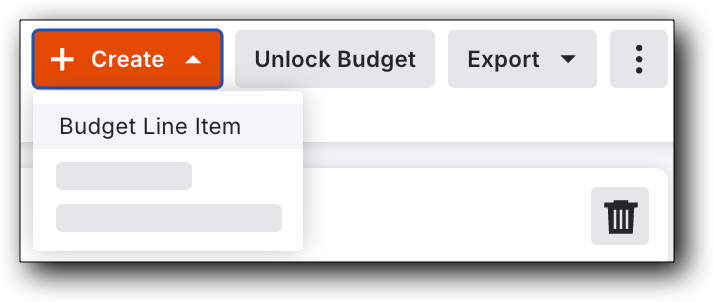
Dans l’onglet Budget, cliquez sur le bouton Créer et choisissez poste budgétaire dans la liste déroulante.
Ajoutez votre poste dans la zone d’entrée de données comme suit :
NoteLa structure de découpage du projet de Procore comprend deux (2) segments par défaut (
etUn code de coût identifie un type spécifique de travail sur un projet pour suivre ses dépenses associées, telles que la main-d’œuvre, les matériaux et l’équipement.
) et un (1) segment optionnel (Un type de coût est un ensemble de coûts identifiés par une abréviation ou une étiquette unique. Les types de coûts sont généralement utilisés dans le calcul des coûts du projet (suivi des coûts pour certaines activités et certains projets). Dans la structure de découpage du projet de Procore, le « Type de coût » est un segment plat avec les options par défaut suivantes : (E) Équipement, (L) Main d’œuvre, (M) Matériaux, (O) Autre, ( coût pour le maître d’ouvrage ) Coût pour le maître d’ouvrage, (S) Engagements et (SVC) Services professionnels.
). Pour en savoir plus, voir Que sont les segments et les éléments de segment ?Dans Procore, un sous-projet vous permet de compartimenter les coûts au sein d'un projet. Une fois qu'ils sont ajoutés à Procore (ou importés via un
), vous pouvez surveiller les budgets de votre projet et les comparer aux coûts pour vous aider à mieux déterminer si votre projet est rentable. Par exemple, si votre projet concerne un bâtiment commercial à plusieurs étages, vous pouvez créer un sous-projet distinct pour la construction de chaque étage. Ou, si votre projet concerne un développement à plusieurs unités, vous pouvez créer un sous-projet distinct pour chaque structure individuelle.Dans Procore, le terme Système ERP intégré est utilisé pour désigner les applications logicielles de planification des ressources d'entreprise (Enterprise Resource Planning – ERP) qui peuvent être configurées pour échanger des données entre Procore et une application prise en charge utilisant l'outil Intégrations ERP au niveau Entreprise. Voir Quelles intégrations ERP sont prises en charge par Procore ?

Code de coût. Sélectionnez un code de coût dans la liste déroulante.
Type de coût. Sélectionnez un type de coût dans la liste déroulante.
Méthode de calcul. Sélectionnez le bouton d’option qui correspond à la méthode de calcul souhaitée pour le poste :
Calculez automatiquement le sous-total. Choisissez cette option si vous souhaitez que le système calcule automatiquement le montant du budget d’origine en fonction de vos entrées de Quantité unitaire, Unité de mesure et Coût unitaire.
OURemplacer le sous-total manuellement. Choisissez cette option si vous souhaitez saisir manuellement le montant du budget d’origine, qui remplace le calcul automatique du système.
Qté unitaire. Saisissez une valeur numérique dans cette zone pour indiquer le nombre d’unités qui correspondent à l’unité de mesure que vous spécifiez.
Unité de mesure (UOM). Sélectionnez une unité de mesure dans la liste déroulante. Pour en savoir plus sur les options par défaut de cette liste, consultez Quelles sont les unités de mesure incluses dans la liste principale de Procore ? et Ajouter une unité de mesure à la liste principale des unités de mesure.
Coût unitaire. Entrez le coût monétaire dans cette case pour indiquer le coût par unité de mesure.
Budget initial. Saisissez le montant total du nouveau poste. Ne saisissez pas de virgules et/ou de symboles de devise dans ce champ.
Cliquez sur Ajouter.
Répétez les étapes ci-dessus jusqu’à ce que tous les postes budgétaires de votre projet aient été ajoutés.