Importer un budget

Download the Budget Import Template

  1. Navigate to the project's Budget tool.

  2. Click the Unlock Budget button. See Unlock a Budget and Unlock a Budget with Budget Modifications.

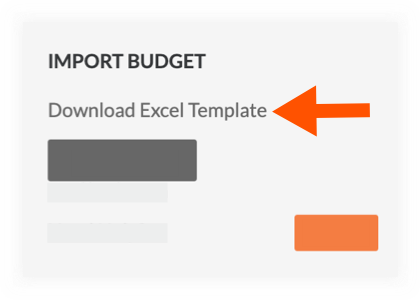
  3. Under Import Budget, click Download Excel Template.

    budget-download-excel-template.png

     Notes
    • The system downloads a copy of the budget.xlsx file to your web browser's specified download location.

    • Always input your budget data in the Excel template that you downloaded from your Procore project.

    • The columns in the budget import template do NOT match the columns in the budget export file generated with the Export > CSV or Export > PDF menu options. It is important to note the files from the Export menu cannot be imported into the Budget tool.

  4. Before proceeding with the import, review this important warning:

     Warning

    The budget import template that you downloaded must be used for the import. In addition, the column layout and headings in the template are required:

    • DO NOT rename any column headings in the template.

    • DO NOT add, remove, or change the order of the data columns in the template.

    • If you require a unit of measure that is NOT included in the template's UOM drop-down list, contact your company's Procore Administrator who has the appropriate permissions to add units of measure to the UOM Master List. See Update a Unit of Measure on the Unit of Measure Master List.

    • If you plan to import budget line items with cost codes:

      • Every line item added to the budget import template must include a cost code.

      • Cost codes in the budget import template must exactly match the cost codes in your company's or project's Work Breakdown Structure.

      • Cost codes must be associated with at least one (1) cost type. See Add Company Cost Types. This ensures you can create budget codes when adding line items. See What is a budget code in Procore's WBS?

      • You can import one (1) budget line item per cost code/cost type combination. The purpose of a budget line item is to show the total budgeted amount for each budget code on a single line item. Duplicate cost code/cost type combinations are not permitted.

    • It is not necessary to delete unneeded line items where the Cost Type and Budget Amount fields are blank; if you leave these lines in the template, Procore will neither import data nor create items in your budget for these rows.

Update the 'Budget Line Items' Worksheet

  1. On your computer, open the downloaded budget.xlsx file in Microsoft Excel.

  2. Click the Budget Line Items worksheet.

  3. Update the budget line item data on each row as follows:

    blank-budget-import-template-with-sub-job.png

     Notes
    • An asterisk (*) below denotes a required field.

    • Some columns in the import template will require you to choose a value for your line items from a drop-down list.

    • Sub Job. This column only appears when the Sub Jobs feature is active in Procore. See Enable Sub Jobs for WBS. Choose the sub job from the drop-down list. To learn how to add sub-job codes to Procore, see Add Sub Jobs to a Project.

    • Cost Code*. Choose the cost code from the drop-down list: 'Division-Code'. For example, 02-200. See What are Procore's default cost codes? and Add Company Cost Codes.

    • Cost Type*. Choose the cost type from the drop-down list. For example, L=Labor, E=Equipment, M=Materials, and so on. See What are Procore's default cost types? and Add Company Cost Types.

    • Description. Leave this field blank to use the default concatenated description in your company's Work Breakdown Structure. Input a description to import a custom description. To learn more about the description field, see Edit Budget Code Descriptions on a Project.

       Caution

      Why leave the 'Description' field blank? In order to import data into Procore, the database requires the presence of a 'Description' column in the import template. However, because Procore automatically creates a 'Description' for you (after the import), it's important to always leave the data entry rows in the 'Description' column blank.

  4. Update the unit-based details in the template as follows:

    choose-manual-calculation.png
  • Manual Calculation*. Choose True or False from the drop-down list:

    • Choose True if you want to manually enter a value in the 'Budget Amount' column. This option will override the system's automatic calculation option on the line item in the project's Budget tool.

    • Choose False if you want Procore to automatically calculate the value in the 'Budget Amount' column based on your Unit Quantity, UOM, and Unit Cost entries. You will leave the 'Budget Amount' column blank in the import template. After the import, Procore will automatically calculate this value for you on the line item in the project's Budget tool.

  • Unit Qty. Enter a numeric value in this box to indicate the number of units that correspond to the unit of measurement that you specify.

  • Unit of Measure (UOM). Select the correct unit of measurement for each line item using the drop-down list in the template. These selections match your company's UOM Master List. For a unit to be available in the drop-down list, your Procore Administrator must update the UOM Master List before you download a copy of the template. For more information, see Which units of measure are included on Procore's master list? and Update a Unit of Measure on the Unit of Measure Master List.

  • Unit Cost. Enter the monetary cost in this box to indicate the cost per unit of measurement.

  • Budget Amount. If you chose 'True' in the 'Manual Calculation' column, enter the total amount for the new line item. Do not enter commas and/or currency symbols in this field. When you choose 'False' in the 'Manual Calculation' column, leave the budget amount column blank.

    Example

    If you select 'False' in the ''Manual Calculation' column and enter data in the Unit Qty, Unit of Measure, and Unit Cost columns, you can leave the 'Budget Amount' column blank. Procore will automatically calculate this value for you after your data is imported into the project's Budget tool.

    manual-calculation-false.png

  • Save your changes. Always choose the Excel Workbook (.xlsx) file format when saving your data.

Facultatif : mettre à jour les courbes de prévision avancées pour l’onglet Prévisions

  1. Pour appliquer des courbes de prévision avancées à l’onglet Prévision de votre budget, saisissez les éléments suivants :

     Note

    • Date de début. Saisissez une date de début pour le début de la courbe de prévision que vous souhaitez appliquer.

    • Date de fin. Saisissez une date de fin pour le début de la courbe de prévision que vous souhaitez appliquer.

    • Courbe. Saisissez le nom de la courbe de prévision que vous souhaitez appliquer dans l’onglet Prévisions de l’outil Budget du projet. Pour en savoir plus sur les options de courbe, voir À propos de la vue Prévisions standard Procore.

  2. Enregistrez vos modifications. Choisissez toujours le format de fichier Excel Workbook (.xlsx) lors de l’enregistrement de vos données.

Optional: Update the 'Budgeted Production Quantities' Worksheet

 Important

The 'Labor Productivity for Budget, Change Events, and Change Orders'checkbox must be marked in your project's Admin settings. See Update General Project Information

  1. On your computer, open the downloaded budget.xlsx file in Microsoft Excel.

  2. Click the Budgeted Production Quantities tab in the worksheet.

  3. Enter your budget's line item data on each row as follows:

     Note

    To learn more about production quantities, see What are 'production quantities'?

    • Cost Code. Enter the cost code number in the following format: 'Division-Code' (For example, 02-200).

    • Description. Enter the cost code description. For example, Site Preparation, Site Demolition, and so on.

    • Production Qty. Enter a numeric value in this box to indicate the budgeted production quantity that corresponds to the UOM that you specify.

    • UOM. Select the correct unit of measurement for each line item using the drop-down list in the template. These selections match your company's UOM Master List. For a unit to be available in the drop-down list, your Procore Administrator must update the UOM Master List before you download a copy of the template. For more information, see Which units of measure are included on Procore's master list? and Update a Unit of Measure on the Unit of Measure Master List.

  4. Save your changes. Always choose the Excel Workbook (.xlsx) file format when saving your data.

Importer les données du modèle de budget

  1. Retournez à l’outil Budget de votre projet.

  2. Sous Importer le budget, cliquez sur Choisir un fichier. Remarque: la zone « Importer le budget » n’apparaît que lorsque le budget est déverrouillé. Voir Déverrouiller un budget.

  3. Dans la fenêtre qui apparaît, sélectionnez votre fichier. Cliquez ensuite sur Ouvrir.

  4. Lorsque le nom du fichier apparaît à côté du bouton « Choisir un fichier », cliquez sur Importer.

    import-budget-excel-2.png

  5. Révisez les données importées dans l’outil Budget du projet pour vérifier que les données de poste ont été importées comme prévu.

  6. Optionnel: Si vous souhaitez modifier vos postes budgétaires, vous avez les choix suivants :

  7. Une fois que vous êtes satisfait de votre budget, cliquez sur le bouton Verrouiller le budget .

     Notes
    • When you lock the budget, users can no longer change the 'Original Budget' amounts.

    • When the Budget tab is active, the reports tab will appear differently:

      • The project will no longer have the Budget Forecast Report or Budget Summary Report

      • The project will gain the Budget Modifications Report and the Budget Detail Report