Ajouter des sous-projets à un projet
Arrière-plan
Dans Procore, un sous-projet vous permet de compartimenter les coûts au sein d'un projet. Une fois qu'ils sont ajoutés à Procore (ou importés via un Dans Procore, le terme Système ERP intégré est utilisé pour désigner les applications logicielles de planification des ressources d'entreprise (Enterprise Resource Planning – ERP) qui peuvent être configurées pour échanger des données entre Procore et une application prise en charge utilisant l'outil Intégrations ERP au niveau Entreprise. Voir Quelles intégrations ERP sont prises en charge par Procore ?
Une fois qu’un sous-projet a été créé, vous pouvez émettre des postes spécifiques sur les Une ventilation des coûts (VDC) est une liste de postes qui détaille tous les coûts convenus (main-d'œuvre, matériaux, etc.) sur un projet. Abrégée en VDC, elle détaille le montant du contrat en éléments de paiement individuels pour montrer comment la somme totale du contrat est allouée à l'ensemble du travail du projet. Une ventilation des coûts est également basée sur le budget approuvé du projet et est couramment utilisée pour déterminer les paiements échelonnés aux entrepreneurs. Un ordre de service (OC) est l'enregistrement écrit d'une modification de contrat qui détaille tout ajout au périmètre des travaux de l'accord d'origine. La plupart des contrats de construction sont exécutés avec un périmètre des travaux clairement défini, de sorte que tout travail ajouté au périmètre du contrat d'origine, ou substitué ou supprimé de celui-ci (comme les changements apportés aux conceptions, aux conditions, aux plannings et/ou aux coûts d'un projet) nécessitera généralement un ordre de service approuvé.
Éléments à prendre en compte
Autorisations utilisateur requises :
L’un des éléments suivants :
Autorisations de niveau « Admin » dans l’outil Admin au niveau projet.
Autorisations de niveau « Lecture seule » ou « Standard » dans l’outil Niveau projet Admin avec le autorisation granulaire « Gérer les éléments de segment » activé dans votre modèle d’autorisations. Remarque : Votre administrateur Procore doit configurer des paramètres supplémentaires pour que vous puissiez modifier ou supprimer un segment personnalisé. Pour en savoir plus, consultez les « Notes » dans Admin : Gérer les codes SDP.
Informations complémentaires :
L’ajout de sous-projets à un projet les ajoute également à votre liste de segments au niveau entreprise. Le segment Sous-projets est compté comme l’un (1) des treize (13) segments disponibles.
Limitations:
Pour les clients utilisant l’outil Niveau entreprise Intégrations ERP
Les segments par défaut dans SDP sont compatibles avec l’outil Intégrations ERP de Procore. Cependant, certaines intégrations ne prennent PAS encore en charge les segments personnalisés.Pour les clients qui ont développé ou acheté indépendamment une solution tiers à intégrer à Procore
Pour tirer parti des fonctionnalités de segment personnalisé associées à SDP, toutes les intégrations d’API existantes que vous avez développées ou achetées indépendamment pour interagir avec Procore doivent être mettre à jour pour prendre en charge la nouvelle API SDP de Procore.
Conditions préalables
Escalier
Accédez à l’outil Admin du projet.
Sous « Paramètres du projet », cliquez sur le lien Structure de découpage du projet.
Dans le tableau Segments, cliquez sur le lien Sous-projets .
NotesSi le lien Sous-projets n’est pas visible dans le tableau Segments, voir Activerles sous-projets sur les projets pour la SDP.
Avant de pouvoir ajouter un sous-projet à un projet, l’administrateur Procore de votre entreprise doit ajouter les codes de coût de votre entreprise. Voir Ajouter des codes de coût d’entreprise.
Pour les sous-projets, les codes de coût sont copiés à partir de la liste des codes de coût standard au niveau entreprise, et non de la liste des codes de coût au niveau projet.
Choisissez parmi ces options :
Si vous créez des sous-projets pour la première fois, cliquez sur le bouton Ajouter des éléments de segment .
OUSi vous ajoutez des sous-projets à une liste existante, cliquez sur le bouton Ajouter un élément.
Saisissez les informations suivantes :
le code. Saisissez un code alphanumérique pour le sous-projet.
La description. Saisissez une description pour le nouveau sous-projet.
Cliquez n’importe où en dehors du poste pour l’enregistrer. Procore affiche l’œuvre « Sauvegardée » en texte VERT.
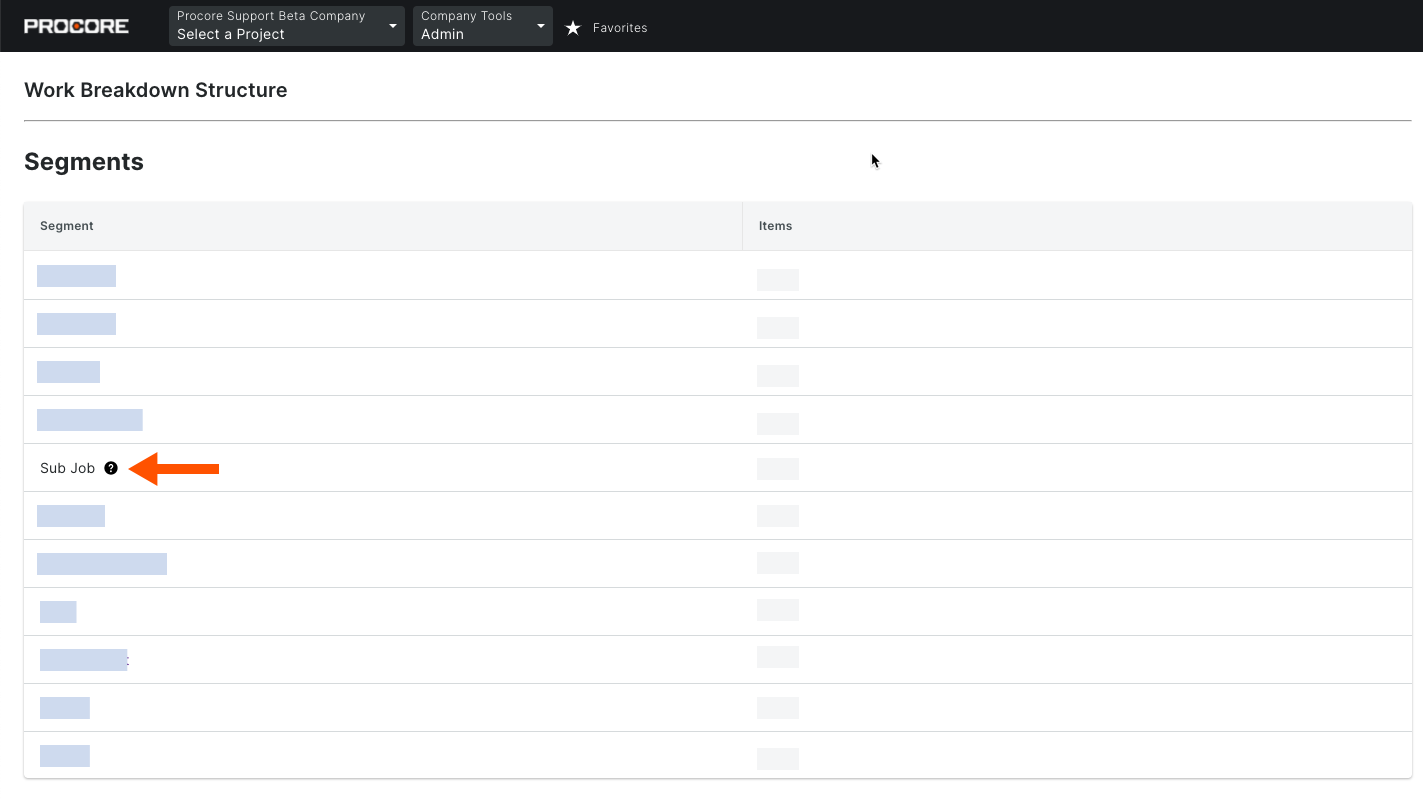
Comme indiqué ci-dessous, après avoir ajouté le segment « Sous-Projet » à un projet, il est automatiquement ajouté au tableau « Segments » de l’outil Niveau entreprise Admin avec une infobulle à côté. L’ajout du « sous-projet » à un projet compte comme l’utilisation d’un (1) des treize (13) segments disponibles de votre entreprise.