Ajouter une taxe sur les produits et services (TPS) à un budget

Fond

Dans de nombreux pays, une taxe sur les produits et services (TPS) est appliquée à certains biens ou services dans ce pays. Selon le pays, elle peut également être appelée taxe sur la valeur ajoutée (TVA). Lorsque ce type de taxe est prélevé par le gouvernement, les entreprises sont responsables de la perception de la taxe sur les biens et services requis, ainsi que du versement des taxes perçues au gouvernement.

Examples

The following examples are for illustrative purposes only:

  • In Australia, the government levies a 10% tax is added to most goods and services, with some exemptions.

  • In Canada, the government levies 5% is added to taxable goods and services. Some provinces may also levy a separate Provincial State Tax (PST) on goods and services and/or combine the GST and PST into a single Harmonized Sales Tax (HST).

To determine your country's specific tax requirements, always consult your government tax authority.

Si vous travaillez dans un pays qui exige que votre entreprise collecte et verse cette taxe au gouvernement, l’administrateur Procore de votre entreprise peut créer un code de coût dédié dans l’outil Admin de l’entreprise, au niveau entreprise et projet. Votre administrateur peut également choisir d’utiliser le type de coût « Autre » (ou de créer un type de coût personnalisé à associer au code de coût de la taxe TPS). Les utilisateurs du projet peuvent ensuite ajouter des postes financiers avec une marge financière à associer au code de coût (et au type de coût choisi), de sorte qu’un poste de TPS s’affiche sur les demandes de paiement (aussi appelées plannings de réclamation) et les demandes d’acompte (aussi appelées factures fiscales) du projet.

Éléments à prendre en compte

  • Autorisations utilisateur requises :

    • Autorisations de niveau « Admin » dans l’outil Budget du projet.
      ET

    • Autorisations de niveau « Admin » dans l’outil Contrats principaux du projet.

  • Informations complémentaires :

    • La TPS n’est PAS affichée dans Procore. Il ne s’affiche que sur les PDF personnalisés pour les factures fiscales (plannings de réclamation).

    • Marge verticaleaffichera la marge sous les postes budgétaires.

    • Si vous préférez activer les champs de taxe dans l’interface de Procore, voir Comment puis-je utiliser les codes fiscaux sur un projet ?

Conditions préalables

Escalier

Add a Budget Line Item for Your GST Cost Code

After creating the prerequisite GCT cost code in the Company Admin tool, use the steps below to create a budget line item for that code.

  1. Navigate to the project's Budget tool.

  2. In the Budget tab, click the Create button and choose Budget Line Item from the drop-down list.

  3. Select your dedicated GST code from the Cost Code drop-down list. To learn more about adding line items, see Add a Budget Line Item.

  4. Select 'Other' from the Cost Type drop-down list.

     Note

    If you created a custom cost type for your tax, you can also select that cost type. To learn more, see Add Company Cost Types.

    add-gst-cost-code-and-other-cost-type.png

  5. Enter the remaining information on the line item and click Add.

     Tip

    Need to quickly add multiple line items to your budget? Rather than adding budget line items one by one, you can import your budget line items. To learn more, see Import a Budget.

  6. Confirm that the new budget line item using your GST tax cost code appears in the budget as desired. This ensures that your GST tax is included in your project as a budget line item, which is helpful later should you need to generate a report for the government.

Enable the Financial Markup Feature on a Contract or Funding

Use the steps below to enable the financial markup feature on a project's contract or funding.

  1. Navigate to the project's Client Contracts, Funding, or Prime Contracts tool.

  2. Locate the contract to work with. Then click its Number link to open it.

  3. In the contract, click the Advanced Settings tab.

  4. Click the Edit Advanced Settings button.

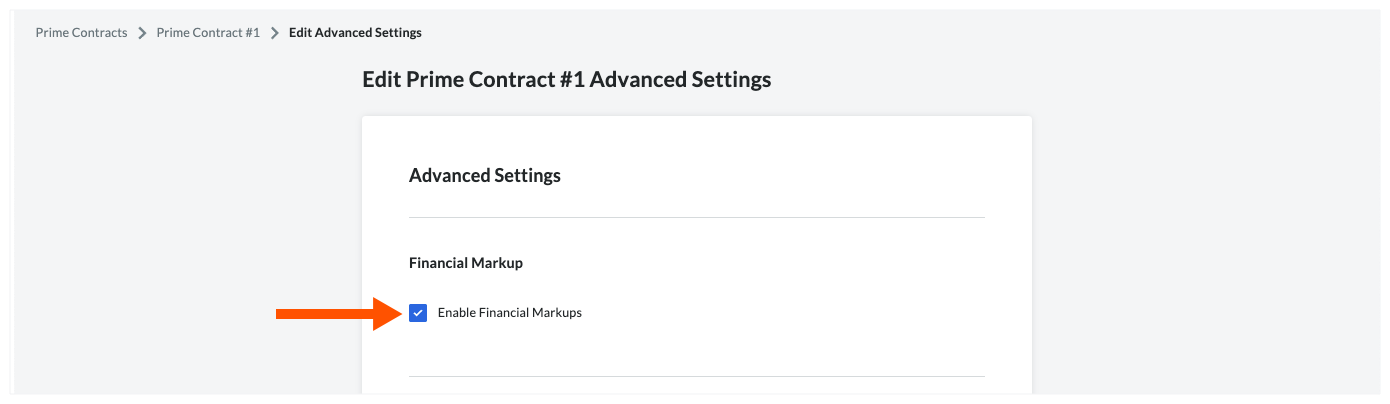
  5. Under Financial Markup Settings, place a mark in the Enable Financial Markups checkbox.

    Example

    The example below shows you the setting in a prime contract. However, the setting looks the same on both client contracts and fundings.

    enable-financial-markups.png

  6. Click Save.

  7. Keep the contract or funding open. Then continue with the next step.

Add Financial Markup for the GST Cost Code to a Contract or Funding

Use the steps below to add financial markup that maps the GST cost code to the 'Other' cost type to the client contract, funding, or prime contract.

  1. In the contract or funding, click the Financial Markup tab.

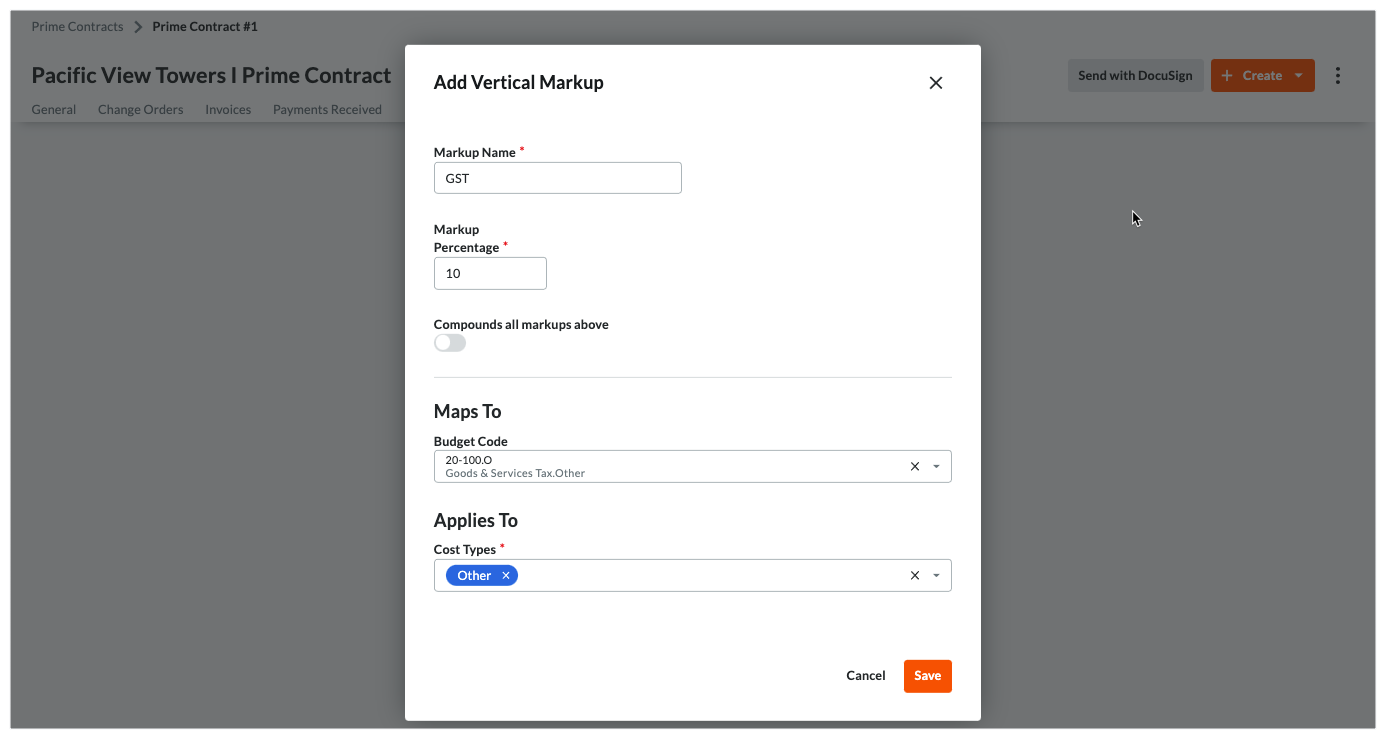
  2. Click the Add Vertical Markup button.

  3. Enter information in the Add Vertical Markup window as follows:

    Example

    The example below shows you the Add Vertical Markup window in the Prime Contracts tool. However, the window looks the same in the Client Contracts and Funding tool.

    add-vertical-markup.png

    • Markup Name
      Enter a name for the financial markup.

    • Markup Percentage
      Enter the percentage for the markup.

    • Compounds Markup Above
      Move the toggle to the right if you want to compound your new markup. This setting is turned OFF by default.

  4. Under Maps To, do the following:

    • Budget Code
      Select the budget code that the markup percentage will be applied to. You must select the GST tax cost code & cost type that your Procore Administrator created. To learn more, see What is a budget code in Procore's WBS?

    • Applies To
      Choose the cost types that the markup percentage will be applied to. By default, Procore lists all of your existing cost types, so you can click the X on each cost type object to remove it. See What are Procore's default cost types? and Add Company Cost Types. If you want to remove one or more cost types, click the 'x' next to the desired selections.

  5. Click Save.

     Important
    • Always inform your project team that they must add a GST line item when creating commitments for which your business is required by law to collect tax.

    • If your company is using the Invoicing or Progress Billings tool, your payment applications (a.k.a., claim schedules) and progress claims (a.k.a., tax invoices) will now include a GST line item.

See Also

Loading related articles...