Importer les quantités produites installées pour la vue du budget des coûts de productivité de la main-d’œuvre
Fond
La vue du budget « Coût de productivité du travail Procore » permet aux équipes de projet d’inclure les quantités produites dans le budget du projet. Cela permet aux membres de l’équipe d’exploiter les données de productivité en temps réel du personnel de chantier de votre projet pour améliorer la capacité de votre équipe à prévoir les heures de main-d’œuvre et les coûts à l’achèvement du projet. En suivant les étapes ci-dessous, votre équipe peut importer les quantités installées dans l’outil Budget de votre projet. Pour ce faire, téléchargez d’abord un modèle Microsoft Excel à partir de l’outil Budget. Terminez ensuite la saisie des données dans la feuille de calcul et téléchargez-la dans votre budget.
Éléments à prendre en compte
Autorisations utilisateur requises :
Autorisations de niveau « Admin » dans l’outil Budget du projet.
Type de fichier d’importation pris en charge :
Le fichier CSV
Pour les entreprises utilisant l’outil
 Intégrations ERP : Afficher/Masquer
Les valeurs de quantités produites installées ne sont PAS synchronisées avec les systèmes ERP intégrés.
Le budget de votre projet peut être verrouillé ou déverrouillé.
Conditions préalables
Assignez la vue du budget « Coût de productivité du travail Procore » à votre projet Procore. Voir Configurer la vue du budget des coûts de productivité de la main-d’œuvre Procore.
Définissez le budget de votre projet. Pour en savoir plus, voir Ajouter un poste budgétaire ou Importer un budget.
Ajoutez les quantités produites budgétées au budget à l’aide des options ci-dessous :
Escalier
Télécharger le modèle de quantités produites installées
Mettre à jour le modèle de quantités produites installées
Importer le modèle de quantités produites installées
Télécharger le modèle de quantités produites installées
Accédez à l’outil Budget du projet.
Sous l’onglet Budget , sélectionnez la vue « Coût de productivité du travail Procore » dans la liste déroulante Afficher .
Sous Importer les quantités installées, cliquez sur le lien Télécharger le modèle Excel .
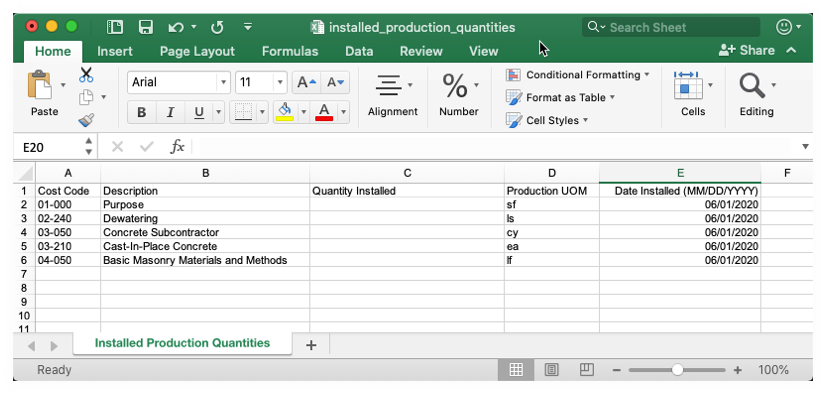
Sur votre ordinateur, ouvrez le fichier téléchargé nommé installed_production_quantities.xlsx.
L’illustration ci-dessous vous montre le fichier à télécharger :
Passez aux étapes suivantes.
Mettre à jour le modèle de quantités produites installées
Dans le fichier installed_production_quantities.xlsx , saisissez les données comme suit pour les quantités produites installées que vous souhaitez mettre à jour :
ImportantN’ajoutez PAS de nouveaux postes et ne modifiez PAS les valeurs existantes dans le fichier Microsoft Excel. Il est conçu uniquement pour importer les valeurs « Quantité installée » pour vos codes de coût existants.
Code de coût
Affiche le code de coût qui correspond à la quantité produite installée que vous souhaitez mettre à jour. Les codes de coûts sont gérés dans la structure de découpage du projet de Procore.Description
affiche la description du code de coût. Les codes de coûts sont gérés dans la structure de découpage du projet de Procore.Quantité installée
Saisissez la quantité installée pour ce code de coût en utilisant des nombres entiers.Unité de mesure de production
Affiche l’unité de mesure (UdM). Pour en savoir plus sur les sélections par défaut de cette liste, voir Quelles unités de mesure sont incluses dans la liste principale de Procore ? et Ajouter une unité de mesure à la liste principale des unités de mesure.Date d’installation (JJ/MM/AAAA)
Saisissez la date d’installation qui correspond à l’entrée « Quantité installée » en utilisant le format JJ/MM/AAAA.
Enregistrez votre fichier Microsoft Excel au format CSV.
Importer le modèle de quantités produites installées
Retournez à l’outil Budget du projet.
Sous l’onglet Budget , sélectionnez la vue « Coût de productivité du travail Procore » dans la liste déroulante Afficher .
Sous Importer les quantités installées, cliquez sur le lien Choisir un fichier .
Sur votre ordinateur, accédez au fichier installed_production_quantities.csv que vous venez d’enregistrer et chargez-le.
Cliquez sur Importer.