Lire un budget
Arrière-plan
Dans Procore, l’outil Budget du projet est configuré pour utiliser la vue « Budget standard Procore ». Il s’agit d’une vue préconfigurée qui contient des colonnes de données qui ont été jugées utiles aux équipes de projet qui souhaitent élaborer et concevoir un budget pour la plupart des projets de construction. En plus de la vue « Budget standard Procore », les entreprises ont la possibilité d’appliquer d’autres vues préconfigurées au budget de leur projet ou de concevoir des vues personnalisées pour répondre à leurs besoins spécifiques en matière de budgétisation. Pour plus de détails, voir Quelles vues du budget dois-je ajouter à mes projets ? et Configurer une nouvelle vue du budget.
Pour vous aider à démarrer, ce tutoriel décrit comment lire et interpréter l’affichage « Budget standard de Procore ». N’oubliez pas que votre projet peut utiliser un affichage différent, de sorte que les colonnes décrites dans ce tutoriel peuvent être différentes de celles utilisées dans votre environnement de projet.
Éléments à prendre en compte
Autorisations utilisateur requises :
Autorisations de niveau « Lecture seule » et supérieures dans l’outil Budget du projet.
ETPour afficher le détail des coûts directs dans une fenêtre contextuelle, autorisations de niveau « Lecture seule » ou « Standard » avec l’autorisation granulaire « Afficher les détails des coûts directs » activée dans votre modèle d’autorisations.
Informations complémentaires :
Procore affiche un poste en ROUGE lorsqu’une valeur de colonne calculée est négative.
Conditions préalables
Escalier
Accédez à l’outil Budget du projet.
Cliquez sur l’onglet Budget .
Cliquez sur le menu Afficher et choisissez Budget standard Procore dans la liste.
ExempleVue du budget standard Procore
L’illustration ci-dessous présente la disposition par défaut de la « vue du budget standard Procore », telle qu’elle apparaît lorsqu’elle est assignée à l’outil Budget d’un projet.
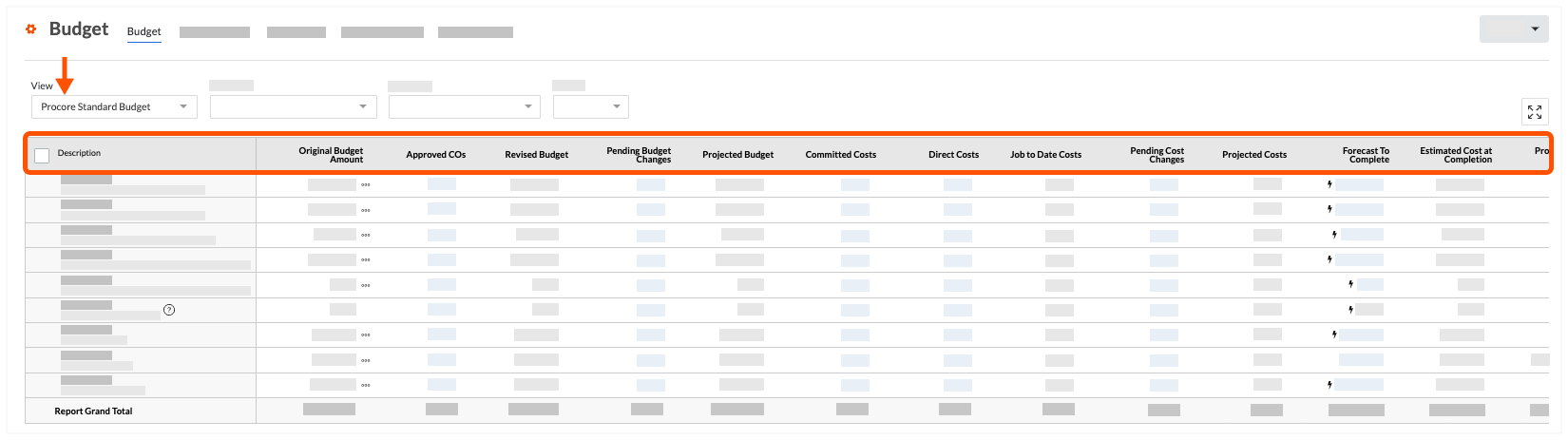

Colonnes par défaut
Le tableau suivant détaille la colonne et la disposition par défaut de l’affichage « Budget standard Procore ».
Nom de la colonne | Type de colonne | Format de colonne | Descriptif |
|---|---|---|---|
Descriptif | Standard | N/A | Affiche le code budgétaire du projet et sa description. En fonction de votre code budgétaire, ceci affiche la division, le code de coût et le type de coût associés au poste budgétaire. Si les sous-projets sont activés dans Procore (voir Activer les sous-projets sur les projets pour la SDP), cette colonne indique le nom du sous-projet associé au poste budgétaire. |
Montant du budget initial | Standard | Monnaie | Affiche le montant du budget d’origine pour le poste budgétaire. |
OC approuvés | Source | N/A | Cette colonne visible affiche les ordres de service de l’engagement ayant le statut Approuvé par défaut. Il fournit également des options avancées qui vous permettent d’inclure/exclure les ordres de service dans d’autres statuts et le contrat général. Cette colonne est également utilisée pour calculer la valeur « Prévision jusqu’à l’achèvement » dans le poste budgétaire. |
Budget révisé | Calculé | Monnaie | Cette colonne visible affiche le montant total de toutes les modifications budgétaires + OC approuvés. Cette colonne est également utilisée pour calculer la valeur « Prévision jusqu’à l’achèvement » dans le poste budgétaire. |
Changements budgétaires en attente | Source | Monnaie | Cette colonne visible affiche les montants des ordres de service au contrat général en attente dans les statuts En attente pour le poste budgétaire. |
Budget prévu | Calculé | Monnaie | Cette colonne visible calcule la valeur des valeurs Budget révisé + changements budgétaires en attente. Il comprend également les sous-totaux et les totaux. |
Coûts engagés 2 | Source | Monnaie | Cette colonne visible affiche les coûts d’engagement pour les contrats de sous-traitance aux statuts Approuvé et Terminé , les bons de commande au statut Approuvé et les ordres de service au statut Approuvé . Il fournit également des options avancées qui vous permettent d’inclure/d’exclure d’autres options de statut pour les engagements et les ordres de service. |
Coûts directs | Source | Monnaie | Cette colonne visible affiche les coûts directs dans les statuts En attente, Réviser et soumettre à nouveau et Approuvé . |
coût du projet à ce jour | Calculé | Monnaie | Cette colonne visible affiche les coûts directs + les factures de sous-traitants. |
Changements de coûts en attente 1 | Source | Monnaie | Cette colonne visible affiche les contrats de sous-traitance avec le statut En attente de signature , les contrats de bon de commande avec le statut En cours de traitement, Soumis, Partiellement reçu et Reçu et les ordres de service avec le statut En attente . |
Coûts prévus 1 | Calculé | Monnaie | Cette colonne visible affiche les coûts engagés + les coûts directs + les changements de coûts en attente. Cette colonne est également utilisée pour calculer la valeur « Prévision jusqu’à l’achèvement » dans le poste budgétaire. |
Prévisions jusqu’à l’achèvement | Standard | Monnaie | Cette colonne visible est un calcul automatique du Budget prévu - Coûts du projet. |
Coût estimé à l’achèvement | Calculé | Monnaie | Cette colonne visible calcule les coûts prévus + la prévision jusqu’à l’achèvement. |
Au-dessus/au-dessous du budget prévu | Calculé | Monnaie | Cette colonne visible calcule le Budget prévu - Coût estimé à l’achèvement. |
ODG approximatif du budget | Source | Monnaie | Affiche la valeur de l’ordre de grandeur approximatif (ODG) du budget. |
changements budgétaires 1 | Standard | Monnaie | Affiche le montant d’une modification budgétaire pour le poste budgétaire. |
Budget révisé (+Modifications) | Calculé | Monnaie | Calcule une valeur pour le montant du budget d’origine + les changements budgétaires. |
Budget des coûts prévus | Calculé | Monnaie | Calcule une valeur du montant du budget d’origine + ordre de grandeur approximatif du budget + changements budgétaires. |
1 La colonne Modifications budgétaires oblige les utilisateurs à migrer leurs données vers la nouvelle fonctionnalité Modifications budgétaires. Voir Migration de Modifications budgétaires vers des changements budgétaires.
2 Cette colonne reflète les valeurs des contrats de l’outil Engagements de Procore. Cependant, l’engagement doit être fixé à un statut spécifique. Pour en savoir plus, consultez Quels sont les statuts d’engagement par défaut dans Procore ?