Update a Subcontractor Schedule of Values as an Invoice Contact from the Commitments Tool (Legacy)

 Legacy Content

This tutorial details Procore's legacy experience for updating a schedule of values on a subcontractor invoice as an invoice contact. The information on this page will be replaced with updated content when the modernized subcontractor invoice experience is generally available.

Important! If you are using the beta experience for subcontractor invoices, please see Update a Subcontractor Schedule of Values as an Invoice Contact from the Invoicing Tool instead of the page below.
Background

If you are an invoice contact who has been invited to provide a detailed breakdown of your schedule of values on a commitment, you will receive an email message from Procore with the subject line: "[Procore User Name] invites you to break down your Schedule of Values for this commitment." A Subcontractor Schedule of Values (Subcontractor SOV) provides downstream contractors with a way to provide a detailed breakdown of specific line items on the contract's general schedule of values.

Exemple

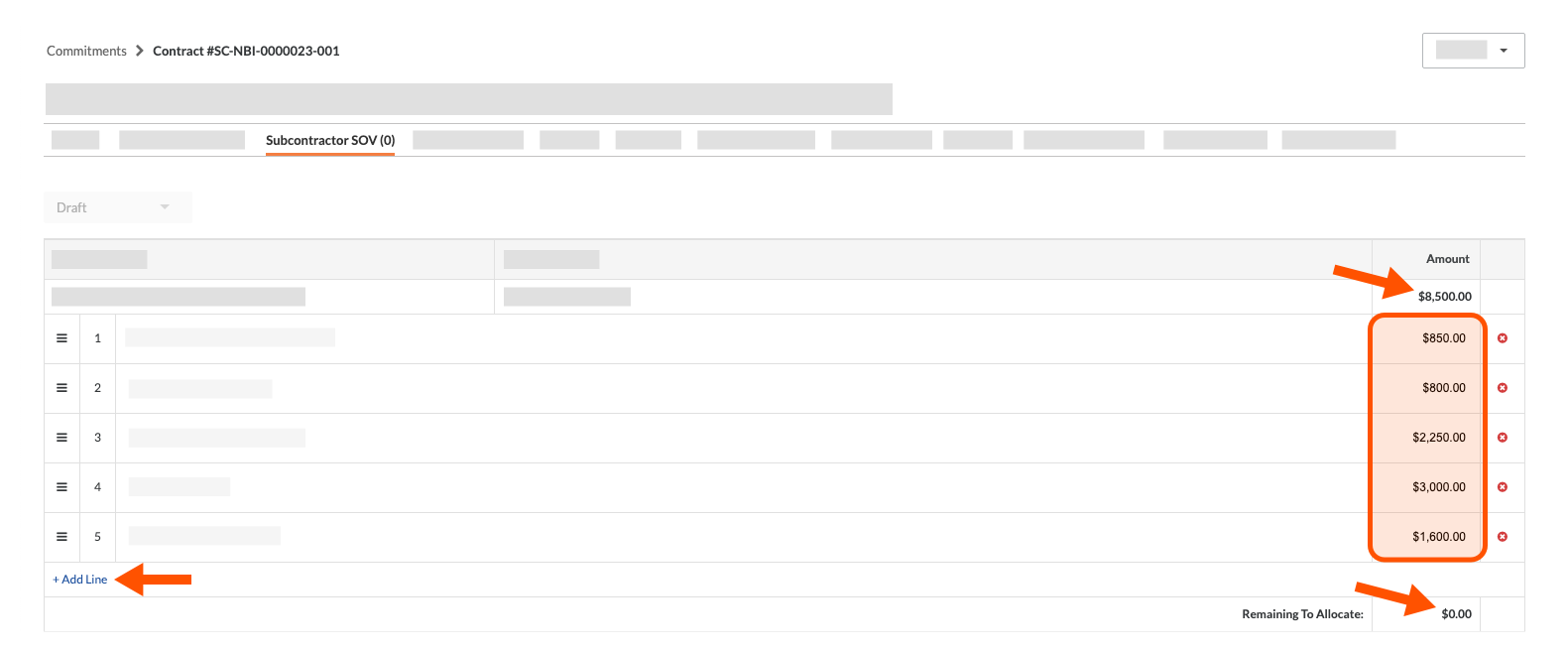
Supposons que la « ventilation des coûts » générale d’un contrat de sous-traitance comprenne un poste de 8 500,00 $ et que la partie en amont du contrat vous ait invité, en tant que contact de facturation, à fournir une ventilation plus détaillée, afin de montrer plus en détail comment vous allouez ces 8 500,00 $. Vous trouverez ci-dessous un exemple de « Sous-traitant VDC » terminé. Dans cet exemple, le contact de facturation a réussi à ajouter cinq (5) postes distincts à « Sous-traitant VDC ». Vous savez que vous avez mis à jour avec succès le « Sous-traitant VDC » lorsque la somme de vos nouveaux postes est égale à 8500,00 $ et que la valeur du champ « Restant à allouer » est de 0,00 $.

Sub Sov Remaining To Allocate

Things to Consider

  • Required User Permissions:

    • To update line items on a Subcontractor Schedule of Values as a downstream collaborator, you must be designated as an 'Invoice Contact.' See Add Invoice Contacts to a Purchase Order or Subcontract. You must also have:* 'Read Only' level permissions on the project's Commitments tool and be a member of the 'Private' list on the General tab of the commitment.
      OR* 'Standard' level permissions on the project's Commitments tool.

  • Additional Information:

    • The Subcontractor Schedule of Values must be in 'Draft' or 'Revise & Resubmit' status.

    • The Subcontractor Schedule of Values must be 'Approved' before users can create subcontractor invoices against the commitment.

  • Pour les entreprises utilisant l’outil Icon Erp Synced Legacy Intégrations ERP : Afficher/Masquer

Conditions préalables

Steps

  • Open the Subcontractor Schedule of Values from the Commitments Tool

  • Update the Subcontractor Schedule of Values

Open the Subcontractor Schedule of Values from the Commitments Tool

 Pointe

Avez-vous reçu un e-mail vous invitant à fournir une ventilation de votre ventilation des coûts sur un engagement ? Si vous êtes un contact de facturation pour « l’Entreprise sous-traitante » dans le cadre d’un contrat d’engagement, l’entreprise pour laquelle vous effectuez des travaux peut vous inviter à fournir une ventilation détaillée des ventilation des coûts d’un contrat d’engagement. Pour répondre à cet e-mail au lieu de suivre les étapes ci-dessous, voir Comment soumettre une ventilation des coûts du sous-traitant pour un engagement Procore ?

  1. Navigate to the project's Commitments tool.

  2. Click the Contracts tab.

  3. Locate the purchase order or subcontract to work with and click the Number link.

  4. Click the Subcontractor SOV tab.

  5. Continue with the next step.

Update the Subcontractor Schedule of Values

If you are an invoice administrator (or an invoice contact who has been invited to update a Subcontractor SOV), you can perform these steps on the commitment contract.

  1. In the commitment, click the Subcontractor SOV tab.

     Remarque

    Si vous ne voyez PAS d’onglet « Sous-traitant VDC » dans le contrat engagement, un utilisateur avec des autorisations de niveau Admin sur le L’outil Engagements doit l’activer. Voir Ajouter un Sous-traitant VDC à un Engagement et Activer ou désactiver l’onglet Sous-traitant VDC dans l’outil Engagements.

  2. Click Edit.

  3. Enter a detailed line-item breakdown in the Subcontractor SOV tab as follows:
    Sub Sov Remaining To Allocate

    • Click the +Add Line Item link.

    • In the Description box add a detailed description of the work to complete.

    • In the Amount box, add the specific amount for that work.

    • Continue this step until the 'Remaining to Allocate' amount for that budget code and description reads $0.00.

  4. When you have allocated all of the amounts in the Subcontractor SOV tab, click the Submit button.

     Remarques
    • Le bouton Soumettre est grisé et indisponible jusqu’à ce que les champs Restant à allouer dans le Sous-traitant VDC affichent tous 0,00 $.

    • Après avoir cliqué sur le bouton, Procore remplace le statut du Sous-traitant VDC par En cours de révision.

    • Vous ne serez PAS en mesure de modifier votre soumission à moins que le administrateur des factures ne change le statut de l’Sous-traitant VDC en Réviser et soumettre à nouveau.

Voir aussi

Chargement des articles connexes...