Create a Payment Schedule

Vous utilisez la terminologie du maître d’ouvrage ou de l’entrepreneur spécialisé ?

Procore peut être configuré pour utiliser une terminologie spécifique aux entreprises générales, aux maîtres d’ouvrage ou aux entreprises spécialisées. Découvrez comment appliquer les options du dictionnaire.

  • To learn the differences: Show/Hide

    • This table shows the differences in tool names (bold) and terms across the point-of-view dictionaries for Project Financials.

      Entrepreneurs généraux
      Anglais (États-Unis) - Par défaut

      Propriétaire
      Anglais (Terminologie du propriétaire V2)

      Entrepreneurs spécialisés
      Anglais (terminologie des entrepreneurs spécialisés)

      Facturation

      Facturation

      Facturations proportionnelles

      Propriétaire

      Financement

      Propriétaire

      Maître d’ouvrage/Client

      Maître d’ouvrage/Client

      CG/client

      Ordre de changement au contrat principal

      Ordre de changement de financement

      Ordre de changement du contrat client

      Contrats principaux

      Financement

      Contrats clients

      Revenu

      Financement

      Revenu

      Sous-traiter

      Contrat

      Sous-traiter

      Sous-traitant

      Entrepreneur

      Sous-traitant

      Ventilation des coûts du sous-traitant (VDCS)

      Ventilation des coûts de l’entrepreneur (VDCST)

      Ventilation des coûts du sous-traitant (VDCS)

      About These Dictionaries
      • Default Setting: The 'General Contractor' dictionary is enabled by default for all accounts.

      • Availability: These alternate dictionaries in italics are available in US English only.

      How to Switch Your Dictionary

      To change your company's terminology to the Owner or Specialty Contractor dictionary, contact your company's . They will work with your Procore Point of Contact to make the change.

Background

Construction businesses operating in Australia and New Zealand are creating payment schedules to facilitate the invoice approval process, as well as claims of work performed by downstream collaborators. In a typical payment schedule workflow, downstream collaborators submit invoices for work performed. The upstream collaborator reviews the invoice and approves the amounts on the claim.

 Note

flag-australia.png The Payment Schedule feature is designed for Procore users in Australia and New Zealand to satisfy the legal requirement to provide claimants with a payment schedule. However, this feature is available for use by all Invoice Management users.

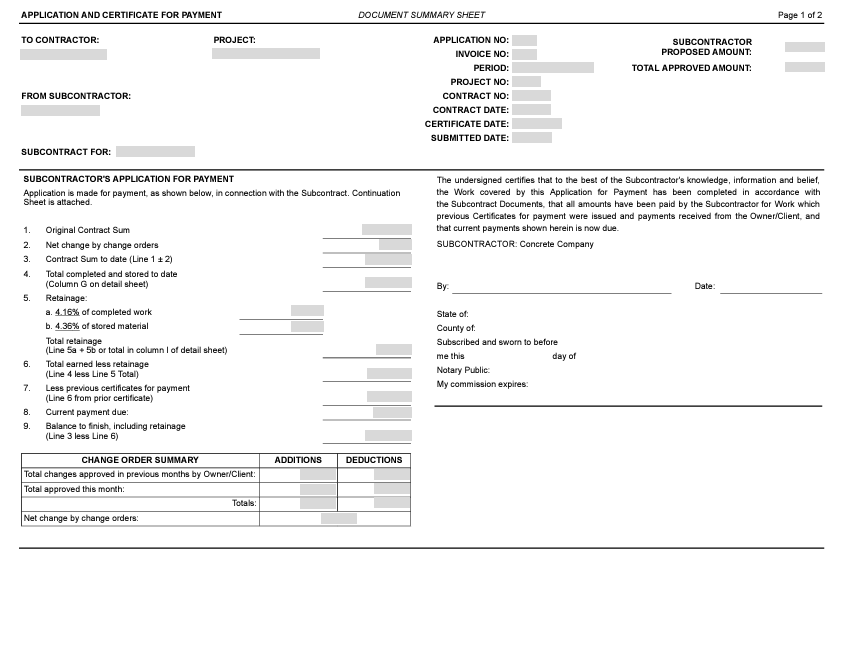
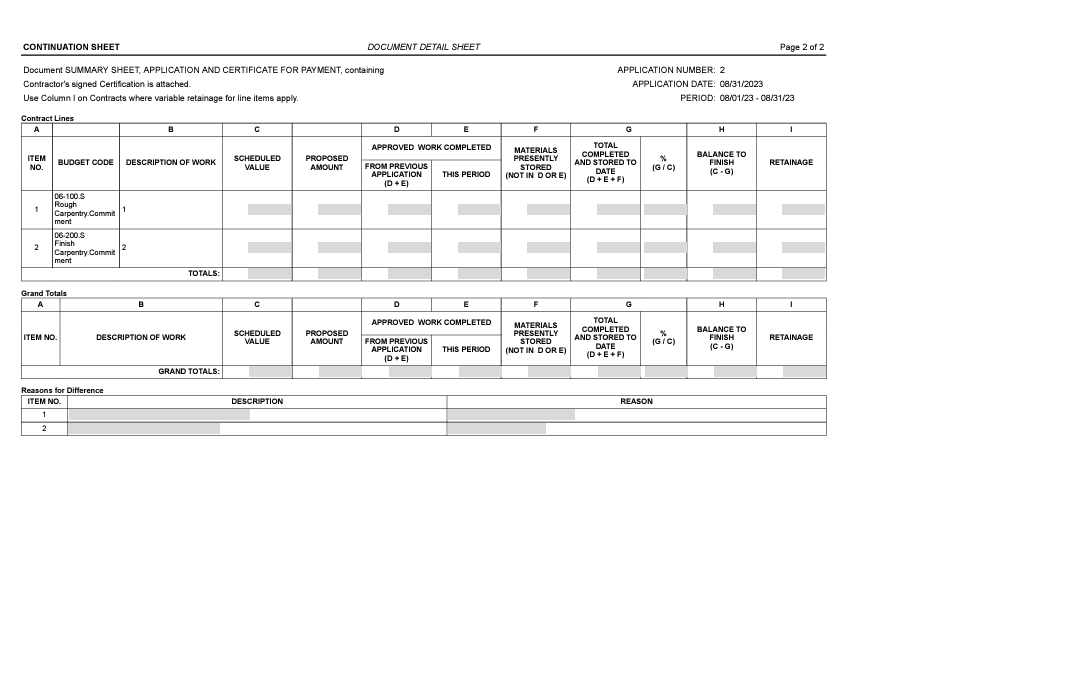
You can export a payment schedule to show the following information:

  • Claimed amounts

  • All 'Approved' amounts

  • Reasons for 'Rejected' amounts

Things to Consider

Prerequisites

Steps

  1. Navigate to the Project level Invoicing tool.

  2. Click the Subcontractor tab.

  3. Locate the most recent invoice in the Invoice # column. The click the link to open it.

     Tips
    • You can also open invoices from the Commitments tool. To do this, navigate to the Project level Commitments tool. In the Contracts tab, click the Number link, and then click the Invoices tab. Locate the invoice in the Invoices (Requisitions) table and click the Invoice Position or Invoice # link.

    • How do I find the most recent invoice? Review the values in the Invoice Position column. Each invoice is assigned a number, in the order invoices are created. This column sorts invoices from newest to oldest by default. To change the sort order, click the Overflow menu in the column heading and choose one (1) of the Sort By This Column options.

  4. In the invoice, click the Export button and choose PDF from the drop-down menu.

The example below shows a sample payment schedule.

Example

The illustration below shows you an example of a payment schedule.

application-and-certificate-for-payment-summary-sheet.png

continuation-sheet-document-detail.png

See Also

Loading related articles...