Configure Payment Processing as a Payor

 General Availability in Select Markets (United States)

flag-us.png Procore Pay is available in the United States. It is designed for General Contractors and Owner-Builders who act as their own General Contractors on a job. Procore Pay extends the Invoice Management functionality in the Procore web application to handle the payment process between general and specialty contractors.

Fond

Lors de la gestion des paramètres de paiement de votre entreprise pour Procore Pay, l’onglet Traitement des paiements de l’outil Paiements au niveau entreprise permet à votre administrateur des paiements de gérer :

  • Les comptes de financement de votre entreprise

  • Décaissements de paiements de votre entreprise

  • Le statut de Procore Pay sur les projets Procore de votre entreprise

  • Le financement par défaut tient compte des projets Procore de votre entreprise

Il vous permet également d’activer/désactiver la fonction de décaissements et de consulter un historique des changements qui enregistre toutes les actions effectuées dans l’outil Paiements au niveau entreprise.

Éléments à prendre en compte

Conditions préalables

Escalier

Pour en savoir plus sur les options de chaque page de l’onglet Traitement des paiements, accédez à l’outil Paiements au niveau entreprise et cliquez sur l’icône Paramètres des paiements icons-settings-gear.png. La page Paramètres de paiement s’ouvre. L’onglet Comptes de financement est actif par défaut. Sur le côté gauche de la page, le tableau contient des liens vers les pages suivantes :
  • Comptes de financement

  • Autorisations de paiement

  • Contrôles du projet

  • Paramètres avancés

  • Historique des changements

Comptes de financement

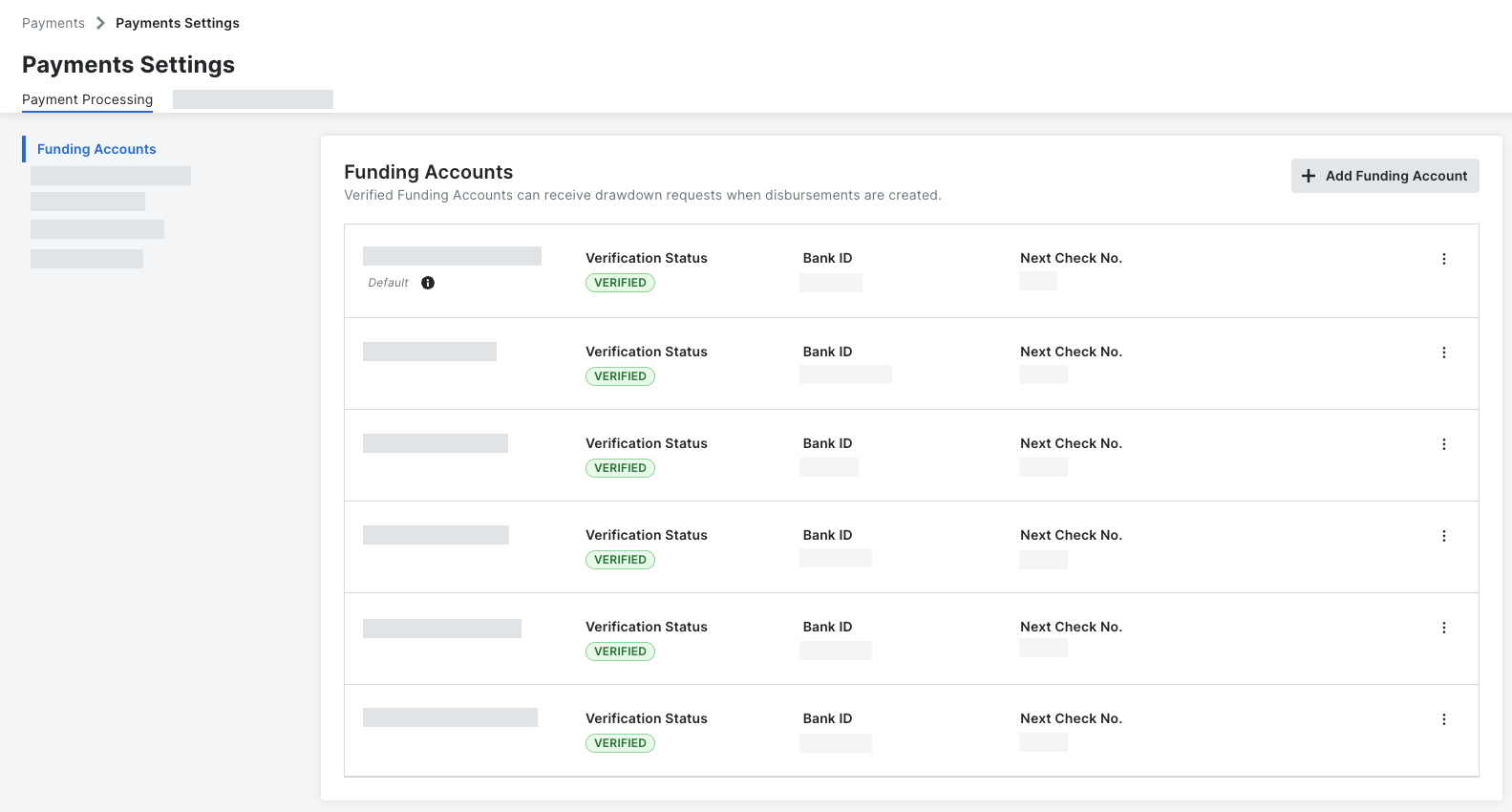
Seul un peut gérer et lier des comptes de financement à Procore Pay. Dans l’environnement du payeur, un compte de financement est le compte bancaire externe à partir duquel les fonds de prélèvement de votre entreprise sont demandés pour payer un décaissement.

 Important
  • Account verification for Procore Pay is done using a commercially available database/registry of bank account information. Procore Pay stores only the account's Nickname, Bank ID, and Next Check Number entered by your Payments Admin. This provides Payments Disbursers with a method to identify the correct account for transmitting payments. Identifying bank account information is never entered nor stored in Procore Pay or any other Procore product.

  • Account verification is done by an embedded software platform that provides Procore Pay users with an integrated money movement solution.

payment-processing-funding-accounts.png

Click here to learn about the table.

Page Comptes de financement

Le tableau ci-dessous décrit les éléments de la page Comptes de financement.

* Procore is a financial technology company, not a bank. Banking services provided by Goldman Sachs Bank USA, a member of the Federal Reserve System and member FDIC. Additional Goldman Sachs Bank USA services may be accessed on its Transaction Banking online platform by visiting https://txb.gs.com/cx/login. Goldman Sachs accounts and services are subject to its terms and conditions.

Element

Options

Description

Learn More

Add Funding Account

Button

Click this button to add a new funding account to Procore Pay

Account Nickname

Account Nickname and last four (4) digits.

An account nickname shows only enough bank information so your company's Payment Disbursers can select the appropriate funding account to route payments.

Bank ID

A unique bank ID is created when linking an account.

Show the ID number assigned to the bank.

Next Check No.

A unique check number is used to create a new check number on a payment.

Shows the next number that Procore Pay assigns to the next check. Check numbers are applied to the invoice payments in a disbursement.

Added By

Only a Payments Admin can add funding accounts to Procore Pay.

Shows the name of the Payment Admin that added the account to Procore Pay.

Account State

Default or Deactivated

Provides a visual cue to quickly identify your company's default withdrawal account and any deactivated accounts.

Verification Status

Verified, Pending, Failed

Provides a visual cue to quickly identify the verification status of each linked funding account.

Overflow

icon-ellipsis-options-menu.png

Edit, Deactivate

Click the Overflow

icon-ellipsis-options-menu.png

menu icon and choose one of the available options from the drop-down list.


Autorisations de paiement

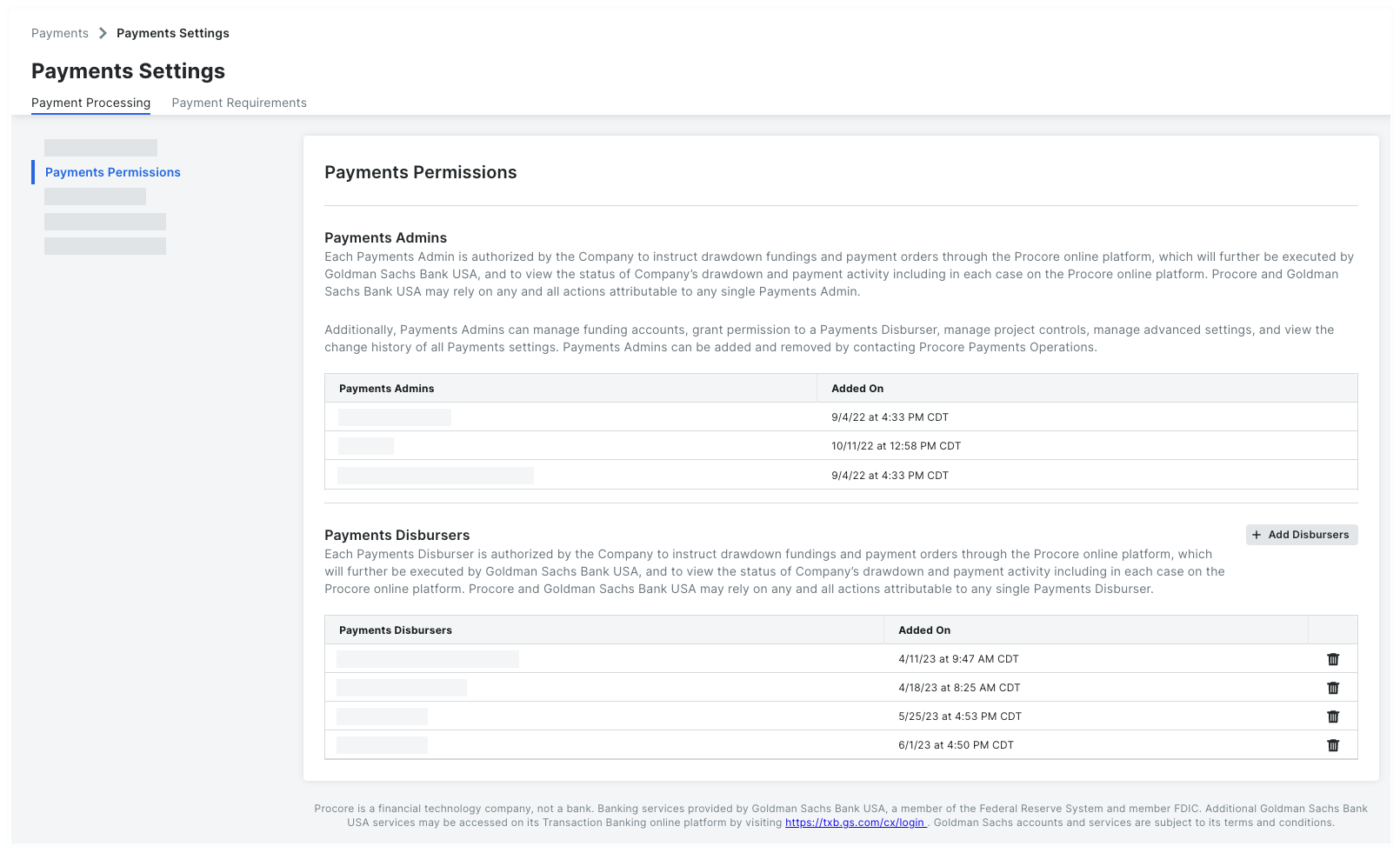
À l’aide des commandes de la page Autorisations de paiement, un administrateur des paiements contrôle en toute sécurité qui a accès à la création et à l’affichage des décaissements dans l’environnement du payeur. Il existe deux (2) rôles dans Procore Pay : Administrateur des paiements et Débourseur des paiements. Seul un membre de l’équipe Opérations de paiement de Procore peut ajouter un administrateur des paiements à votre compte. Pour ce faire, un utilisateur autorisé de votre entreprise doit remplir, signer et renvoyer le formulaire de désignation d’administrateur des paiements à Procore. Pour plus d’informations, consultez Ajouter ou supprimer des administrateurs de paiements en tant que payeur. Une fois ajoutés, seul votre administrateur des paiements peut ajouter les débours de paiements de votre entreprise.

L’illustration ci-dessous vous montre la page Autorisations de paiement.

payments-settings-payments-permissions.png

Click here to learn about the table.

Page Autorisations de paiement

Les tableaux ci-dessous détaillent les éléments de la page Autorisations de paiement.

Table

Column

Description

Learn More...

Payments Admins

Payments Admins

Shows the first and last names of the users at your company who are designated as Payment Admins. To designate a Payments Admin in the payor environment, an authorized user from your company must complete, sign, and return a Payment Administrator Designation Form to Procore. To remove a Payments Admin, contact your

Procore point of contact

. Payment Admins can only be removed by the Procore Payments Operations team.

Add or Remove Payment Admins as a Payor

Added On

Shows the date and time that the Procore Payment Operations Team added your company's authorized Payments Admin.

Payments Disbursers

Add Disbursers

Only a Payments Admin can see the Add Disbursers button. Click this button to add a new Payments Disburser.

Add Payments Disbursers as a Payor

Payments Disbursers

Shows the first and last name of each disburser.

Added On

Shows the date, time, and timezone that the Payments Admin added the disburser.

icon-delete-trash6.png

Only a Payments Admin can remove a disburser. Click the

icon-delete-trash6.png

remove icon next to the user's name to revoke the disburser's access.

Remove Payments Disbursers as a Payor

Payments Beneficary Approvers

Add Beneficiary Approvers

Only a Payments Admin can see the Add Beneficiary Approvers button. Click this button to add a new Payments Disburser.

Add a Payments Beneficiary Approver as a Payor

Added On

Shows the date, time, and timezone that the Payments Admin added the approver.

icon-delete-trash6.png

Only a Payments Admin can remove a disburser. Click the

icon-delete-trash6.png

remove icon next to the user's name to revoke the approver's access.


Contrôles du projet

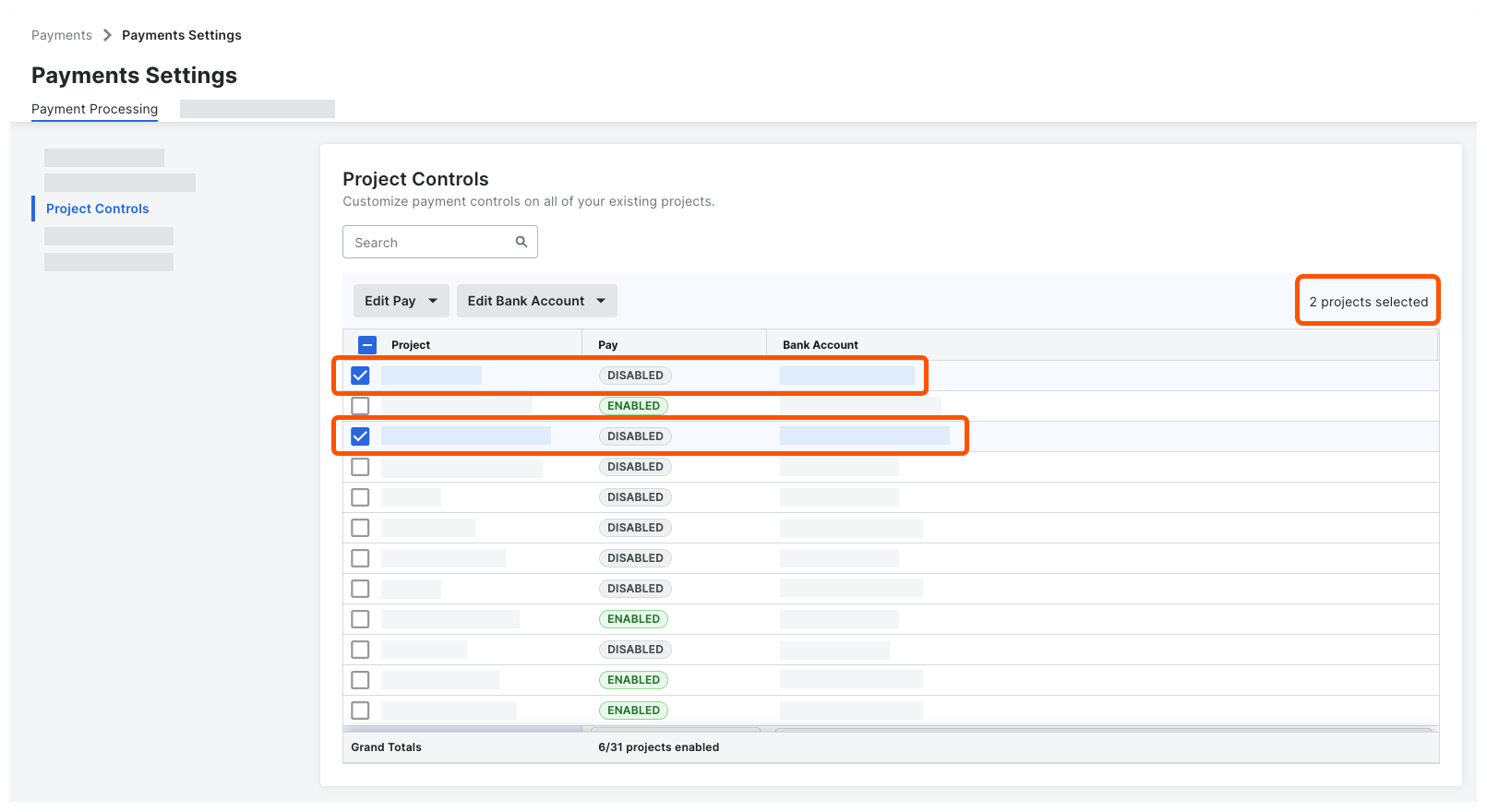
Les administrateurs de paiements peuvent utiliser la page Contrôles du projet dans l’onglet Traitement des paiements des paramètres de paiement pour contrôler le fonctionnement de Procore Pay sur vos projets Procore existants. Les commandes de cette page vous permettent d’apporter des modifications aux projets individuellement ou par lot. Avec les contrôles de cette page, vous pouvez :

  • Activer ou désactiver Procore Pay sur les projets Procore

  • Modifier le compte de financement sur les projets Procore

L’illustration ci-dessous vous montre la page Contrôles du projet. Pour obtenir la liste des tâches disponibles, voir Gérer les contrôles du projet.

payments-settings-project-controls.png

Click here to learn about the table.

Page Contrôles du projet

Le tableau ci-dessous détaille les éléments de la page Contrôles du projet.

Element

Type

Description

Learn More

Search

Field

Type your keyword(s) in the Search field and click the

icon-search.png

magnifying glass or press ENTER to show projects or funding accounts matching your entry. Note: Procore Pay searches the entries in the Project, Pay, and Bank Account columns for matches.

-

Edit Pay

Button with a drop-down list

Procore Pay enables this button after you mark one (1) or more project checkboxes in the list. When enabled, you can change the Pay status on the selected project(s). Enabled indicates the Procore Pay features are turned ON on a project. Disabled indicates that the Procore Pay features are turned OFF on the project.

Enable or Disable Procore Pay on Your Projects

Edit Bank Account

Button with a drop-down list

Procore Pay enables this button after you place a mark in one (1) or more project checkboxes in the list. When enabled, you can change the Bank Account setting on the selected project. The account nickname that you select here will automatically populate the 'Select a Bank Account' drop-down list when one of your company's Payments Disbursers creates a new disbursement. See Create Disbursements. Note: If you choose the Select at Disbursement option, Payments Disbursers are required to select the appropriate bank account nickname on new disbursements.

Update Your Project's Bank Accounts

Line items

Check box

Mark one or multiple checkboxes to enable the Edit Pay or Edit Bank Account button. Then select an option from the drop-down menu.

-

Project

Column

Shows the Procore project name. This list shows all projects marked 'Active' in your company's Portfolio.

Change a Project's Status to Active or Inactive

Pay

Column

Shows the project's Pay status. Enabled indicates the Procore Pay features are turned ON on a project. Disabled indicates that the Procore Pay features are turned OFF on the project.

Update Your Project's 'Pay' Status

Bank Account

Column

Shows the account nickname for any funding accounts linked to Procore Pay. See Add Funding Accounts. The account nickname that you select here will automatically populate the 'Select a Funding Account' drop-down list when one of your company's Payments Disbursers creates a new disbursement. See Create Disbursements. Note: If you choose the Select at Disbursement option, Payments Disbursers are required to select the appropriate bank account nickname on new disbursements.

Add Funding Accounts as a Payor

Grand Totals

Field

Shows the total number of projects where Procore Pay is enabled as a unit fraction.

-


Paramètres avancés

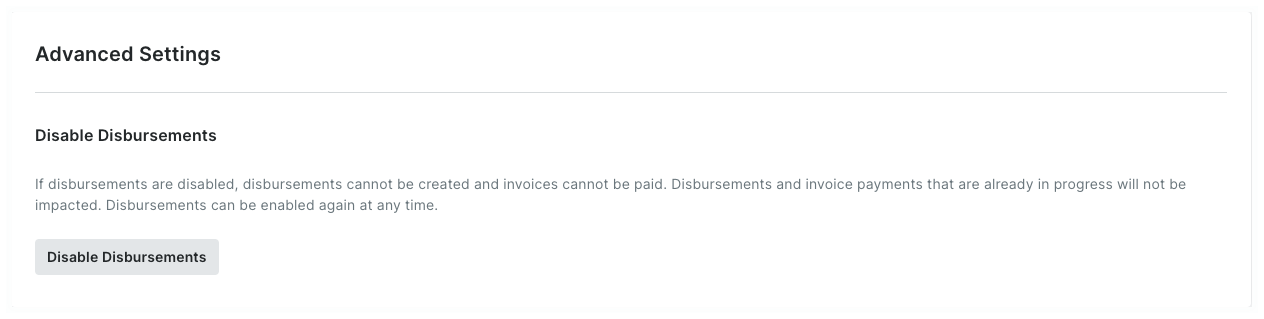
À l’aide des commandes de la page Paramètres avancés, un administrateur des paiements peut activer et désactiver la fonction Débours pour Procore Pay. Pendant le processus d’implémentation, cette fonctionnalité est activée par défaut. Seul votre administrateur des paiements peut modifier ces paramètres.

L’illustration ci-dessous vous montre la page Paramètres avancés.

disable-disbursements-setting.png

Click here to learn about the table.

Page Paramètres avancés

Les tableaux ci-dessous détaillent les options lorsque les décaissements sont activés ou désactivés sur la page Paramètres avancés.

Users can perform this task...

ON

OFF

Learn More...

A Payments Admin can add disbursers.

icon-mindtouch-table-check.png

icon-mindtouch-table-check.png

Add Payment Disbursers as a Payor

A Payments Disburser can create a disbursement.

icon-mindtouch-table-check.png

icon-delete-x.png

Create Disbursements

A Payments Admin can remove disbursers.

icon-mindtouch-table-check.png

icon-mindtouch-table-check.png

Remove Payment Disbursers as a Payor

A Payments Admin or Payments Disburser can view a single disbursement or the disbursements list.

icon-mindtouch-table-check.png

icon-mindtouch-table-check.png

View Disbursements as a Payor


Historique des changements

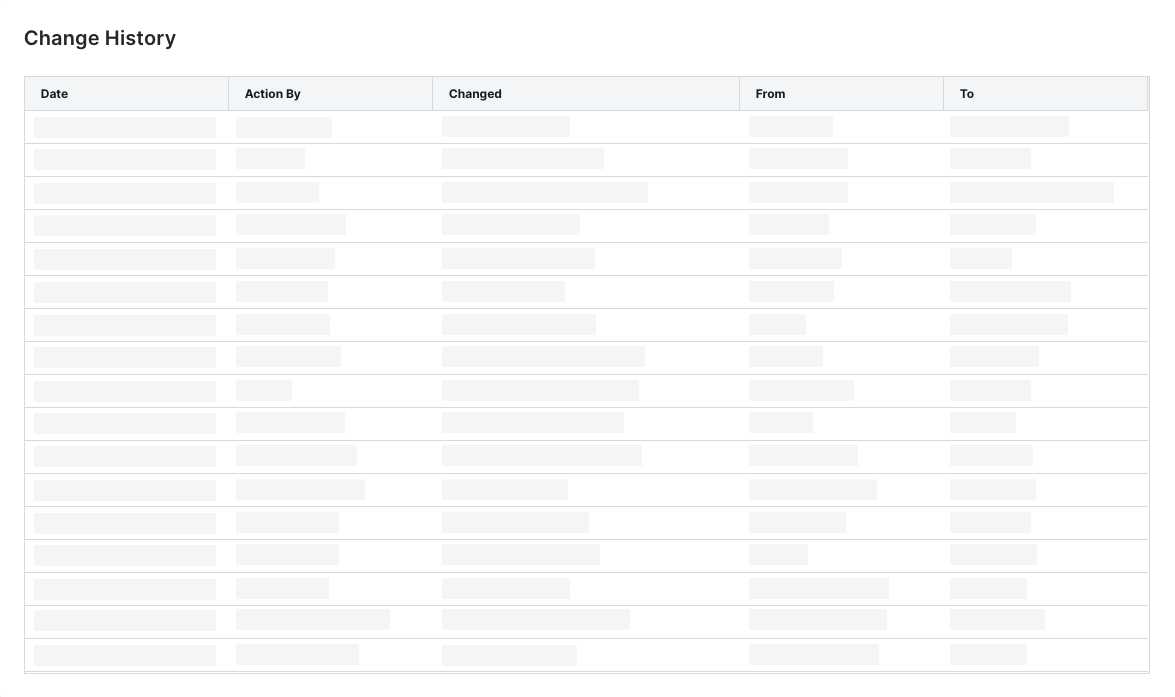
Seul un administrateur des paiements peut consulter l’historique des changements de l’outil Paiements. Le tableau de la page Historique des changements consigne les actions effectuées par les administrateurs des paiements et les débourseurs de paiements avec l’outil Paiements au niveau entreprise. Pour obtenir des directives détaillées, consultez Afficher l’historique des changements de l’outil Paiements.

view-change-history.png

Click here to learn about the table.

Page Historique des changements

Le tableau ci-dessous décrit les colonnes par défaut de la page Historique des changements.

Column

Description

Date

Shows the date and timestamp of the action.

Action By

Shows the first and last name of the Procore user as their name appears in the Company Directory. Note: Only a member of Procore's Payments Operations Team can add Payments Admins to your account. This requires an authorized user at your company to complete and sign Procore's Payment Administrator Designation Form. Once added, this entry indicates the user was added by 'Procore Support'. For details, see Add or Remove Payments Admins as a Payor.

Changed

Provides a brief description of the action.

From

Shows the value that the action changed from. Note: If the action originated from a setting with a blank or null value, Procore shows the double dash symbol (--).

To

Shows the To value that the action changed to. Note: If the action resulted in a setting with a blank or null value, Procore shows the double dash symbol (--).

​​​​​​


Prochaine étape

See Also

Loading related articles...