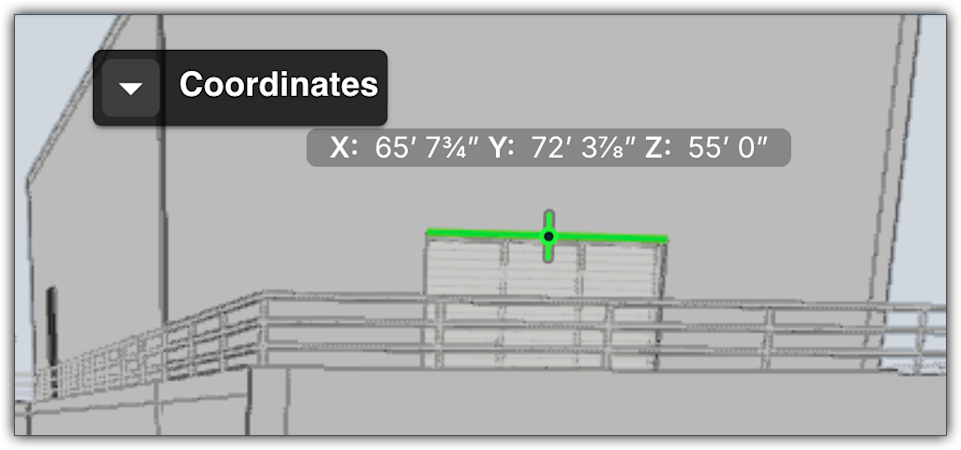
Get Precise Spot Coordinates (X, Y, Z) with the Coordinates Tool

Procore Model Manager - Beta Access & Feedback

The Model Manager (Beta) features and documentation are subject to change without notice.

  • To learn about the beta program, see the Beta Participant Guide.

  • To access the beta and provide feedback Show/Hide Details

    • How to Access: Participating companies must sign the Procore Beta Agreement. Once signed, your Procore Administrator coordinates with your Procore point of contact to enable Model Manager (Beta) on specific Procore projects.

    • How to Provide Feedback During Beta: Contact your dedicated Beta program lead.

    • How to report critical issues: Report breaking changes to Procore Customer Support. For general feedback or non-critical issues, contact your Beta program lead or Procore point of contact.


Currently, only Admin permissions are available. Procore will add more permission levels later.

Use the Coordinates tool in the right toolbar to help identify the exact spatial location of elements within a 3D model. By placing coordinate labels on various lines, edges, or surfaces, you can ensure high levels of accuracy for layout and installation tasks.

Things to Consider

  • Required User Permissions

    Currently, only Admin permissions are available. Procore will add more permission levels later.

  • Additional Information:

    • When a measurement mode is active, the icon in the toolbar appears blue.

    • To exit the active measurement mode, click the icon again or press ESC on your keyboard or click the Red X that appears on the right toolbar.

Steps

  1. Navigate to the Model Manager (Beta) tool.

  2. Open a model

  3. In the right toolbar, click the Measurements icon.

  4. Click Coordinates to activate the mode.

    Tip

    How can you tell when a mode is active and how do you turn it off? When a mode is active, the toolbar icon turns Blue. You can click This image shows the Exit Mode icon in the Right Toolbar of the Viewer in the Model Manager tool.or press ESC to exit the active mode.

  5. Click on any line, edge, or surface in the 3D model to place and view its coordinates.

  6. Optional. Additional options:

    • Move coordinates. Click, hold, and drag to a different spot.

    • Remove coordinates. Hover over the coordinates label and click the red X.