Use these steps to create new viewpoints and add existing viewpoints to project views.
Navigate to the Model Manager (Beta) tool.
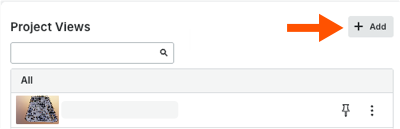
In the Project Views card, click Add.
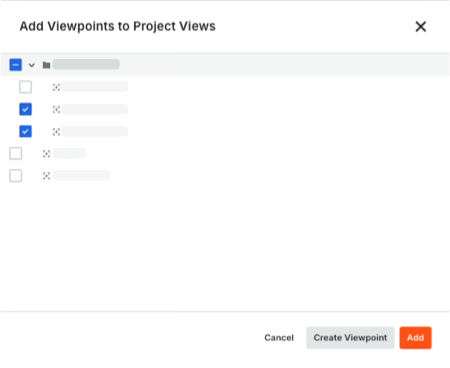
In the Add Viewpoints to Project Views window, you have these options:
Create a new viewpoint. Click the Create Viewpoint to open the federated project model in the document viewer with the Viewpoints window active.
Add an existing viewpoint. Mark one or more checkboxes for the viewpoints to add and click Add. A green success banner notifies you when successfully added to the Project Views card.
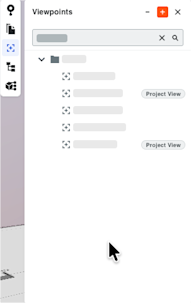
Additional options for managing viewpoints:
Search Viewpoints. Start typing the name of a existing viewpoint in the Search Viewpoints box. If an existing project view exists, the Project View pill appears by the viewpoint in the list.
Show/Hide Viewpoints. Click the Minus (-) icon to hide the viewpoints in the list. Click it again to show the viewpoints in the list.
Create Viewpoint. Click the Plus (+) icon and choose Create Viewpoint.
Create Folder. Click the Plus (+) icon and choose Create Folder.
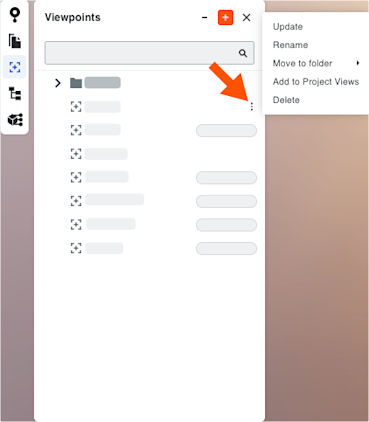
More (⋮). Click the More (⋮) and choose an option:
Update. Update an existing viewpoint.
Rename. Type a new name for the viewpoint.
Move to Folder. Move the selected viewpoint to the folder you want.
Add to Project Views/Remove from Project Views. Add the selected viewpoint to a project view or remove an existing project view from the list.
Delete. Permanently remove the selected project view.
When finished, click Close. Procore saves your change automatically in the Project Views card.