Add Discipline Files to a New Project Model

Procore Model Manager - Beta Access & Feedback

The Model Manager (Beta) features and documentation are subject to change without notice. Please be aware that this content is restricted to beta participants and requires a direct link to access.

  • To learn about the beta program, see the Beta Participant Guide.
  • To access the beta and provide feedback Show/Hide Details

    • How to Access: Participating companies must sign the Procore Beta Agreement. Once signed, your Procore Administrator coordinates with your Procore point of contact to enable Model Manager (Beta) on specific Procore projects.

    • How to Provide Feedback During Beta: Contact your dedicated Beta program lead.

    • How to report critical issues: Report breaking changes to Procore Customer Support. For general feedback or non-critical issues, contact your Beta program lead or Procore point of contact.


Currently, only Admin permissions are available. Procore will add more permission levels later.

Tool Admins can create a complete project model by merging files from every discipline into one view. This allows your team to coordinate structural, mechanical, and electrical systems in one place to catch conflicts early. Use the Model Manager to add files directly from the Document Management or Documents tools.

Things to Consider

Prerequisites

Steps

  1. Navigate to the Model Manager (Beta) tool.

  2. Go to the Model Files card.

  3. Choose the steps for your project's document repository:

    • Add discipline files from Document Management Show / Hide Steps

      In the Model Files card of the Model Manager (Beta), do the following:

      1. Click Add Files to open the Select Files from Document Management window.

      2. Under Saved Views, click Models.

      3. Select one or more model files from the Document Management tool. When grayed out, the file type is not supported.

      4. Mark the check box that corresponds to the file to add to the project model.

      5. Click Create Project Model.

      6. Once uploaded, you have these options.

        • Auto Update. Mark this check box to turn the automatic update feature ON. Procore detects new file versions in the 'Approved' or 'Approved with Comments' status.

        • Update. Click this button (if an update is available) to update specific model files.

        • Open. Click the Name link to open a specific model file in the viewer.

    • Add discipline files from Documents Show / Hide Steps

      There are a few different ways to upload files to a project's Documents tool. Choose to follow steps from one of the following:

      Upload Files or Folders Using the Documents Tool

      1. Navigate to the project's Documents tool.

      2. Click on the folder in the Documents tool that you want to upload files or folders to.

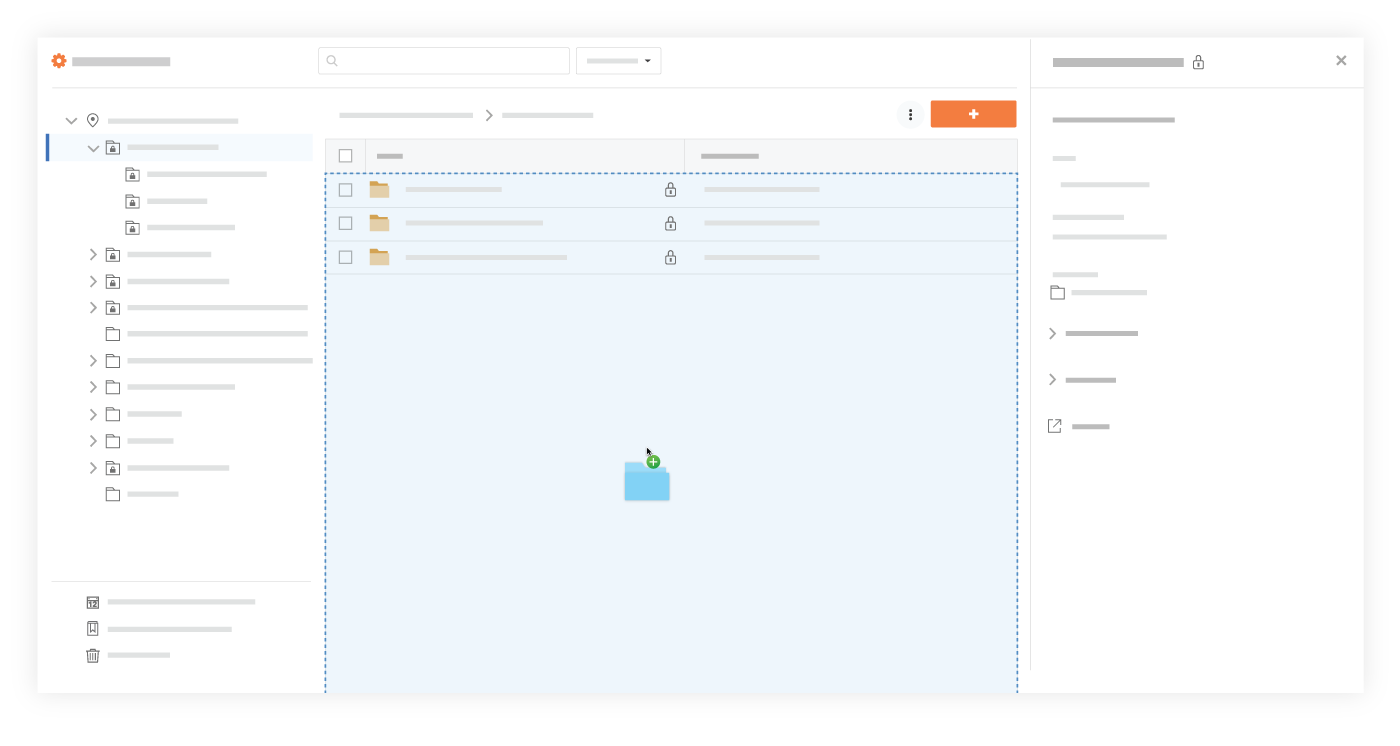
      3. After selecting files or folders on your computer, drag and drop them to the center panel of the Documents tool.
        Tip! You can also use this method to upload empty folders from your computer instead of having to create the same folders manually in the Documents tool.
        Drag Drop Document Upload
        OR

        1. Click the + New drop-down menu.

        2. Choose whether you want to upload files or folders:

          • Click File Upload to select files to upload.

          • Click Folder Upload to select folders to upload.

        3. Select the files or folders you want to upload from your computer.
          Note: Empty folders cannot be uploaded during this step. They can only be uploaded using the drag-and-drop method shown above.

        4. Click Open.
          Notes:

          • A progress indicator is shown for each upload, and the system returns to the Documents tool page after the upload is complete.

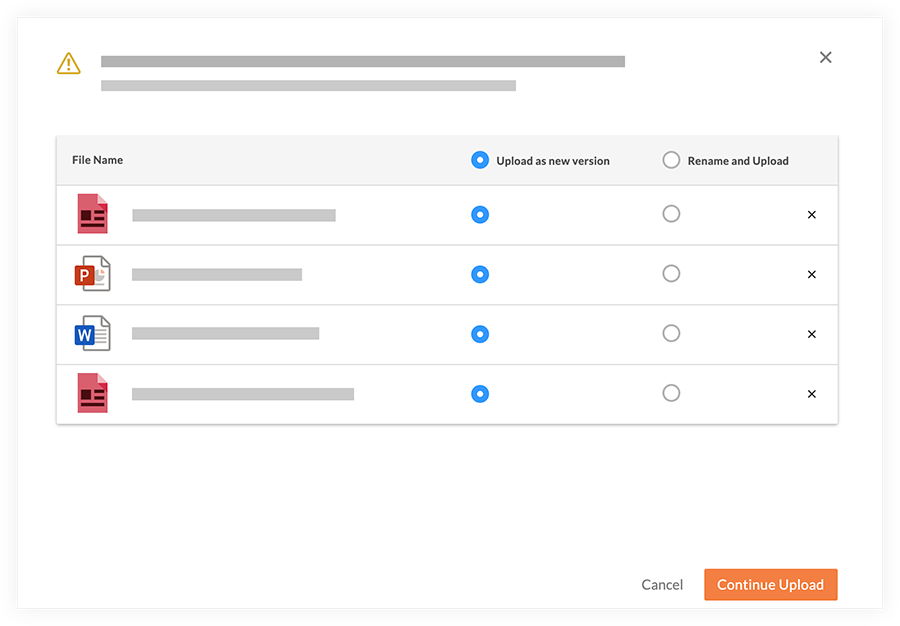
          • If you are uploading one or more files with the same filename as an existing file, you are prompted to choose whether you want to upload them as new versions, or rename the files.
            Upload Files As New Versions Or Rename

          • Click Continue Upload.

      Upload Files by Sending an Email

      1. Navigate to the Documents tool.

      2. Click the Settings Icon Settings Gear Grey3 icon to open the 'Document Settings'.

      3. Under the General tab, you will find the email address to email files to, listed under Import Options.

      4. Create an email that is addressed to your Documents tool's email address, as shown in the image above.

      5. Attach any files you want to add to the Documents tool to the email.
        Note: The files will be uploaded to the 'Emailed Documents' folder.

      Upload Files or Folders Using Procore Drive

      Procore Drive is another efficient way to upload files in bulk. See Upload a File to a Folder in Procore Drive.
      Note: If Procore Drive is not configured on your Windows computer, please see the Procore Drive Setup Guide.


Windows is a registered trademark of Microsoft Corporation in the United States and other countries. Google Chrome, Android, and Google Play are trademarks of Google LLC. iPhone, iPad, and App Store are trademarks or service marks of Apple Inc., registered in the U.S. and other countries and regions. iOS is a trademark or registered trademark of Cisco in the U.S. and other countries and is used under license by Apple Inc. Autodesk, AutoCAD, Civil 3D, Navisworks, and Revit are registered trademarks or trademarks of Autodesk, Inc., and/or its subsidiaries and/or affiliates in the USA and other countries. All other trademarks are the property of their respective owners.