Federate a New Project Model

Procore Model Manager - Beta Access & Feedback

The Model Manager (Beta) features and documentation are subject to change without notice. (Note: At the launch of the Beta, only 'Admin' level permissions are available. Additional permissions will be phased in during the product lifecycle).


To access the beta and provide feedback Show/Hide Details

  • How to Access: Participating companies must sign the Procore Beta Agreement. Once signed, your Procore Administrator coordinates with your Procore point of contact to enable Model Manager (Beta) on specific Procore projects.

  • How to Provide Feedback During Beta: Contact your dedicated Beta program lead.

  • How to report critical issues: Report breaking changes to Procore Customer Support. For general feedback or non-critical issues, contact your Beta program lead or Procore point of contact.

Overview

Model Manager (Beta) unifies fragmented project data into a single source of truth. Admins can combine isolated discipline files into one federated 3D scene directly in Procore. After merging these files, you can begin conditioning the model.

Federating a Model

To federate a new project model, use this workflow.

Important

You must first upload your discipline-specific files to your project's document repository before adding them to the project model. For instructions, see:

Diagram - Project Model Manager - Federate a New Project Model

Key federation steps include:

  1. Upload Discipline Files to the Document Repository: Navigate to the Model Manager (Beta) tool and add your Autodesk® files (NWC, NWD, RVT, or IFC) to the project’s document repository, which is either Document Management or Documents. Although less common, some Procore customers may have access to both repositories.

  2. Federate the New Project Model in Model Manager: Once your individual discipline files (Architectural, Structural, MEP) are uploaded, only a tool Admin can:

    1. Create a new project model Show / Hide Steps

      Follow these steps to create a new project model.

      1. Navigate to the project's Model Manager tool.

      2. Depending on your project configuration, choose one option to select your team's document repository:

        • Single Repository: If your project has one (1) repository (Document Management or Documents), simply click Create Project Model.

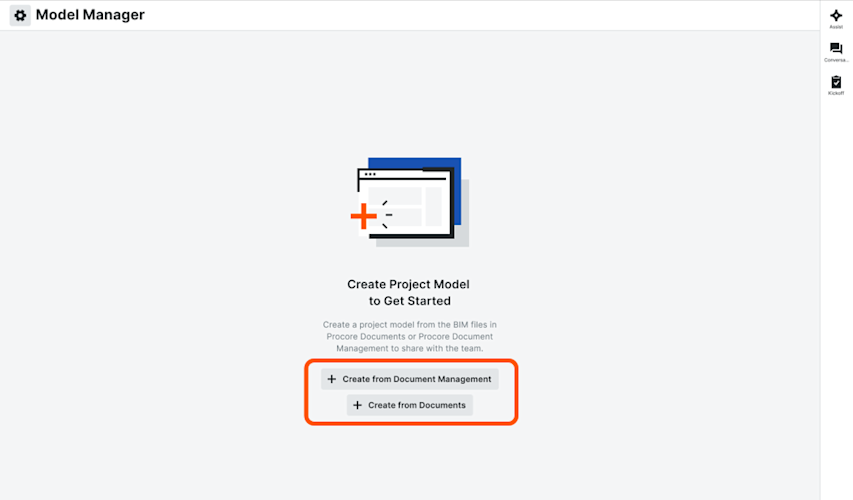
        • Multiple Repositories: If your project has all repositories, click Create from Document Management or Create from Documents.

      Single Repository

      Multiple Repositories

      This page shows the Create Project Model button on the Model Manager Landing Page when the tool is in an empty state.

      This image shows the Create from Document Management and Create from Documents buttons when the Model Manager tool is in an empty state and two document repositories are active in a Procore project.

    2. Add Discipline Files to the Project Model. Only a tool Admin can add discipline files into the model.

      • Add discipline files to a model from Document Management Show / Hide Steps

        In the Model Files card of the Model Manager (Beta), do the following:

        1. Click Add Files to open the Select Files from Document Management window.

        2. Under Saved Views, click Models.

        3. Select one or more model files from the Document Management tool. When grayed out, the file type is not supported.

        4. Mark the check box that corresponds to the file to add to the project model.

        5. Click Create Project Model.

        6. Once uploaded, you have these options.

          • Auto Update. Mark this check box to turn the automatic update feature ON. Procore detects new file versions in the 'Approved' or 'Approved with Comments' status.

          • Update. Click this button (if an update is available) to update specific model files.

          • Open. Click the Name link to open a specific model file in the viewer.

      • Add discipline files to a project model from Documents Show / Hide Steps

        Follow these steps from the Model Files card of the Model Manager (Beta) landing page.

        1. Click Add Files to open the Select Files from Documents window.

        2. Under Folders, highlight the folder containing the project's trade-specific model files

        3. Mark the check box that corresponds to the file to add to the project model. Select one, multiple, or all model files from the Documents tool. When grayed out, the file type is not supported.

        4. Click Create Project Model to federate the project model.

        5. Once uploaded, you have these options:

          • Auto Update. Mark this check box to turn the automatic update feature ON. Procore detects new file versions in any status.

          • Update. Click this button (if a new file version is available) to update the file version.

          • Open. Click the Name link to open a specific model file in the viewer.

Conditioning a Model

After creating your federated model, you must condition it to transition from a designer’s intent to a builder’s execution tool. This process involves mapping properties, grouping objects, and pinning 2D drawings directly onto 3D geometry, ensuring the field team has access to consistent data across all formats.

Key conditioning steps include:

  • 2D Overlay (Configuring): In the Next-Gen Viewer, select 2D Overlay to map a drawing to the 3D model. Files are sourced from your project's chose document repository.

  • Sectioning: Add Section Planes to cut through the building or isolate specific trades. This is essential for identifying critical clashes, such as mechanical piping interfering with structural beams.

  • Optimize the Model for Your Team: Finalize the model by assigning a clear name and status. Add Project Views to save specific perspectives, making it easier for your team to access vital information quickly.