Optimize Your Web Browser for Model Manager
The Model Manager (Beta) tool is exclusively available to registered beta participants. It is not available through Procore Explore. To learn more, see Beta Participant Guide.
To ensure the best performance of the Next-Gen Viewer in the Model Manager (Beta), your browser (Google Chrome or Microsoft Edge) should be configured to use the GPU (Graphics Processing Unit). This helps accelerate rendering and enhance overall responsiveness.
If your interface looks different than the steps described on this page, please consult the official documentation for your specific OS or browser version. Procore does not manage third-party software settings, but we recommend these optimizations for the best experience with our 3D tools.
Additional Information:
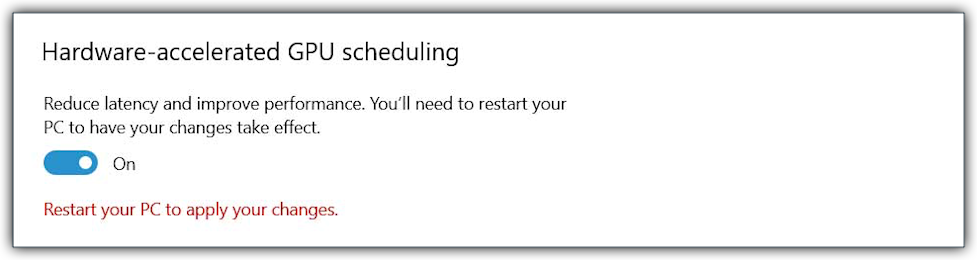
Hardware-Accelerated GPU Scheduling (HAGS): Enable HAGS if you experience latency or frame-rate drops when navigating large federated models or when running CPU-intensive software (such as Revit® or Navisworks®) alongside Procore. To learn more, see When do I need to enable HAGs for the Next-Gen BIM Viewer?
Browser Hardware Acceleration: Enabling GPU preferences in Windows® requires hardware acceleration to also be enabled inside your browser's settings.
Viewing on Mobile? Manual optimization is not required for iOS or Android. The Procore BIM Plugin automatically utilizes your device's hardware. For best performance, see What are the hardware and software specifications for viewing models?
Verify that your Windows system supports hardware-accelerated GPU scheduling:
Operating System: Windows 10 (version 2004 or later) or Windows 11.
Browsers: Google Chrome or Microsoft Edge (lastest versions recommended).
Hardware Support: Workstation equipped with a discrete graphics processing unit (GPU).
Configure your web browser to use the GPU (Graphics Processing Unit) as follows:
On your Windows® device, open the Start menu and type: Graphics Settings.
Select Graphic Settings.
Scroll to Advanced Graphic Settings and expand the list.
If the HAGS setting isn't available, confirm that your Windows OS and GPU drivers support it. This setting is a Windows feature that allows your graphics card to manage its own memory. It was first introduced in Windows 10 Version 2004. To learn more, see Hardware Accelerated GPU Scheduling.
Toggle the HAGS (Hardware-Accelerated GPU Scheduling) setting to On. 
In Graphics Settings, under Custom Settings for Applications, type the name of your browser in the Search this List box. For example, search for: Google Chrome or Microsoft Edge
If it doesn't appear, click Add Desktop App:
Locate the .exe:
For Google Chrome: C:\Program Files\Google\Chrome\Application\chrome.exe
For Microsoft Edge: C:\Program Files (x86)\Microsoft\Edge\Application\msedge.exe
Click the browser's title to expand its settings.
Under GPU Preference, select High performance.
Close the System > Display > Graphics window.
Restart your Windows® device to apply your changes.