Preview Lien Waivers on Project Invoices
Background
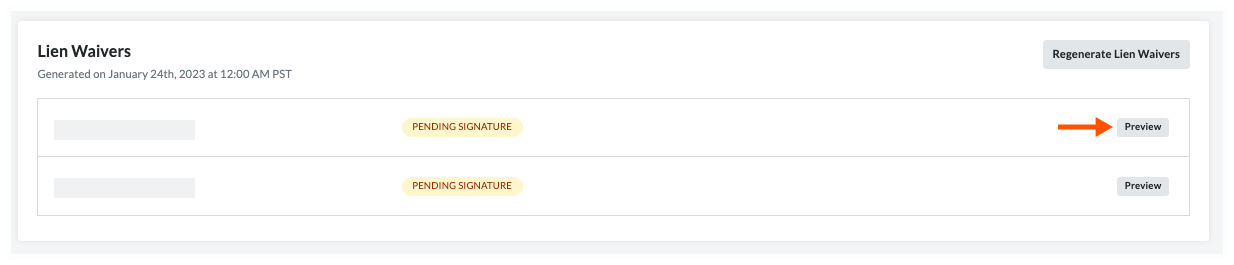
For companies with Procore Pay who decide to manage lien waivers on project invoices, a Lien Waivers card appears on the New Invoice page. Users can click the Preview button(s) on this card to preview the corresponding lien waiver for that invoice. Clicking this button downloads a PDF copy of the invoice and shows how the variable placeholders are populated with data.
Things to Consider
Additional Information:
To learn about the variables included as placeholders in a lien waiver template, see What variables can we include as placeholders in a lien waiver template?
Prerequisites
The invoice creator sets the 'Billing Type' on the invoice. See What are the 'Billing Type' options for invoicing with Procore Pay?
Steps
Create a new invoice or open an existing one.
TipsHow do you create a new invoice? The steps you follow in your environment depend on your role and the permissions you've been granted to the Invoice Management tools in the payor's Procore project. See Create a Subcontractor Invoice.
Click the Lien Rights tab.
Under Lien Waivers, locate the appropriate item in the table.
Note: The table lists lien waivers in the 'Pending Signature' and/or 'Signed' state.
How does Procore populate the lien waivers list? First, your company's Payments Admin follows the steps in Create Lien Waiver Templates and Enable Lien Waivers in the Company Payments Tool. Next, an invoice administrator on your project follows the steps in Enable Lien Waivers & Set Default Templates on Projects. The template(s) that populate the list in the Lien Waivers card are based on the 'Billing Type' option set on the invoice and the default template.