Enable Model Manager on a Procore Project

Procore Model Manager - Beta Access & Feedback

The Model Manager (Beta) tool is exclusively available to registered beta participants. It is not available through Procore Explore. To learn more, see Beta Participant Guide.

  • To access the beta and provide feedback Show/Hide Details

    • To register: Participating companies must sign the Procore Beta Agreement. Once signed, your Procore Administrator coordinates with your Procore point of contact to enable Model Manager (Beta) on specific Procore projects.

    • To Provide Feedback During Beta: Contact your dedicated Beta program lead.

    • To report issues: Report breaking changes to Procore Customer Support. For general feedback or non-critical issues, contact your Beta program lead or Procore point of contact.

  • Notice: Procore Beta Services & Documentation Show/Hide Details

    For information about Beta Services, see the Procore Subscription Services Agreement. This documentation supports a product currently in Beta; content is actively being developed for General Availability (GA) and may be incomplete.

    • As-Is Basis: Provided solely for evaluation purposes on an "as is" basis.

    • No Warranties: Standard contractual commitments do not apply. This information carries no formal product commitments, and Procore assumes no liability for harm arising from its use.

    • Subject to Change: Procore may change, discontinue, or choose not to generally release these Beta Services at any time without notice.


Currently, only Admin permissions are available. 'Read-Only' and 'Standard' permission levels are coming soon.

Only Project Admins can enable or disable the Model Manager (Beta) tool on a Procore project. Enabling the tool makes it visible and accessible to authorized project users in the Project Tools menu. Disabling it hides the tool from all project users.

Things to Consider

  • Required User Permissions

  • Additional Information:

    • Enable the Model Manager (Beta) tool in the Procore web app. It cannot be enabled from the mobile app.

    • Removing an active tool from a project removes it from the Project Tools menu. It does not remove the tool's data.

    • Some tools are Icon Toggle On2 Active by default and cannot be removed.
Prerequisites

  • Before you can enable the tool:

    • Your company must be a registered beta program participant.

    • Procore must activate the Model Manager (Beta) for your company.

Steps

  1. Navigate to the Project Admin tool.

    Important

    If your team's project is not on Procore's approved Beta project list, the Model Manager (Beta) tool will not be accessible in the menu. Contact your Procore point of contact for assistance.

  2. Click Tool Settings.

  3. Start typing Model Manager in the Jump to a Tool box.

  4. Move the Model Manager toggle to the Active position.

    This image shows the Tool Settings page in the Project Admin tool with the Model Manager tool setting in the Active state.
  5. Go to the Procore navigation bar at the top and click Menu.

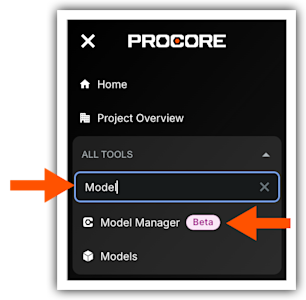
  6. Start typing Model Manager in the Search All Tools box.
    This images shows the Project Tools menu where a user starts typing Model Manager to find the Model Manager option to launch the tool in the Procore web application.

  7. Click the menu option to launch the tool in your web browser.


Windows is a registered trademark of Microsoft Corporation in the United States and other countries. Google Chrome, Android, and Google Play are trademarks of Google LLC. iPhone, iPad, and App Store are trademarks or service marks of Apple Inc., registered in the U.S. and other countries and regions. iOS is a trademark or registered trademark of Cisco in the U.S. and other countries and is used under license by Apple Inc. Autodesk, AutoCAD, Civil 3D, Navisworks, and Revit are registered trademarks or trademarks of Autodesk, Inc., and/or its subsidiaries and/or affiliates in the USA and other countries. All other trademarks are the property of their respective owners.