Interrogate a Model with the Object Tree
Procore Model Manager - Beta Access & Feedback
The Model Manager (Beta) features and documentation are subject to change without notice.
To learn about the beta program, see the Beta Participant Guide.
The Model Manager (Beta) features and documentation are subject to change without notice.
To learn about the beta program, see the Beta Participant Guide.
The Object Tree icon in the Next-Gen Viewer lets you navigate the model’s structural hierarchy by Levels, Categories, or Families. This tool allows you to isolate specific elements or toggle visibility to focus on relevant model data.
Required User Permissions Currently, only Admin permissions are available. Procore will add more permission levels later.
Follow these steps to navigate a model with the Object Tree:
Navigate to the Model Manager (Beta) tool.
Open a model.
In the left toolbar, click the Object Tree icon to open it.
Choose from these options: 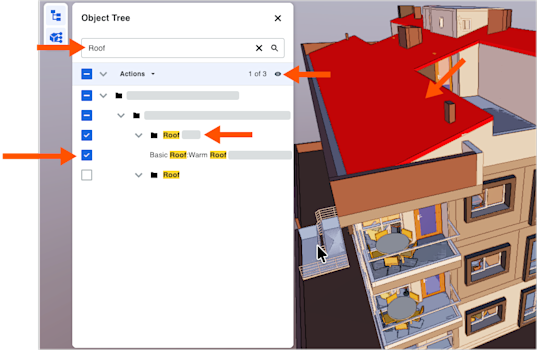
Filter by Keyword: Enter text in the Filter by Keyword bar to find specific objects quickly.
Expand/Collapse Nodes: Click the arrows next to nodes to navigate the model hierarchy.
Toggle Visibility: Click the Eye  icon.
icon.
Load More: Click More… at the bottom of the panel to view additional objects in the list.
After you select an object in the viewer, right-click it to open a shortcut menu with these options:
To undo any action, click the Undo icon in the right toolbar or press Command+Z.
To redo any action, click the Redo icon in the right toolbar or press CTRL+SHIFT+Z (Windows®) or Command+Y (Mac).
Hide Selected: Choose Actions > Hide Selected to remove your active pick from view.
Isolate: Click to expand the available options:
Isolate. Choose Actions > Isolate to hide everything except your selection.
Isolate in X-Ray Mode: Choose Actions > Isolate in X-Ray Mode to make the rest of the model transparent.
View Properties. Choose Actions > View Properties to open the Properties sheet for your selection.
Zoom to Selection. Choose Actions > Zoom to Select to zoom to the selection.
Add Section Plane. Choose Actions > Add Section Plane to zoom to draw a section plane.