Set Up and Manage Viewer Performance

Procore Model Manager - Beta Access & Feedback

The Model Manager (Beta) features and documentation are subject to change without notice. (Note: At the launch of the Beta, only 'Admin' level permissions are available. Additional permissions will be phased in during the product lifecycle).

To access the beta and provide feedback Show/Hide Details

  • How to Access: Participating companies must sign the Procore Beta Agreement. Once signed, your Procore Administrator coordinates with your Procore point of contact to enable Model Manager (Beta) on specific Procore projects.

  • How to Provide Feedback During Beta: Contact your dedicated Beta program lead.

  • How to report critical issues: Report breaking changes to Procore Customer Support. For general feedback or non-critical issues, contact your Beta program lead or Procore point of contact.

The Next-Gen Viewer in the Model Manager (Beta) tool provides a high-fidelity 3D environment for coordinating project designs. By establishing a standard Home view and optimizing performance resolution based on your hardware, you can ensure that all collaborators start from the same perspective and that your federated project model remains responsive during complex inspections.

Things to Consider

Prerequisites

Steps

  1. Navigate to the Model Manager (Beta) tool.

  2. Open a model.

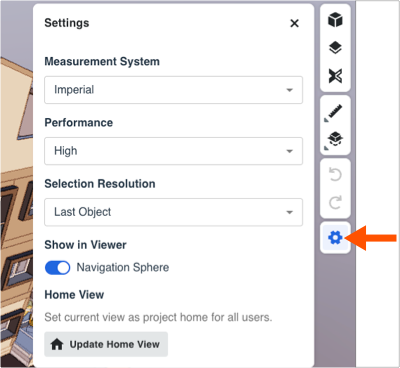
  3. In the right toolbar, click Settings .
    This image shows all of the default options in the Setting page, which is accessed with the Settings icon on the right toolbar in the Model Manager viewer.

  4. Choose a Measurement System:

    • Imperial.

    • Metric (meters).

    • Metric (millimeters).

  5. Select a Performance mode:

    • Low. Lowest resolution and details.

    • Medium. Optimized for fluid motion, less focus on details.

    • High. Optimized for sharper visuals, less focus on speed.

    • Ultra. Maximum resolution and details.

  6. Choose a Selection Resolution:

    • First Object. Selects the highest-level object below the layer note. Best for checking high-level properties, or when you want to select a whole piece of equipment. For example, clicking a chair selects the entire chair group.

    • Last Object. Selects the lowest-level object (geometry element). Best for granular level conflict analysis, identifying specific materials, or when you want to see the properties of a sub-component. For example, clicking a chair selects only the chair (and not the group).

  7. Use the Show in Viewer toggles to turn elements ON and OFF:

    • Move the toggle to the Right (ON) to show it in the workspace.

    • Move it to the Left (OFF) to hide it from the workspace.

  8. Set the current view as the Home View (a.k.a., Project Home) for all users:

    1. Adjust your camera to the desired view.

    2. Click Update Home View.